Simple steps towards securing your iPhone

Data safety is always a must. With portable devices it gets even more important. Here are a few steps that one can take to make sure their iPhone/iPad/iPod touch is secure. While the guide says iPhone, you can apply many of these steps to other iOS devices, subject to feature availability.

PASSCODE & TOUCH ID UNLOCK

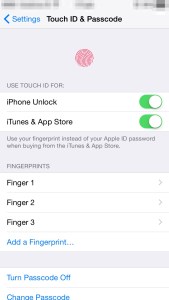
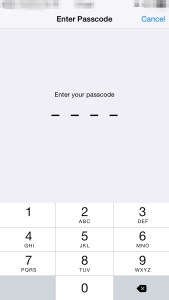
This is the simplest form of security. You are prompted to setup your passcode during the initial device setup itself. While it is not necessary, it is highly recommended. Of course, you can change this at any time. The other option on the newer devices is to use the fingerprint scanner called Touch ID. This adds a convenience to the user while taking care of the security needs. The important thing is that your finger print details are left on the device. Nothing is shared over the internet. The Touch ID is limited to newer devices.

IMG_0076

IMG_0077

IMG_0078


ACTIVATION LOCK

Activation lock is a feature that was first introduced in iOS 7. The idea behind Activation lock is to make sure that no one is able to use a stolen device, even if it is erased. This is activated automatically once you sign into your iCloud account. To use a device after it has been erased, the user must enter the Apple ID & password that was used to sign into iCloud on the device.

Care must also be taken when transferring devices & Activation Lock: https://support.apple.com/kb/PH13695?locale=en_US

FIND MY IPHONE

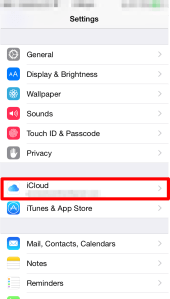
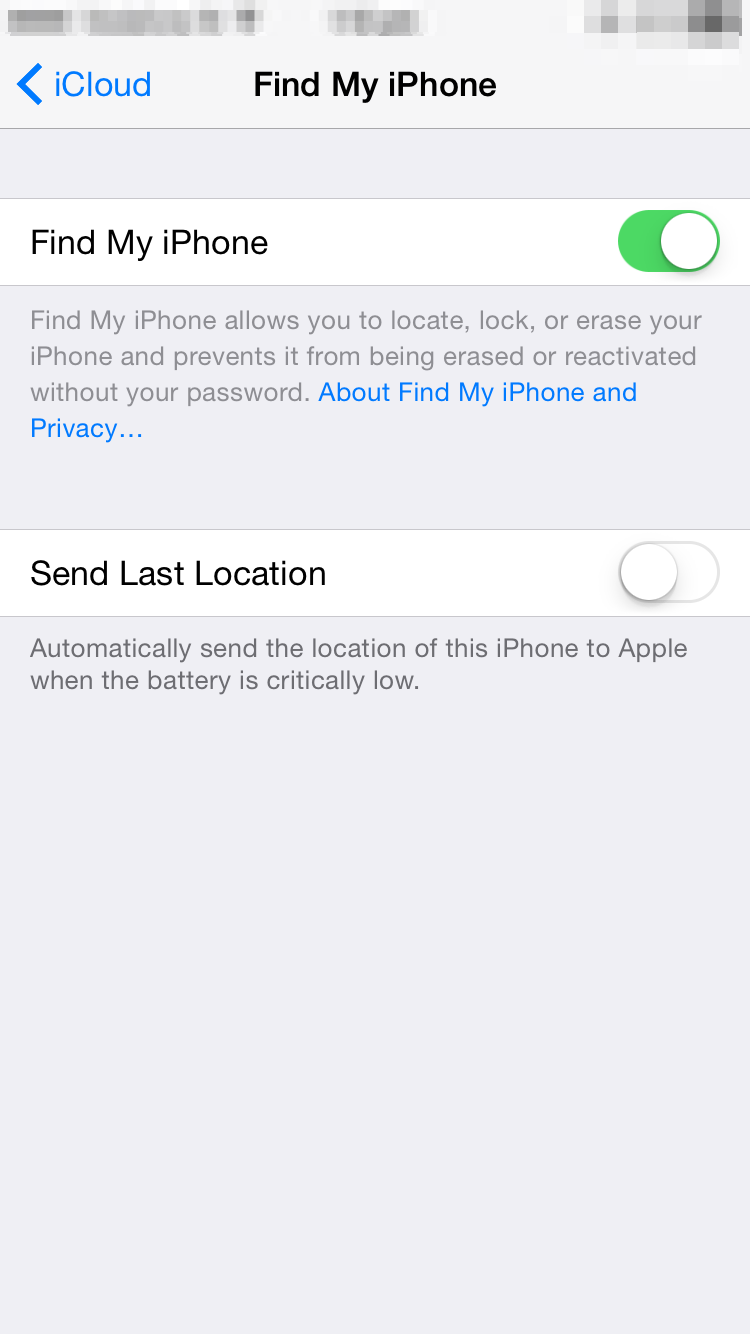
This feature is available via the iCloud service. It allows you to locate your device & shows it up on the map itself. This feature is extremely useful if you have lost the device. Note: For this to work, the device requires an active network connection.


IMG_0519

IMG_0439 IMG_0440


Once configured, you can locate the device using the web that is via http://www.icloud.com or through the “Find my iPhone” app on another iOS device.

ERASE PHONE

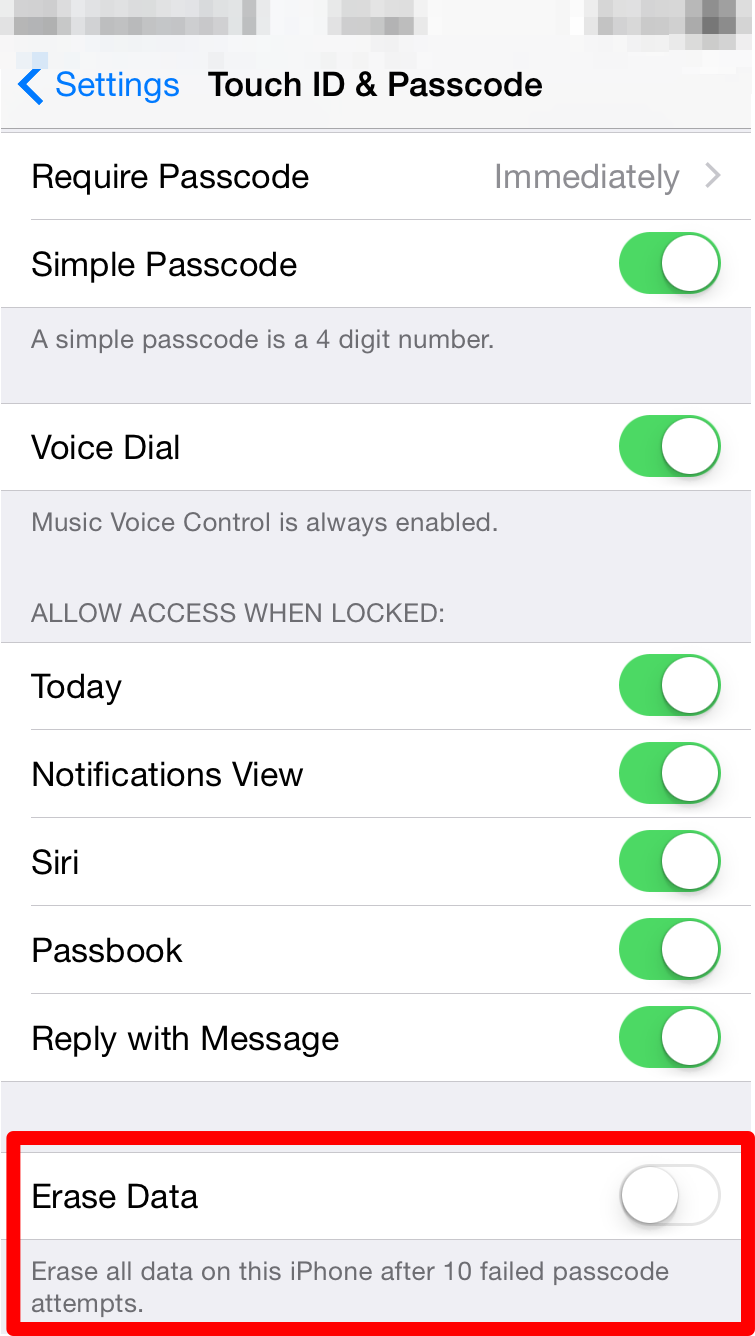
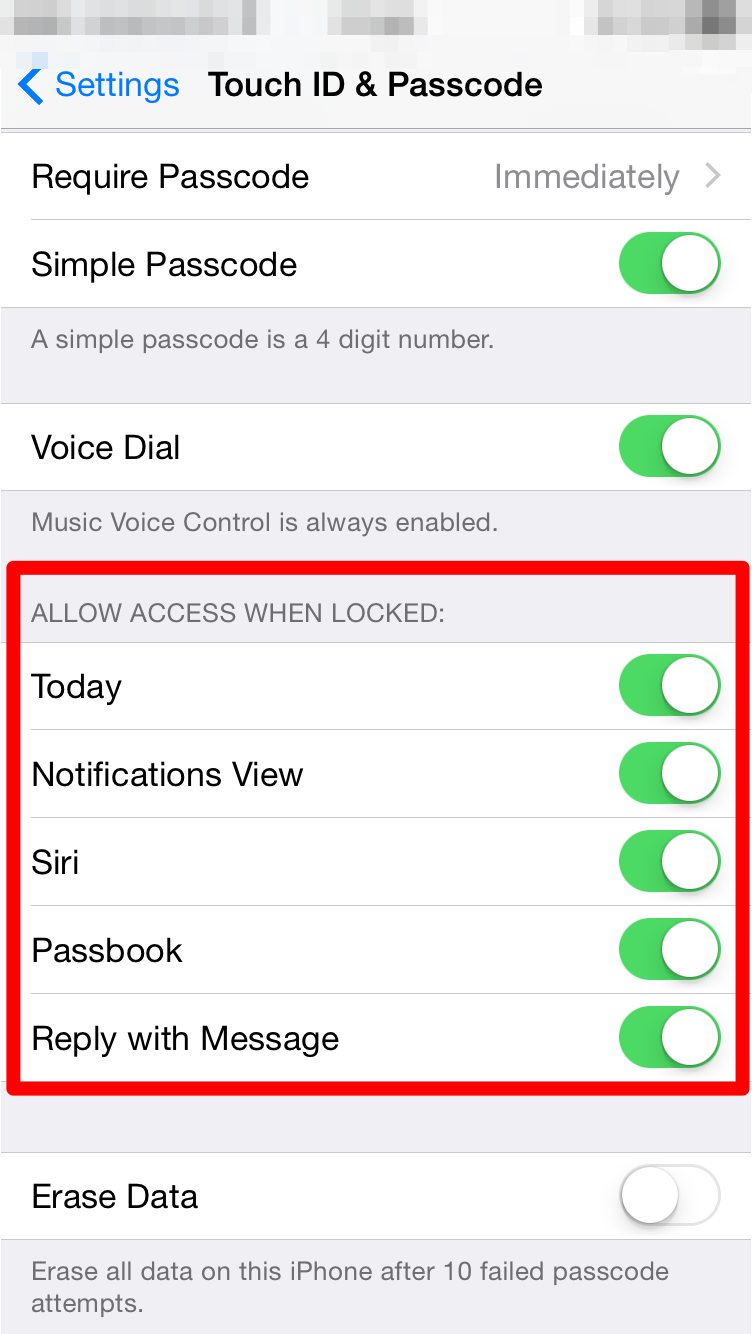
Another useful option is to automatically erase the phone, if the number of passcode attempts by a user exceeds the maximum specified limit.

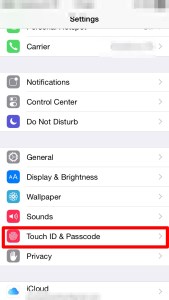
This is setup in the Touch ID  & Passcode section within the Settings app.

IMG_0076

IMG_0516

ALLOW ACCESS FOR SERVICES WHEN DEVICE IS LOCKED

Just having a passcode or Touch ID may not be enough in all cases. Some data is also available from the lock screen. One can control the availability of data on the lock screen from the Touch ID & Passcode screen within the Settings app.

IMG_0076IMG_0518

PRIVACY

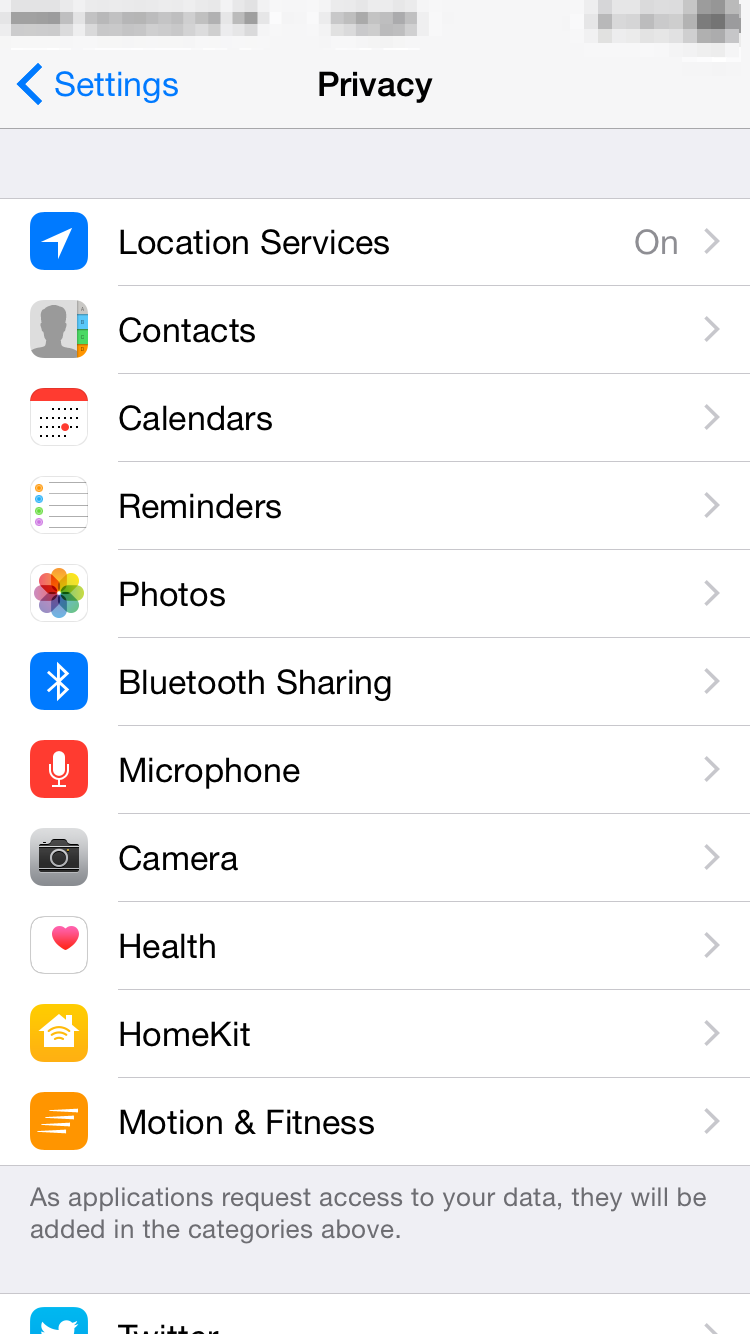
Additionally, you can also control what information from your device is being shared & which apps have access to that information. There is a lot of flexibility available when it comes to controlling the kind of information being shared.

IMG_0438

The user can specify which apps can access their contacts, calendar events, location & other data.

AUTO LOCK

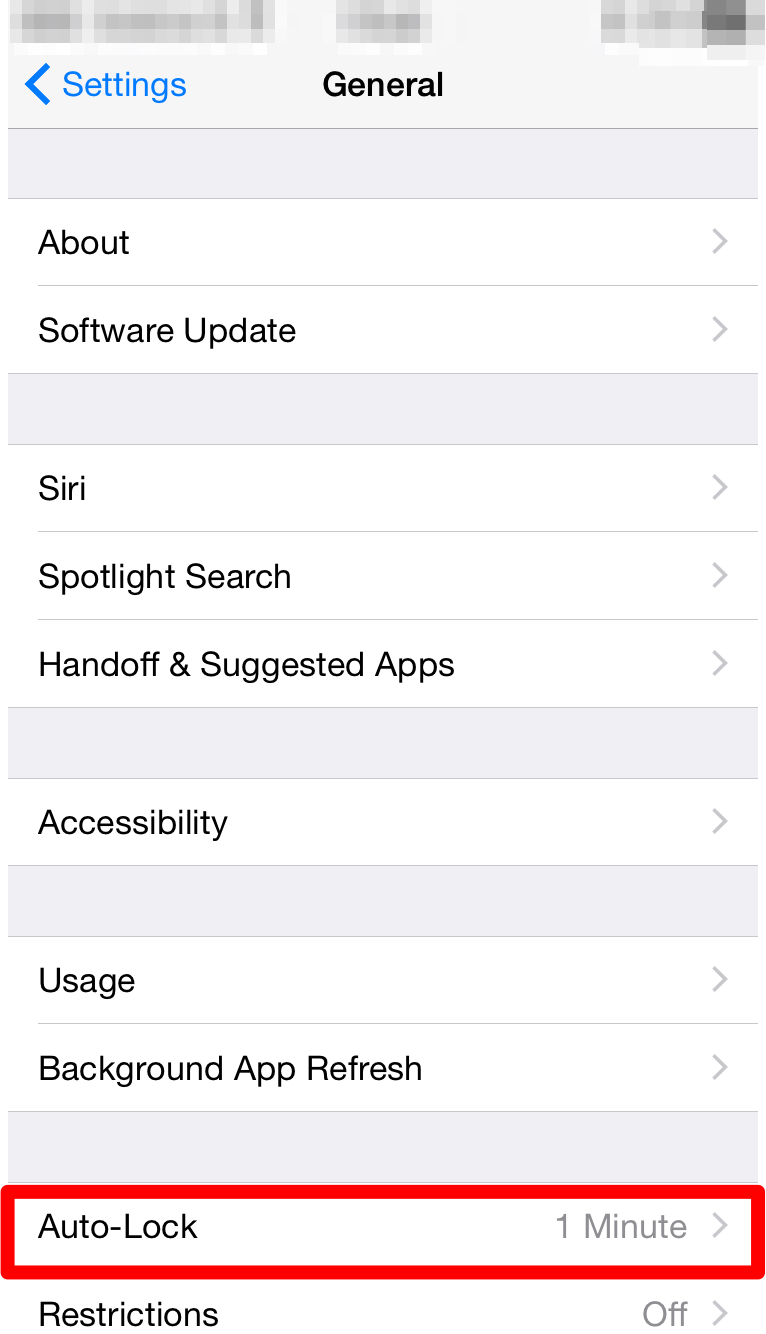
It’s very rare that one leaves their iPhone unattended. But in the rare cases that one is distracted from the task they are performing on the device, it would be nice to know if the device can lock itself up.

IMG_0441

This is done through auto lock within the General settings under the settings app.


RESTRICTIONS

Located under the general settings within the settings app, restrictions, as the name says, allows us to disable certain applications and actions from being executed.

IMG_0523IMG_0521

The passcode is required to enable/disable the feature.


Managing all your data on iOS devices

In todays interconnected world managing all your data is quite important. Most of us end up having more than one smart device that we use everyday. As time goes on we will buy a newer version of the device. It is not necessary that we will get a newer version of each smart computer that we own simultaneously. This means that we have to pay special attention to making sure that our data stays up to date on all the devices & that there is no accidental loss of data.

There are various solutions available to users which easily takes care of data management problems commonly faced by multiple users. One of the most common solutions is to make sure that all your data is available on the cloud. I have given a brief overview on the different cloud services available in my previous article.

However, storing information on the cloud is not enough. Some effort still needs to be done on the users end to ensure that the data is there everywhere they want it. In this article I will be talking about managing your data, migrating your data & backing up your data on your iOS devices.

The starting point for this is the iCloud service. It is a free service provided by Apple & is a must for iPhones & iPads.

Through this article I will be referring to the iOS device as iPhone, however, the steps apply to any iOS device. A few settings & options may change depending on the version of the OS on your computer & your mobile device. The steps mentioned below would be applicable for iOS 8. They may be applicable for earlier versions, but all features may not be available.


Moving your data (migrating) from your old iPhone to your new iPhone

This is a very common situation. Most people have a devices for a few years & place a lot of data on it. Once they purchase a new device getting the same data onto the new device is the challenge. This involves a few steps.

STEP 1

  1. Make sure your iCloud service is turned on. By default iCloud provides sync capabilities for the information enumerated below. Note that not all services needn’t be on. But its a good idea to make sure that it is on at the very least for migration purposes.
    1. Contacts
    2. Calendar Events
    3. Reminders
    4. Photos
    5. Notes
    6. Documents for Keynote/Numbers/Pages
    7. Any documents you might have placed in the iCloud Drive (iOS 8 & later).
    8. Passbook
  2. Data provided by other services such as Google, Microsoft & any other provider will be taken care of by their respective accounts.
  3. Prepare a list of apps that don’t take advantage of the iCloud service or any other cloud based service. Note: Some apps do take advantage of iCloud but need the feature to be turned on explicitly. You may have to back this data up manually. If there are online accounts associated with the app, then make sure you are signed in & that the account offers data retrieval at a later point in time.
  4. Take a backup of your phone on your computer using iTunes.

STEP 2:

  1. Turn on your new iPhone & follow the screen steps.
  2. When asked “if you would like to setup the iPhone as a new phone or not” choose the option to restore from backup (do this only if you plan to restore from a backup taken via iTunes or from iCloud).
  3. This will prompt you to connect your iPhone to the computer where you last backed up your old iPhone.
  4. Once the restore is complete simply sign in with your Apple ID & start using your new iPhone from where you had left off.
  5. All the Apps, songs, movies, books purchased using your Apple ID will be available on your new iPhone. Apps will be available subject to OS Version compatibility.

For those who do not have a computer based backup or don’t have a computer can choose to backup their phone onto iCloud. Note that this will require sufficient free space available on the cloud. When they are prompted to restore users will have to sign in with their Apple ID & restore the backup from there.


Moving data from your computer to your new iPhone or Moving from another smartphone to iPhone

This is for first time buyers or people switching to the iPhone. No matter which is the case there is one important thing to be done. You have to move your data onto a cloud service which is compatible with iPhone.

From a computer

iCloud is available for iOS Devices, Macs & Windows. So if you are moving your data from Windows onto your iPhone you could consider running iCloud for Windows. Additionally the iCloud service is also accessible from the browser. So you can access many documents across both the platforms.

Apart from this you can also use iTunes for Windows to move your data from the computer to the iPhone.

From another smartphone

This will mean that you will have to use a third party cloud service. Good choices for something like this would be Google Drive or Dropbox. Other services such as Evernote could also be used for the same.

  1. On your current device transfer as much content as you can to the cloud service. Note that apps & media purchased on the smartphone may not necessarily be available due to compatibility reasons.
  2. On your new iPhone sign in with the same cloud service & pull in all your data.

Backing up your iPhone/iPad

Backing up data is very important. This is a step missed quite often by many users. A common mistake made is in believing that they can restore all their data from the iCloud whenever they wish. While that is true, iCloud is not meant to act as a backup. You can choose to save your backup on iCloud, but this is simply using the iCloud storage space for holding the backup & is not otherwise accessible.

There are 2 options to backing up your iPhones data. One is to back it up onto your computer using iTunes, the other is to back it up onto iCloud.

Backing up onto iCloud

Pros

  • Your backup is immediately available.
  • No need to have a separate computer just for this.
  • Backup can be restored from any location as long as internet connection is available.

Cons

  • A very good internet connection would be required.
  • The backup is restricted by the amount of space available on the cloud.
Backing up using iTunes

Pros

  • There is no storage limit. Your backup can be very large.
  • You can have multiple large backups.
  • Optional encryption capability.
  • With WiFi, based syncing the backups happen automatically.

Cons

  • You have to be physically connected to the computer using cable or WiFi to perform the backup.
  • You have to be physically connected to the computer using cable or WiFi to restore the backup.

File types in OS X

This Article is for those new to the Mac or for those who have questions about the different file types in OS X. The lists below aren’t complete and in many cases may require the user to install additional Apple software or third party tools.

File Extensions

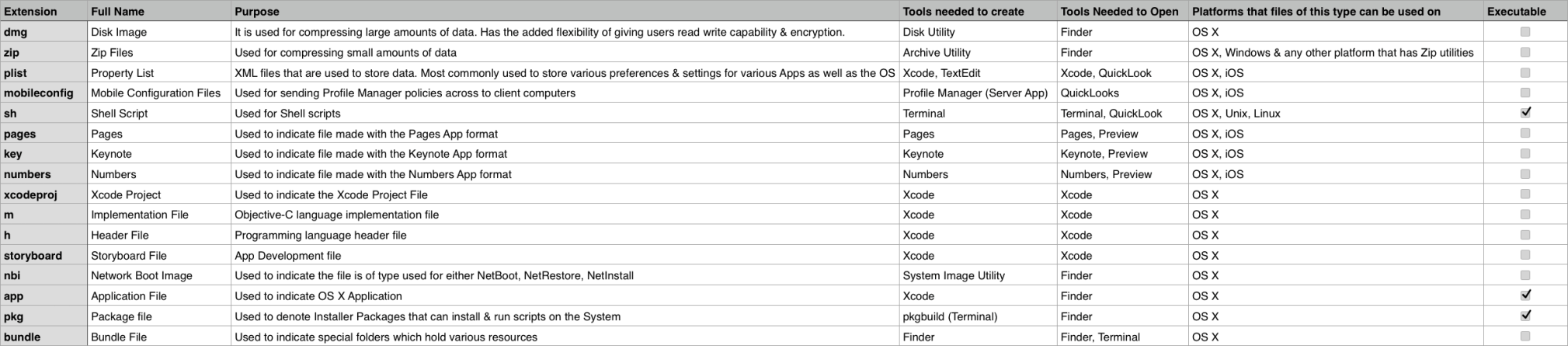
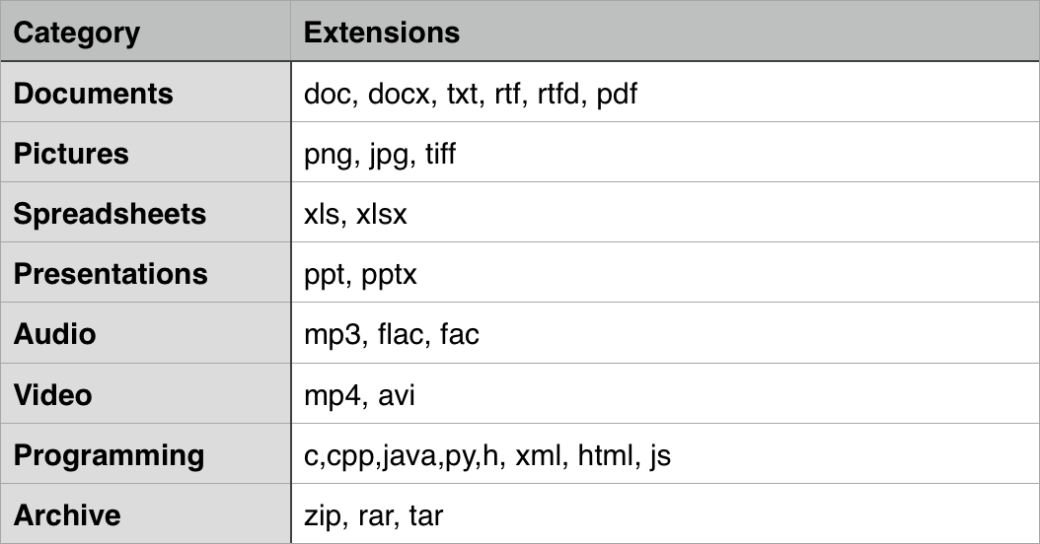
The table below lists some of the commonly encountered file types. Note that in certain situations, like creating & extracting from zip files, the related application is not directly invoked.

Common extensions in OS X

Common extensions in OS X


The table below shows some of the popular third party file types that once can access on OS X. Note many of them may require users to install 3rd party applications to open/edit the files. Do note that the list below is not a complete list.

Popular file types

Popular file types


Showing File Extensions

Here are the steps to show file extensions.

1) Look at the Application running. Make sure the Finder Application is running by viewing the upper left hand corner of the screen.

1

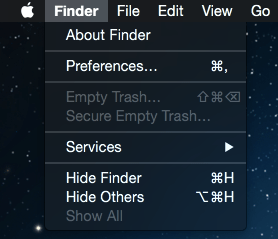
2) Click on Finder

2

3) Click on Preferences

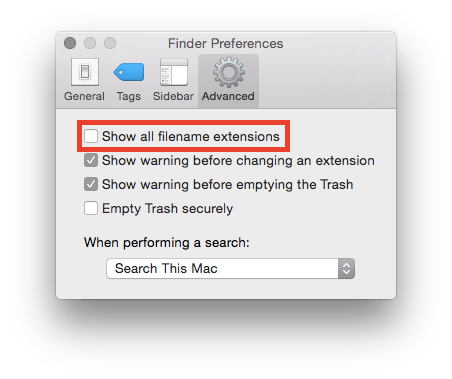
4) Click on the ‘Advanced’ Tab. Look at the selection for File Extensions.

4

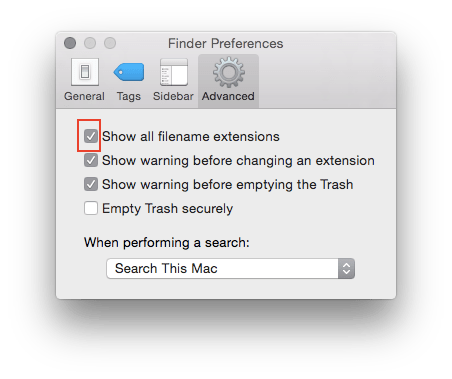
5) Make sure the checkbox to show file extensions is selected.

5

Managing all your data on your Mac

One of the single most important aspects of using a computer is Data Management. In this article I will be going over the various features available & steps that you can take to manage your data in a safe, secure & efficient way.

TimeMachineBACKUP

It happens ever so often that we are faced with a situation where we need a file to which we no longer have any access to. The reasons may be varied: lost computer, damaged or lost hard drive, accidental deletion. While there are applications that do retrieve lost files, they only work if the storage media is available & do not guarantee 100% recovery. The best solution to this is to backup your data.

The most common approach used is to manually copy the file onto an external storage. While this is easy, it can be tedious for the user & is error prone.

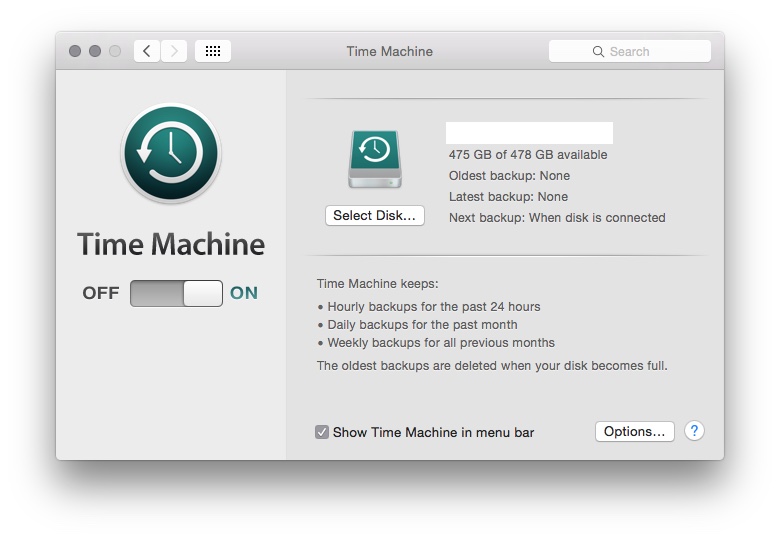
One of the easiest solutions is to use a backup tool called Time Machine. This is built right into OS X. You don’t need to install anything new. Just connect the hard drive where you would want to store all your backups. The OS will periodically backup all your data every hour as long as your backup drive is connected to the Mac. Many a times you are prompted to choose an external drive for backup, but that pops up only when you connect a new hard drive or a hard drive which isn’t used for backup.Once you have this activated you can then navigate back in time (just as you would expect from a time machine) and look for a file that you have lost.

Steps to Backup using Time Machine:

1) Connect the Hard drive you want to use as a backup destination.

2) Click on System Preferences > Time Machine to customise your backup.
TimeMachine

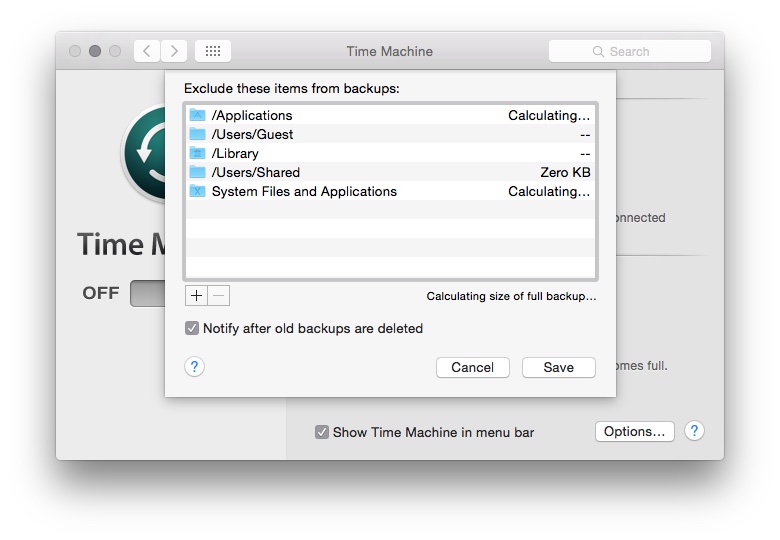
3) Click on Options to select the folders to exclude from Time Machine Backups.

TimeMachineOptionsThere are other third party tools which you could use if you wish. Retrospect and Carbon Copy Cloner are 2 of the many 3rd party tools available for this.

icloudDriveSYNCHRONISATION

In todays world most of us are using more than one device for our daily activities. This means that we would like to have most of the information on all the devices. This can be achieved through various applications that are available to manage our portables such as smart phones & tablets. But by far the easiest approach is to take advantage of Cloud Services.

If you have an iPhone &/or an iPad which you use along with your Mac then the best service for this is iCloud. However if you use a mix of platforms such as Android or Windows for your smart phones & tablets then using any third party service such as Google Drive, Drop Box, OneDrive will help you ensure that your information is available via the cloud across all devices.

Steps to turn on iCloud Services on your Mac:

1) Click on System Preferences > iCloud.

2) Sign in with your iCloud ID & password.

3) You should come to the iCloud panel where you can configure different iCloud Services.

iCLoud

4) Select the different content you want managed under iCloud.

SECURITY

This is one area which is increasingly gaining more importance. An important aspect of data management is keeping your data secure. While there is no such thing as a completely secure computer, one can definitely take steps to make sure that one’s information is kept as secure as possible.

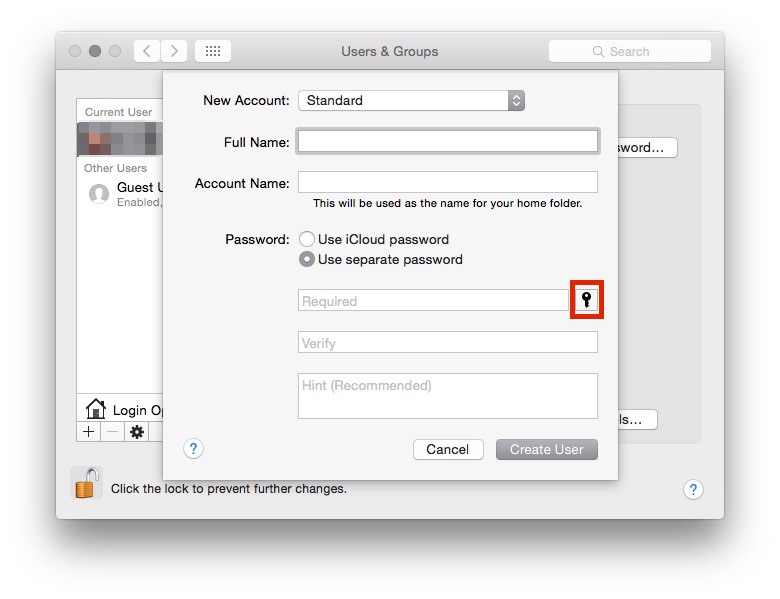
ACCOUNT PASSWORDS: This is probably your first line of defence. Having a good strong password goes a long way in securing your data. There is a nice built in tool that evaluates & rates the passwords that you create, called as password assistant.

Password Assistant can be found on any screen within the Mac that prompts for a Password. Like the screen shot below when we are creating a new user for the Mac.

The key icon is to be clicked to launch Password Assistant.

The key icon is to be clicked to launch Password Assistant.

The Password Assistant itself gives you a lot of options when it comes to choosing your password type.

Use the drop down to select the password type.

Use the drop down to select the password type.


KEYCHAIN ACCESS NOTES: Keychain access is a builtin application that manages your secrets such as passwords, keys & certificates. There is also an option to save a note. Information within the note is saved in an encrypted way thereby securing it.

ENCRYPTION: This is the most secure way of saving information. There is a builtin encryption feature called FileVault which encrypts all the data on your system. There are 3rd party tools that can do this for you too: GPGAES Crypt, PGP to name a few.

Once can use a combination of the 3 or all 3 depending on the level of security required. It is also a good idea to keep your backup secure. Securing your computer but not the backup is a bad idea.

STORAGE

Yet another common issue that a lot of us face. Most computers that have come in over the past few years offer very large built in storage space & in most cases it is sufficient. But with the growing number of photographs, movies & songs we often find that space on our computers isn’t sufficient. This is not an easy problem to solve.

A simple approach is to keep only those things we require on the Mac. Also using cloud services to store information that we don’t need to access frequently is a good idea. Compressing data using zip files is also a good approach. But a better option, especially for large amounts of data, is to compress them into ReadWrite disk images. External storage can also be considered for placing extra data.

One area where storage management is not looked at but is equally important is related to the backup drive. Overtime as your backup drive fills up it starts removing older backs (in case of Time Machine). To ensure you have as long a history of backups, make sure that you only backup those things that you need. For example there isn’t a pressing need to backup all the OS files & applications, one can reduce the backup size by eliminating unnecessary items from the backup.

Cloud Services Demystified

A lot of us use cloud services. Here we will talk about some of the popular services & how to use them to maximise your advantage.

What is Cloud?

Cloud Service is a technology that makes your data available across multiple devices. Depending on service provider this may even be cross platform. This is great as in todays day & age most of us make use of at least 2 smart devices. A common confusion amongst a lot of users is that cloud is a backup technology. This is not strictly true. As I mentioned earlier, when you enable cloud services they ensure that your data across all devices is the same. So if for example, you delete a file on one device, it is deleted across all the devices. It is not possible to go & retrieve the file back from the cloud. To protect yourself from such problems you should look into a cloud based backup technology.

What are the advantages?

There are numerous advantages with cloud based solutions.

  1. Firstly, your data is immediately accessible across multiple devices without your manual intervention.
  2. Storage management especially handling portable storage drives is no longer required.
  3. It is highly cost effective. In most cases the data that we consume is fairly small. The free version for most of the services does provide at least 2Gb of data. In most cases there is the option of purchasing additional storage space if needed.
  4. Its easy to use, with no major technical requirements.
  5. Most of the providers support multiple platforms & devices.

Common Cloud Service Providers & services offered

googleDrive

Google Drive: The google drive is a free account that every user gets along with their gmail account. With unto 15GB free storage this is an ideal option for those who want to store large amounts of data. It is also an ideal option for those who wish to share files & collaborate with other users. Works best when used within the Google ecosystem.

WebLink: drive.google.com


onedrive

Similar to google drive. Microsofts OneDrive allows you to store files on the cloud. This comes free with your existing hotmail.com or outlook.com accounts.  Works best when used within the Microsoft Ecosystem.

WebLink: https://onedrive.live.com/about/en-us/


dropbox

Yet another popular cloud storage & sharing service. While it has limited capacity of 2Gb it has the advantage of being accessible across multiple platforms. The storage capacity does increase for shared collaborative accounts.

WebLink: http://www.dropbox.com


evernote

Evernote is a popular app for storing information on the cloud. Apart from just offering cloud services for documents it also has a lot of other built in features such as card reader, calendar, notes that makes it a very popular app. The fact that it runs on almost all the most commonly used platforms only adds to its value. There are paid options available but they are for additional features rather than more storage explicitly.

WebLink: https://evernote.com


icloudDrive

This is Apple’s cloud solution primarily for OS X & iOS devices. Just like Google drive it ensures that the data across your OS X & iOS devices is the same. The fact that it is accessible via the web make it useful. This service is not available on all the platforms barring the desktop version of Windows for which a free download is available. Works best when used within the Apple ecosystem.

WebLink: http://www.icloud.com


Owncloud

Unlike the other services available this one is OpenSource. It has numerous advantages that make it a very attractive option, especially for businesses thinking of providing cloud services to their employees.

The main advantage is the fact that you can configure & host your own cloud services (as the name says). This means that you have control over the amount of space allocated for users & importantly security.

Apart from that there are native apps available along with a web portal to access all your data from almost all devices anywhere. This means that it is very easy to deploy without the headache of compatibility issues.


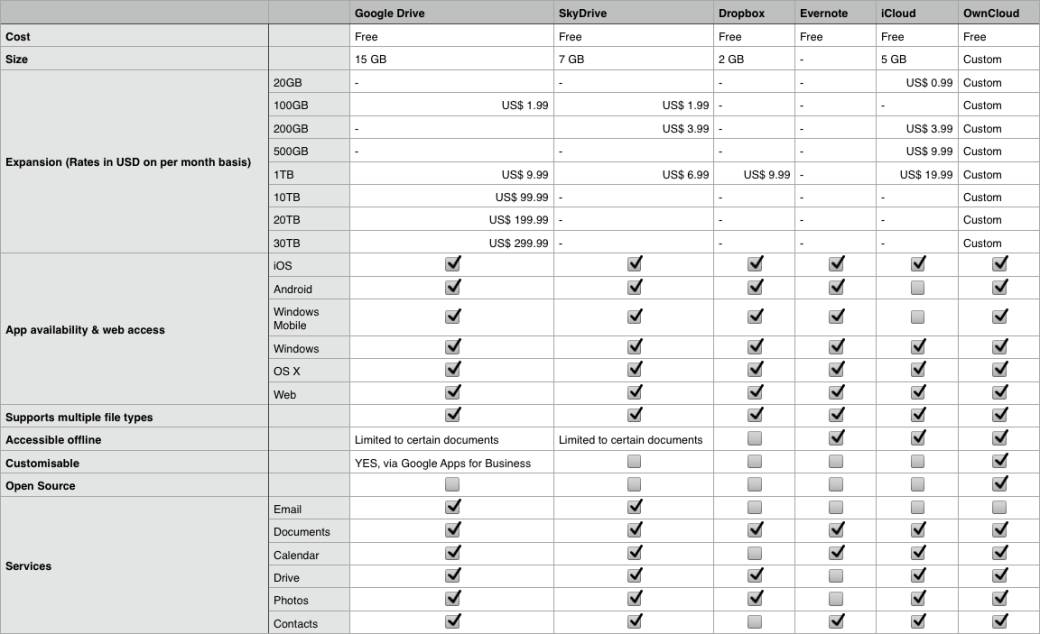
The following table gives a basic comparison on what all is offered, note that there maybe more services provided which I may have skipped, the table only highlights the most important points.

Cloud Services Comparison

Cloud Services Comparison

Making a case for OS X Server

Almost everyone is aware of the OS running on Apple Computers. Its called OS X & each version gets a name from a location in California (they used cat names earlier). But what is little know is about the Server that is also made available from Apple. Its called as OS X Server. Not only is it little know but it is also under utilised. I am going to make a case for using this product as compared to some of the other solutions that are available out there.

Installing

Firstly, lets talk about getting hold os OS X Server. Earlier there used to be a dedicated version of the OS which was made available for the server. But starting OS X 10.7 (Lion) that approach was discontinued. If you wanted an OS X Server, you would have to first upgrade your Mac to the consumer version of the OS & then install the Server.app. All you have to do This greatly simplified the whole process of setting your Mac up as a server.

The big advantage with this is that you no longer need to purchase a separate “server” version of the OS.  The other big advantage is that all the services being offered by the server are no located in a single application, in a nice collected manner.

Requirements

Typically most servers require an advanced hardware configuration to run. This is also the case for OS X Server. The recommended products for this would be the Mac Pro or the Mac Mini Server. The Mac Mini Server is a Mac Mini that comes with the Server App included as a part of the setup. This is a product configured to be used as a server. While the 2 products mentioned above are ones used most frequently as a server, you are not limited to them. Any Mac with a minimum of 10GB storage space & 2GB of RAM can run OS X Server. Though in reality you would need much larger specs than the ones mentioned above.

Services Offered

The OS X Server works best in an all Apple product environment. However, it also works well in mixed environments too. Especially when it comes to managing Macs & iOS Devices while taking advantage of other services being offered. In fact, a solution commonly used is the “Magic Triangle” which allows you to used an Active Directory Server along with OS X Server.

Basic Networking Services

Basics Networking Services such as DNS, DHCP, VPN are easily available & configured. Most of them don’t require a lot of configuring to do. Also the Caching Service & Software Update services can also be easily configured for managing the bandwidth usage in the organisation.

Collaboration & Communication

As a part of the collaboration & communication services provided you have the ability to host your own Mail service, Messages service, Website service, Wiki service, Calendar & Contacts Service.

Sharing

The file sharing service & ftp services are available for users to more easily share files & folders across the network.

Management

From a device management point of view there are plenty of services available. You have the Netinstall service which allows you to remote install OS X over the network or allow clients to boot using an image which is hosted on the server. Then there is the Open Directory Service which allows the management of various user accounts over the network. These users accounts then work along with the Time Machine service, which allows you to back up a Mac onto the server itself. Finally, the Profile Manager service works along with the domain users to provide device management for the different devices (OS X & iOS Devices).

Tools

Server App

LINK:https://itunes.apple.com/in/app/os-x-server/id714547929?mt=12
This is the main app that you will use to configure the different services that your server will be offering. The advantage with the app is it also allows you to remotely administer your server using the app itself.

Workgroup Manager

LINK:http://support.apple.com/kb/dl1698
The Workgroup Manager is a utility which can be downloaded from Apple’s support page. This application was used to create users & groups & apply managed preferences to them for earlier versions of the server. It is possible to create users & groups for the current version of the server using this app.

System Image Utility

This tool is required to create the different types of NetInstall images which are used for mass deployment. All OS X computers come with this application preinstalled.

Directory Utility

This utility also comes built into the OS & is used while binding your Mac to a Directory Service.

Apple Remote Desktop

LINK:https://itunes.apple.com/in/app/apple-remote-desktop/id409907375?mt=12
This is a very powerful tool. Available on the Mac App Store as a paid app. This tool allows you to remotely monitor & administer all the Macs within your organisation. It has many report generation tools to help in the management of your Macs.

Apple Configurator

LINK:https://itunes.apple.com/in/app/apple-configurator/id434433123?mt=12
This is another application available on the app store. This is a free app to configure different iOS Devices. It is used to perform a manual configuration of the devices.

Ticket Viewer

The Ticket Viewer Application is a built in application that is used to help in examining tickets used under kerberos.

Recovery Disk Assistant

LINK:http://support.apple.com/kb/dl1433
A free tool that is available online which allows an administrator to create an external bootable recovery drive to perform various troubleshooting tasks. OS X: About Recovery Disk Assistant

Disk Utility

This is a built in utility that is used to maintain different storage devices. It allows you to partition & format various drives.

Why to use the OS X Server

There are many reasons why an OS X Server would make a good option.

  • Cost: The cost of OS X Server itself is low. The hardware for running OS X Server would ideally be the Mac Mini which starts around $999 (including the Server App itself). If you already have a Mac with you, you just need to purchase the Server App for $20. This is ideal for organisations on a budget.
  • Simplicity: The Server is very easy to configure. Many of the services being provided are extremely easy to configure & maintain. From an administrators point of view, it involves providing basic information & a few clicks.
  • Features: The Server provides many basic services used everyday & many administrative options that combine the power of modern day servers with the simplicity needed.
  • Works well along with other Servers such Windows Server.

Ideal Situations to use OS X Server

The OS X Server is ideal for small organisations which use Mac or iOS Devices. The low cost & simplicity makes it an ideal choice for such organisations. Also if you are an organisation which uses a lot of Macs & iOS Devices then managing them is a lot easier with OS X Server, here again the cost & simplicity ensures that it is a viable option.

The server may not be a good choice for organisations with a very large user base or very few Mac/iOS devices. While other computers can easily work with OS X Server, other Servers may prove much better for such scenarios.

Here are some points to consider while deciding whether to use an OS X Server.

  • Does your organisation use a lot of Macs &/or iOS Devices?
  • Do you need to perform various administrative & configuration tasks on your Apple devices?
  • Is your user base small? Approximately 10 – 150 odd employees?
  • Do you need to provide very basic services without worrying too much about platforms being used? (Especially if directory services are not required).

If the answer to a combination of questions above is Yes, then the OS X Server might be the right choice for you.

Below are a list of some scenarios where the OS X Server might be ideal

  • Small Medium Enterprises
  • Schools & Educational Institutions
  • All Mac & iOS Environments
  • Home

Conclusion

The OS X Server is best if you are predominantly using Apple computers & mobile devices. The ability to manage them & configure them is best served by the Server app. However, for larger organisations this may not be the only criteria. The server can work along with windows server, however, most Apple computers & mobile devices can also work with other solutions.

If cost is a major consideration & simplicity is a must then the OS X Server is a good bet. If you are looking for a feature heavy server which offers a wide variety of services with lots of room for customisation then this might not be the right solution.

All in all the Server App is a very good app. It will definitely be something work considering when you are managing the IT infrastructure.
Configuring an SVN Server on OS X on your Local Network

The following post walks through the steps required to setup a simple SVN server to share files with users on the network. Note: Familiarity with Terminal Commands is required. Please go through the following blogs: Terminal Commands, Terminal Commands 2, Terminal Commands 3

Note:

The following steps illustrate the process of setting up an SVN server for a simple scenario. It can be easily scaled to handle multiple computers & users. In a real world situation you would have to deal with stronger authorisation procedures & larger networks.


Requirements for this demo

  • 3 Apple Computers running OS X Mavericks
  • All 3 computers should be on the same network
  • Knowledge of Terminal commands


Pre-setup steps

1.Decide which computer you want to setup as the SVN server. Change the hostname of the computer to SVN Server.

2.To change the hostname open System Preferences > Sharing > Click on Computer Name > Enter SVN Server.

3.Create a Share Point where you will be hosting the server. For this exercise we will be creating a separate partition & will be sharing it with other users on the network.

4.To create a new partition open Disk Utility > Select the Disk entry (not the volume entry) > Click on Partition Tab > Select the Partition you want to further partition >  Click on the ‘+’ sign > Specify the name, size & format for the partition (for this demo we will use SVN, 10 GB, Mac OS Extended Journaled) > Click Apply

5.Access authorisation for this share point will be via a sharing only user. Create to users called Employee1 & Employee2. Give them a password emp1 & emp2 respectively.

6.To create sharing only users open System Preferences > Click on Users & Groups > Click on ‘+’ sign to add new user (If necessary authenticate as an admin user to unlock) > From the drop down select Sharing User > Provide the login credentials specified above.

7.Repeat the above step for the second user.

8.Now that we have our users ready we should go ahead & setup the newly created partition for sharing.

9.Open System Preferences > Sharing > Click on File Sharing in the service list, make sure the checkbox is checked > Click the ‘+’ sign under ‘Shared Folders’, add the newly created partition > Under the ‘Users’ list add the newly created sharing users Employee1 & Employee2, remove all other users except Admin > Give the admin user, Employee1 & Employee2 Read-write access & Everyone No Access.

10.Create a folder called ImportFolder in the Documents folder.

cd ~/Documents 

mkdir ImportFolder

  11.  Now that we have prepared the server computer, test the new shared folders from the other 2  computers (which will be used by Employee1 & Employee2).


Setting up the svn server

Perform these steps on the SVN Server machine

  1. Create a folder called SVNRepository in the newly created partition: mkdir SVNRepository
  2. Run the command to give admin privileges: sudo chgrp -R admin /Volumes/SVN/SVNRepository/
  3. Create the svn repository. For this exercise lets call the repository as DocumentsRepository.   svnadmin create /SVN/SVNRepository/DocumentsRepository
  4. The next few steps involve configuring the settings for your server.
    1. Enter the /SVN/SVNRepository/DocumentsRepository folder cd /SVN/SVNRepository/DocumentsRepository.
    2. Enter the conf folder. cd conf
    3. Edit the svnserver.conf file.
      1. Edit the following elements in the file, make sure that there is no white space before the line.
      2. anon-access = read //this means no authentication is required to read
      3. auth-access = write
      4. password-db = passwd
      5. Save the file.
    4. Edit the passwd file.
      1. Edit the following elements in the file.
      2. Under users add the following users.
      3. employee1 = password1
      4. employee2 = password2 (Note: For a real world implementation make sure that you use stronger authentication methods for your server.)
      5. Add as many users as you wish.
      6. Save the file.
  5. Start the svnserver (as root) using the following command: sudo /usr/bin/svnserver -daemon -root /SVN/SVNRepositories
  6. Navigate to the folder where all your data is located
    1. cd ~/Documents/ImportFolder
    2. Run the import command to add the files to your repository.
    3. sudo svn import . file://SVN/SVNRepository/DocumentsRepository/ -m “Initial Checkin”
  7. This has setup your svn server with some initial data in it.
  8. Now we perform a sanity check to make sure that all is working well.
    1. cd ~/Documents/
    2. mkdir Test (This is the folder where we will check-out the files from the server)
    3. svn co svn://<ip address of your server>/DocumentsRepository
    4. This should check-out all the files from the repository into your folder.
    5. Check to make sure that all the files were checked out.
  9. If all went ok, then you server is up & ready.


Testing the svn process from the 2 different computers

We are now ready to test this on different computers.

  1. Make sure the computer for Employee1 is on the same network.
  2. Open Finder & Browse for the Network partition being shared by the server.
  3. Mount the shared volume in Finder. Authenticate using Employee1’s sharing user credentials if necessary.
  4. Open the Terminal application.
  5. Navigate to the Document’s folder: cd ~/Documents
  6. Create a project folder: mkdir Project.
  7. Navigate to the Project folder: cd Project.
  8. Now we run the command to checkout files into your folder: svn co svn://<ip address of your server>/DocumentsRepository.
  9. Browse through the newly checked out files.
  10. Let us try adding a file to the repository.
    1. Create a new file using TextEdit.
      1. Open Text edit.
      2. Type “This file was created by Employee 1”.
      3. Save the file as Employee_1_Report in the ~/Documents/SVNRepository/DocumentsRepository folder.
    2. Now run the command svn add Employee_1_Report.
    3. Lets commit the changes to the repository: svn ci —message “Adding new file” Employee_1_Report
    4. If prompted to authenticate enter the details you specified in the passwd  file employee1 as the username & password1 as the password.
  11. Now you have added a file to repository from your client machine.
  12. Repeat steps 1 – 9 for Employee2 from a different machine.
  13. Verify that files added from one machine appear on the other.
  14. Thats it. You now have a working svn-server on your local area network.
  15. You can try adding & editing files to check if the changes reflect on both the computers.


Terminal Commands – Part 3

This post follows up on the previous 2 posts. Here we will look at some advanced commands. Note that this is by no means a comprehensive list. You can visit the online version of the man pages: Apple Man Pages

Here are the links for the previous posts.

Terminal Commands – Part 1

Terminal Commands – Part 2

The commands are explained with some common tasks in mind. Some of the steps are there to illustrate the usage of the commands. To find out other tasks that can be performed using these commands simply refer to the man pages.

FILE SYSTEM

diskutil

The diskutil command is a handy tool to run disk utility via the terminal. A full list of tasks that can be executed are available via the man command.

Example:

There could be situations where you have encrypted your USB drive & have forgotten the password for the same. While there is no way to retrieve the data, it is still possible for you to use the USB disk. Let’s use the diskutil command to do this.

– Launch terminal

– Make sure that the USB is properly connected

– Run the command diskutil cs list

– This lists all the core-storages that are connected to your system.

– Next to the Logical Volume Group select the alphanumeric id & copy it (make sure you select the correct logical volume group).

– Type the command diskutil cs delete <id>

– Replace the id with the alphanumerics id you copied earlier.

– This will completely remove the encrypted partition. As mentioned earlier you will loose all the data that is already there on the partition.

diskutil man page

fsck

File System Check command. This command is used to check different Filesystems by invoking the corresponding sub command.

fsck man page

hdiutil

hdiutil is used to perform some other tasks related to storage devices. A good example of this is the creation of different kinds of disk images.

Example:
Let us create a disk image for the ~/Documents directory

– Launch the terminal application

cd ~/

mkdir ImageDemo

hdiutil create -srcfolder ImageDemo ImageDemo.dmg

Apart from the above example, there are a lot of other tasks that can be performed using hdiutil. For full information run the man command.

hdiutil man page

mount

The mount command is used to mount a volume via the terminal. A volume can be mounted as a Read-Write or a read only. For full details on the functionality run the man mount command

Syntax: mount <options> <volume location>

mount man page

GETTING INFORMATION RELATED TO THE SYSTEM & FILES

uptime

Shows how long the system has been running.

uptime man page

ioreg

Get information out of the io registry.

Example:
Suppose we want to get information about the serial number. We would use the ioreg command.

– launch terminal

cd ~/Documents

ioreg -l | grep “IOPlatformSerialNumber”

Optionally you can pipe the information to a file & read it later.

ioreg man page

system_profiler

Used to get system related information. it can generate a small or a detailed report depending on what option is used. For full information access the man pages for the command.

system_profiler man page

top

Displays information about the various processes running within the system including the usage 7 state. To get more information about the full functionality visit the man pages.

top man page

METADATA

mdls

Used to get the metadata for a given file or folder. The data is displayed on the screen.

mdls man page

mdutil

Manages spotlight search indexes.

mdutil man page

NETWORKING

networksetup

This command is used to access the information that is found within the System Preferences > Network Preferences pane.

You can use this command to do some quick command line configuration of the network settings.

A good example is to manually configure the settings while booted in the OS X Recovery partition. Here is an Apple Support Document which talks about the same.

http://support.apple.com/kb/HT5034?viewlocale=en_US

networksetup man page

MISCELLANEOUS

tar

Used to compress file(s) into a single tar file or decompress.

Example:

This example demonstrates how to use the tar command.

– Launch terminal

cd ~/Documents

mkdir Docs

cd Docs

echo “A” | cat > file1

echo “A” | cat > file2

echo “A” | cat > file3

echo “A” | cat > file4

Now to compress all the files

tar -cvf compressedFiles.tar file*

To uncompress them all

tar -xvf compressedFiles.tar

tar man page

tmutil

Manage Time machine from the terminal. Useful command to manage time machine from the command line.

tmutil man page

fdesetup

Used to mange file-vault from the command line

fdesetup man page

Terminal Commands for OS X – Basic

This is the first part of the Terminal Commands topic. This article covers the basic commands which a user can use on the terminal.
To launch the terminal application simply navigate to /Applications/Utilities/Terminal. Alternatively, you can even search for the same using spotlight.

cd
This command is used to change the current directory we are. So if we want to navigate to a new folder we simply run the cd command.
Syntax:  cd <folder path>
Note that the folder path has to be the absolute path of the folder. Beginning from root. If you simply place the name for the folder, the OS is going to search for that folder within the current directory. The command won’t work if it doesn’t find the specified folder.

ls
This command is used to list the contents of the current directory.
Syntax: ls or ls <folder name>
There are a lot of switch based options available to get more detailed results.
-a shows hidden files
-l shows in a list format with more information
-r oldest entries first
-t most recently modified entries first
View the manual for more switches.

rm
This is the remove command. This command is used to remove one or more than one files &/or folders from the specified directory.
Syntax: rm <folder name>
To remove folders we need to use the -r switch.
NOTE: The rm command should be run with caution. Running the above command does not move the contents to trash. There is no way to undo the rm command. Also care must be given to the folder from which the command is run, make sure you are in the folder you wish to be in before running this command.

pwd
Present Working Directory. This command tells us the directory we are currently in.
Syntax: pwd

cp
This command is used to copy the specified file or folder to a specified location.
Syntax: cp <source file> <destination folder>
In order to copy folders we need to use the -r switch.

mv
This command is used to move files or folders to a specified location.
Syntax: mv <source file/folder> <destination folder>
This command can also be used to rename files & folders by giving a different name but keeping the destination the same. The destination folder is replaced with new name.

less
This command is used to display the contents of a file.
Syntax: less <name of file>
This command displays the contents of a file in simple text. It displays the content in a page by page format. To stop viewing the file simply type ‘q’.

chmod
This command is used to modify the ACLs of a specified file or folder.
Syntax: chmod <rwx-rwx-rwx> <file or folder name>
The rwx indicate read-write-execute permissions for the owner-group-everyone else. The permissions are given by either indicating 1 or 0 in place of each rwx. 1 indicating true, 0 indicating false. The resulting binary numbers should be replaced by their octal equivalents. So to give only the owner rwx permission on a file the command would need 111-000-000 which is 700, so the command would look like chmod 700 <file/folder name>. If we wanted to give rw permission to owner & r permission for group & everyone else then the command would look like 110-100-100 or 644, chmod 644 <file/folder name>.

mkdir
This command is used to create a directory in the current working directory.
Syntax: mkdir <directory/folder name>
This will create a directory in the present working directory. Do keep track of the current directory before creating a new one, to make sure you are creating it in the correct directory.

sudo
Super User Do.
Syntax: sudo <command to be executed by super user>
This command is used as a prefix before other commands when we want those commands to be executed as a super user (aka root user). You are required to authenticate as an administrator for the command to work. NOTE: Do exercise caution while using the sudo command. Root users don’t have the built is permission checks & security checks. Improper usage of sudo may leave your machine in an unusable state.

man
Terminal command manual.
Syntax: man <terminal command>
This command is used to open the manual for the different commands that are available within the system. It is a good starting point to understand the full functionality of the different commands along with examples of usage.

cat
The cat command is used to perform 3 different tasks: Display text files, copy text files, combine text files, create new text files.
Display Text Files
Syntax: cat <file name>
This will display the text files on the screen.

Copy Text Files
Syntax: cat <first file name> > <second file name>
This will copy the contents of the first file to the second file using the redirect ‘>’ operator.

Combine Text Files
Syntax: cat <first file name> <second file name> > <third file name>
This will combine the contents of the 2 files & save it in the third file.

Create New Files
Syntax: cat > <filename>
This will create a new file.

echo
Display given sentence on the screen.
Syntax: echo <sentence>

grep
Used to find a particular string within a file
Syntax: grep <string pattern> <file name>
This will look for the given string pattern in the specified file. You can use different switch options to modify your result. View the man pages for the same.

find
The find command is used to find files within the system.
Syntax: find <search path> <search criteria> <name of the file> <operation to perform>
Search path – specifies the folder where we want to search
Search Criteria – specifies what to search eg: name
Name of File – name of file to search
Operation to perform – how to show the results