Terminal Commands for OS X – Part 2

Continuing from the previous post on.

RENAMING FILES & FOLDERS
The way files/folders are renamed is by using the mv command. In the mv command make sure that the destination folder is the same as the source folder for your target, its just the target name that changes.

So if we have a folder called Documents & inside it we have a folder called Files. To rename Files to OfficeFiles we run the following command.

mv Files OfficeFiles

MODIFYING PERMISSIONS
Top modify the basic UNIX or POSIX permissions on a Mac we need to use the chmod command. The standard permissions apply to Users, Group & Everyone else. Each of these entities has 3 flags assigned to it: rwx Read-Write-Execute. Each flag is a boolean flag holding either true or false, indicated by 1 or 0.

So for example if we wanted to modify the permissions of the OfficeFiles folder to be read-write only for the user & read only for group & everyone else then the command would need the following information.
User: rwx = 110 -> 6
Group: rwx = 000 -> 0
Everyone else: rwx = 000 -> 0

So the command would look like: chmod 600 OfficeFiles
FOLDER PATHS & NAVIGATING FOLDERS
A good understanding of the folder structure within a Mac is necessary while dealing with terminal commands.
All folders with the Mac begin at root indicated by ‘/’
Root contains the following folders
Applications
Library
Systems
Users

rootFolderMost of the work that is done is done within the Users folder. In most cases users would not need to go to the other folders for their day to day work.
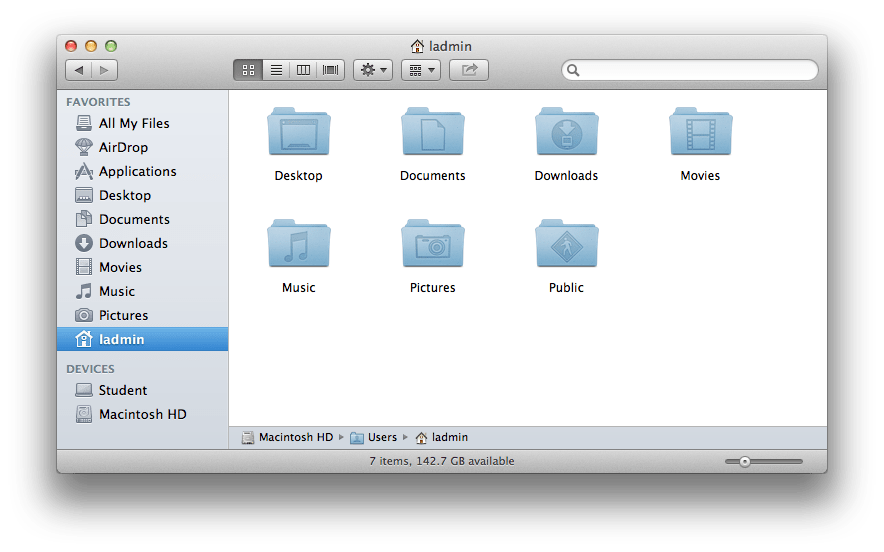
homeFolder

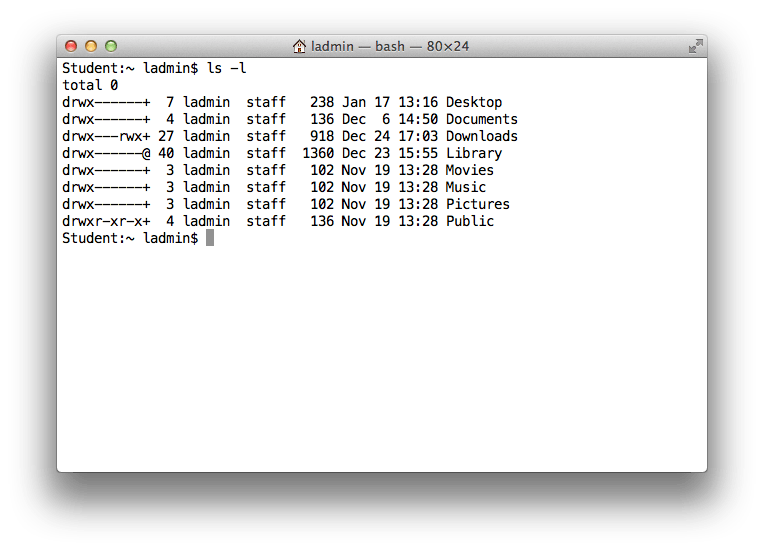
As you can see from the screenshots, the terminal shows more folders than are visible through finder.
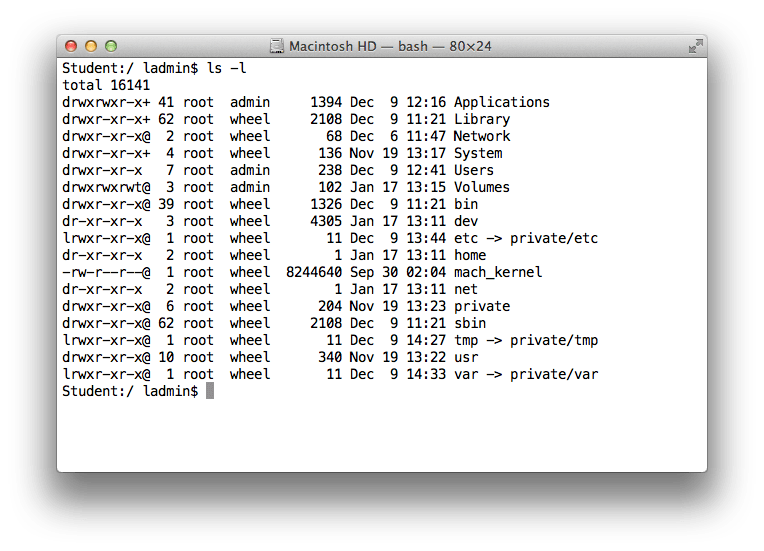
rootFolderInTerminal

homeFolderInTerminal

Within the Users folder all the Home Folders for the different users on the machine are listed. Again, users typically have access only to their own login folder.

Each users Home Folder contains the following Folders
Documents
Downloads
Music
Pictures
Public
Desktop

Depending on your usage you may see a different view from the one shown below.

The following are some examples of navigating the File System.

1)Accessing the root folder

cd /

2)Accessing the home folder. Example home folder called admin

cd /Users/<home folder name>

cd /Users/admin

or cd ~/

NOTE: the ‘~/’ is a shortcut for accessing the home folder directly. Using the shortcut access will only be given to the home folder for the user currently logged in.

3)To access the OfficeFiles folder

cd ~/Documents/OfficeFiles

or

cd /Users/admin/Documents/OfficeFiles
EDITORS
There are a number of built in editors available within the Mac. Apart from TextEdit, which is a GUI based editor, there are many editors available for direct use from the terminal too.

Emacs:
Emacs is a basic text editor that is built into the mac. There are various versions available but those may not be built in. You may need to download them manually.

Here are some common emacs commands to perform operations. For an even bigger list visit http://www.cse.iitb.ac.in/~br/courses/cs699-autumn2013/refs/emacs-commands2.html

http://www.gnu.org/software/emacs/manual/html_mono/emacs.html#Commands

Vi:
This is yet another editor that is built into most UNIX like OS. This is the editor that is used when running the less or more commands.

Here are some common commands used in Vi.
http://www.tutorialspoint.com/unix/unix-vi-editor.htm

Apart from this there are other editors such as gedit & xemacs which has a GUI interface.

NETWORKING RELATED TERMINAL COMMANDS
1)ping
Used to test connectivity to a particular IP address
ping http://www.google.com

2)traceroute
Used to check the hop trace between your machine & destination
traceroute http://www.google.com

3)ipconfig
Used to get network interface related information
ipconfig getoption en1 <option>
There is a lot more information that can be gleaned using ipconfig. For a full list run the man command for ipconfig

4)ifconfig
Used to configure ifnormation related to network interface
ifconfig en0 inet <ip address> netmask <subnet mask>

5)lookup
There are different ways to get the forward & reverse lookup to happen
nslookup <domain name>
nslookup <ip address>

dig <domain name>
dig -x <ip address>
NOTE: Please use the man command to get more information.

Terminal Commands for OS X – Basic

This is the first part of the Terminal Commands topic. This article covers the basic commands which a user can use on the terminal.
To launch the terminal application simply navigate to /Applications/Utilities/Terminal. Alternatively, you can even search for the same using spotlight.

cd
This command is used to change the current directory we are. So if we want to navigate to a new folder we simply run the cd command.
Syntax:  cd <folder path>
Note that the folder path has to be the absolute path of the folder. Beginning from root. If you simply place the name for the folder, the OS is going to search for that folder within the current directory. The command won’t work if it doesn’t find the specified folder.

ls
This command is used to list the contents of the current directory.
Syntax: ls or ls <folder name>
There are a lot of switch based options available to get more detailed results.
-a shows hidden files
-l shows in a list format with more information
-r oldest entries first
-t most recently modified entries first
View the manual for more switches.

rm
This is the remove command. This command is used to remove one or more than one files &/or folders from the specified directory.
Syntax: rm <folder name>
To remove folders we need to use the -r switch.
NOTE: The rm command should be run with caution. Running the above command does not move the contents to trash. There is no way to undo the rm command. Also care must be given to the folder from which the command is run, make sure you are in the folder you wish to be in before running this command.

pwd
Present Working Directory. This command tells us the directory we are currently in.
Syntax: pwd

cp
This command is used to copy the specified file or folder to a specified location.
Syntax: cp <source file> <destination folder>
In order to copy folders we need to use the -r switch.

mv
This command is used to move files or folders to a specified location.
Syntax: mv <source file/folder> <destination folder>
This command can also be used to rename files & folders by giving a different name but keeping the destination the same. The destination folder is replaced with new name.

less
This command is used to display the contents of a file.
Syntax: less <name of file>
This command displays the contents of a file in simple text. It displays the content in a page by page format. To stop viewing the file simply type ‘q’.

chmod
This command is used to modify the ACLs of a specified file or folder.
Syntax: chmod <rwx-rwx-rwx> <file or folder name>
The rwx indicate read-write-execute permissions for the owner-group-everyone else. The permissions are given by either indicating 1 or 0 in place of each rwx. 1 indicating true, 0 indicating false. The resulting binary numbers should be replaced by their octal equivalents. So to give only the owner rwx permission on a file the command would need 111-000-000 which is 700, so the command would look like chmod 700 <file/folder name>. If we wanted to give rw permission to owner & r permission for group & everyone else then the command would look like 110-100-100 or 644, chmod 644 <file/folder name>.

mkdir
This command is used to create a directory in the current working directory.
Syntax: mkdir <directory/folder name>
This will create a directory in the present working directory. Do keep track of the current directory before creating a new one, to make sure you are creating it in the correct directory.

sudo
Super User Do.
Syntax: sudo <command to be executed by super user>
This command is used as a prefix before other commands when we want those commands to be executed as a super user (aka root user). You are required to authenticate as an administrator for the command to work. NOTE: Do exercise caution while using the sudo command. Root users don’t have the built is permission checks & security checks. Improper usage of sudo may leave your machine in an unusable state.

man
Terminal command manual.
Syntax: man <terminal command>
This command is used to open the manual for the different commands that are available within the system. It is a good starting point to understand the full functionality of the different commands along with examples of usage.

cat
The cat command is used to perform 3 different tasks: Display text files, copy text files, combine text files, create new text files.
Display Text Files
Syntax: cat <file name>
This will display the text files on the screen.

Copy Text Files
Syntax: cat <first file name> > <second file name>
This will copy the contents of the first file to the second file using the redirect ‘>’ operator.

Combine Text Files
Syntax: cat <first file name> <second file name> > <third file name>
This will combine the contents of the 2 files & save it in the third file.

Create New Files
Syntax: cat > <filename>
This will create a new file.

echo
Display given sentence on the screen.
Syntax: echo <sentence>

grep
Used to find a particular string within a file
Syntax: grep <string pattern> <file name>
This will look for the given string pattern in the specified file. You can use different switch options to modify your result. View the man pages for the same.

find
The find command is used to find files within the system.
Syntax: find <search path> <search criteria> <name of the file> <operation to perform>
Search path – specifies the folder where we want to search
Search Criteria – specifies what to search eg: name
Name of File – name of file to search
Operation to perform – how to show the results