This article lists out different macOS terminal commands you might encounter. You can use this list as a starting point in your search for a command to perform a specific task. This list is by no means exhaustive.
Many of the commands have also been used in the article I wrote some time back. You can have a look at the scripts to see some of the commands being used.
To get more information about the commands simply run the following command from within Terminal Application. For example, to view the manual page for tmutil simply type:
man tmutil
For fdesetup
man fdesetup
Here is a nice command to quickly open the man page in the Preview App.
man -t tmutil | open -f -a /System/Applications/Preview.app
Note
This is not a complete list of commands
Some commands are available through the macOS Recovery Volume only
Some commands required other resources such as the OS installer
Some commands are available with certain versions of the OS only
Please read the documentation for more details. Use the commands with care. Improper use of commands may result in loss of data or damage to the computer.
Commands
Installation
Command
Description
startosinstall
Used to start the installation of macOS from the command line.
createinstallmedia
Used to create an external install disk.
Security
Command
Description
fdesetup
Manage FileVault configuration.
security
Manage keychain and security settings
spctl
Manage security assessment policy
csrutil
Configure System Integrity Protection (SIP) settings
resetpassword
Password reset utility located in the Recovery Partition
File System
Command
Description
hdiutil
Used to manipulate and manage disk images.
diskutil
Used to modify, verify, & repair local disks.
Data Management
Command
Description
tmutil
Used to configure Time Machine settings in macOS
screencapture
Takes screenshot of the specified screen and saves the image at the specified location.
mdls
Used to get metadata attributes for a given file
mdutil
Used to manage metadata stores that are used by Spotlight
Settings
Command
Description
defaults
Used to modify plist files. Typically used to update preference files.
ioreg
Used to view the I/O kit registry
system_profiler
Used to generate system hardware & software reports.
plutil
Used to check syntax of property lists or covert property lists from one format to another
AssetCacheManagerUtil
Used to configure content caching settings.
open
Used to open documents from within the command line.
networksetup
Perform network configuration.
systemsetup
Used to configure machine settings in System Preferences.
launchctl
Used to manage and inspect daemons, agents, & XPC Services
Applications
Command
Description
codesign
Used to create, check, display code signatures.
pkgbuild
Used to build installer packages
productbuild
Builds a product archive
installer
System software and package installer tool
User Account Management
Command
Description
dscl
This is a command line Directory service utility that allows us to create, read, and manage Directory Service data.
sysadminctl
User account management
passwd
Change user password
login
Used to login to another user account.
Server & Device Management
Command
Description
profiles
Used to install, remove, list, or manage Configuration profiles.
serveradmin
Used to manage the services in macOS
mdmclient
Located in /usr/libexec/mdmclient it is used to manage interactions with the MDM.
asr
Apple Software restore: Used to copy volumes.
Scripting
Command
Description
osascript
Used to execute the given AppleScript
Share any commands you may know of in the comments window.
Disclaimer
The information Is Provided โAs Isโ, Without Warranty Of Any Kind, Express Or Implied, Including But Not Limited To The Warranties Of Merchantability, Fitness For A Particular Purpose And Noninfringement. In No Event Shall The Authors Or Copyright Holders Be Liable For Any Claim, Damages Or Other Liability, Whether In An Action Of Contract, Tort Or Otherwise, Arising From, Out Of Or In Connection With The information provided Or The Use Or Other Dealings In The information.
One of the advantages with scripts is the fact that you can easily automate many tasks. Here is an article that walks you through that process.
If you come across a situation where you want to perform a set of tasks on multiple computers then scripts come in very handy.
I will be providing the Shell Script version of the task. Feel free to make changes to the scripts as required. I will try to provide an AppleScript version of the tasks a little later.
This is not the only way to implement the scripts. There may be multiple approaches towards achieving the same result. You will have to explore and examine the correct approach.
This is not a comprehensive list. The scripts should give you some ideas and act as a useful reference when you are creating your own scripts.
I have tested these scripts on macOS Catalina 10.15
The Software Is Provided “As Is”, Without Warranty Of Any Kind, Express Or Implied, Including But Not Limited To The Warranties Of Merchantability, Fitness For A Particular Purpose And Noninfringement. In No Event Shall The Authors Or Copyright Holders Be Liable For Any Claim, Damages Or Other Liability, Whether In An Action Of Contract, Tort Or Otherwise, Arising From, Out Of Or In Connection With The Software Or The Use Or Other Dealings In The Software.
WARNING
Please try these scripts on a test computer. Some of the scripts do make changes to the system. Always test before using these scripts.
The Swift Package Manager is the tool used to build Applications and Libraries. it streamlines the process of managing multiple Modules & Packages. Before we go ahead and learn to use Swift Package Manager we need to get familiar with some basic terminology.
Modules
Modules are used to specify a namespace and used to control access to that particular piece of code. Everything in Swift is organised as a module. An entire app can fit into a module or an app can be made using multiple modules. The fact that we can build modules using other modules means that reusing code becomes a lot easier. So, when we make an iOS App with Xcode and Swift. The entire app is considered a single module.
Targets
Targets are the end product that we want to make. So an app for iOS is a separate target. A library is a target. An app for macOS is a separate target. You can have many targets. Some can be for testing purposes only.
Packages
Packages group the necessary source files together. A package can contain more than one target. Normally one would create a package for a family of products. For example: you want to make a photo editing app that runs on macOS & iOS. You would create one package for it. That package would have 2 targets: an iOS App & a macOS App.
Products
This is a categorisation of your packages. There are 2 types of products. Executables or Libraries. A library contains the module which can be reused elsewhere. Executables are application that run & may make use of other modules.
Dependencies
Dependencies are the modules or the pieces of code that are required to make the different targets within the package. These are normally provided as URLs.
End Products
*NOTE:ย Before you get started you must be familiar withย Setting up Swift on Linux. If you haven’t done that then please go through the updated article:ย UPDATE: Swift on Linux. This also makes use of Swift Package Manager.
Example
So let us get started with an example. We are going to learn how to create:
a library package called ErrorTypes
a library package, called MathOperations,ย that uses the ErrorTypes library package
an executable package called Calcย that makes use of theย MathOperations package.
We will see how to create all three elements. Also I have uploaded theย ErrorTypes & MathOperations packages to the http://www.github.com repository to demonstrate the use of dependencies. You can also create your own local git repositories if you wish.
To illustrate the folder hierarchy: I have created a folder called “Developer” in my Ubuntu linux home folder. Within that I have created a folder called “SPMDEMO“. All the paths that I will be using will be with reference to these folders. You should see a structure like this:
You are free to follow this exercise using your own folder locations. Just modify the paths accordingly.
swift package init
swift package init --type executable
swift build
If you need help with the commands run:
swift package --help
swift --help
Creating a Package
First let us start off by creating theย ErrorTypes package.
mkdir ErrorTypes
Navigate to the folder and create the package:
cd ErrorTypes
swift package init
By default init will create a library package type.
Navigate to the folder containing the source files:
cd ./Sources/ErrorTypes/
Open theย ErrorTypes.swift file and write the following code
public enum ErrorCodes : Error
{
case FileNotFound(String)
case DivideByZero(String)
case UnknownError(String)
}
public struct MathConstants
{
static let pi : Float = 3.14159
static let e ย : Float = 2.68791
}
Feel free to add some code of your own. The above is just an example.
Run the command to build to make sure that there aren’t any issues. You shouldn’t have any as there are no dependencies of any kind. Its a simple straightforward piece of code.
swift build
If everything is fine check your code into a git repository. This can be local or on the web. Remember that we will need the URL to this repository.
Navigate back to the SPMDEMO folder.
cd ~/Developer/SPMDEMO/
Create a folder calledย MathOperations.
mkdir MathOperations
Navigate to the newly created folder and run the command to create a library package.
cd MathOperations
swift package init
Navigate to the sources folder:
cd ./Sources/MathOperations/
Open theย MathOperations.swift file and write the following code.
import ErrorTypes
public struct MathOperations
{
public static func add(Number num1 : Int, with num2 : Int) -> Int
{
return num1 + num2
}
public static func mult(Number num1 : Int, with num2 : Int) -> Int
{
return num1 * num2
}
public static func div(Number num1 : Int, by num2 : Int) throws -> Int
{
guard num2 > 0
else
{
throw ErrorCodes.DivideByZero("You are dividing by zero. The second argument is incorrect.")
}
return num1 / num2
}
public static func sub(_ num1 : Int, from num2 : Int) -> Int
{
return num2 - num1
}
}
Before we build we need to modify theย Packages.swift file to indicate there is a dependency.
Notice that in the MathOperations.swift file we are importing a module called ErrorTypes. We just created it. But just because we created it doesn’t mean it will be added automatically. We need to pull that module into our own
Also notice that I have provided access specifiersย “public” everywhere. This ensures that the code written in one module is accessible in the other.
Navigate to the MathOperations parent folder.
cd ~/Developer/SPMDEMO/MathOperations/
Open theย Packages.swift file and make the changes as shown below:
// swift-tools-version:4.0
// The swift-tools-version declares the minimum version of Swift required to build this package.
import PackageDescription
let package = Package(name: "MathOperations",
products: [
// Products define the executables and libraries produced by a package, and make them visible to other packages.
.library(name: "MathOperations", targets: ["MathOperations"]),
],
dependencies: [
// Dependencies declare other packages that this package depends on.
.package(url:"https://github.com/AmaranthineTech/ErrorTypes.git", from:"1.0.0"),
],
targets: [
// Targets are the basic building blocks of a package. A target can define a module or a test suite.
// Targets can depend on other targets in this package, and on products in packages which this package depends on.
.target(name: "MathOperations", dependencies: ["ErrorTypes"]),
.testTarget(name: "MathOperationsTests", dependencies: ["MathOperations"]),]
)
Once these changes are made save the file and run the command
swift build
If you typed everything correctly then you should see the source code for the ErrorTypes module being pulled in and the build being successful.Here are some common mistakes:
– Forgetting to write the import ErrorTypes statement
– Error in the URL
– The from tag not matching the tag in the repository
– Access specifiers are incorrect or missing
– Not mentioning the dependencies in the target
Just like with the ErrorTypes module create a git repository for the MathOperations module.
Now let us make theย Calc executable that will use theย MathOperations library. First navigate back to the SPMDEMO folder and create a folder calledย Calc.
cd ~/Developer/SPMDEMO/
mkdir Calc
This time we are going to create an executable package. Run the command:
swift package init --type executable
This also creates a similar folder structure as in the case of the library.
Navigate to the folder containing theย main.swift file.
cd ./Sources/Calc/
Modify theย main.swift file as shown below:
import MathOperations
//testing addition
var result : Int = MathOperations.add(Number: 33, with: 29)
print("Result of adding 33 with 29 is: \(result)")
//testing multiplication
result = MathOperations.mult(Number: 33, with: 29)
print("Result of multiplying 33 with 29 is: \(result)")
//testing division
do
{
result = try MathOperations.div(Number: 33, by: 0)
print("Result of dividing 33 by 29 is: \(result)")
}
catch let error
{
print("ERROR: \(error)")
}
//testing subtraction
result = MathOperations.sub(3, from: 29)print("Result of subtracting 3 from 29 is: \(result)")
Navigate back to the mainย Calc folder.
cd ~/Developer/SPMDEMO/Calc/
Modify theย Packages.swift file as shown below:
// swift-tools-version:4.0
// The swift-tools-version declares the minimum version of Swift required to build this package.
import PackageDescription
let package = Package(name: "Calc",
dependencies: [
// Dependencies declare other packages that this package depends on.
.package(url: "https://github.com/AmaranthineTech/MathOperations.git", from: "1.0.1"),
],
targets: [
// Targets are the basic building blocks of a package. A target can define a module or a test suite.
// Targets can depend on other targets in this package, and on products in packages which this package depends on.
.target(name: "Calc", dependencies: ["MathOperations"]),
]
)
Save the file and run the build command:
swift build
Like before you should see both theย MathOperations &ย ErrorType module being pulled in. We are ready to run the executable. Navigate to the debug folder which contains the executable. Make sure you are in the mainย Calc folder when you run this command.
cd ./build/debug/
You should see an executable file calledย Calc. Run it.
./Calc
If everything went okay then you should see the output on the console.
As you can see it is pretty straightforward to develop Applications written in Swift on Linux.
Adding System Modules
In the previous example we saw how to import our own custom made modules. However, there are some modules provided by the system which offers functionality we may wish to use. For example if we wanted to use the random number generator in our application we would need to use the random() method. This is in the glib module.
Quickly create a package calledย SystemLibs. This is an executable.
Write the following code in theย main.swift.
#if os(Linux)
import Glibc
#else
import Darwin.C
#endif
extension Int
{
func toString() -> String
{
return "\(self)"
}
}
var luckyNumber : Int = Int(random())
var luckyNumberStr : String = luckyNumber.toString()
print("The lucky number is \(luckyNumberStr)")
Build the code and run the executable.
Adding system modules is direct and simple. Theย glibc module contains aspects of the standard library. The condition check is to make sure that we are importing the correct module based on the system that we are developing the application on.
Handling Sub-dependencies
As we saw in the earlier example, sub dependencies are handled automatically. So when ourย Calc application marked theย MathOperations module as a dependency it was pulled during the build. However, theย MathOperations module itself markedย ErrorTypes module as a dependency. We did not have to modify theย Packages.swift file belonging toย Calc to indicate thatย ErrorTypes module also needs to be pulled. This was handled automatically by Swift Package Manager.
Conclusion
In this article we have seen:
How to create a library package
How to create a library package that depends on another library package
How to create an executable that depends on a library package
How to import the systemย Glibc module into our executables.
The Swift Package Manager simplifies many aspects of the development process for us. Many of the things we have discussed also work on macOS. Going forward reusing code and planning for the same should be done keeping Swift Package Manager in mind.
Automating tasks on the Mac is very useful for a wide variety of reasons. In this article we are going to look at the different technologies available for automating tasks.
TOOLS
Automator
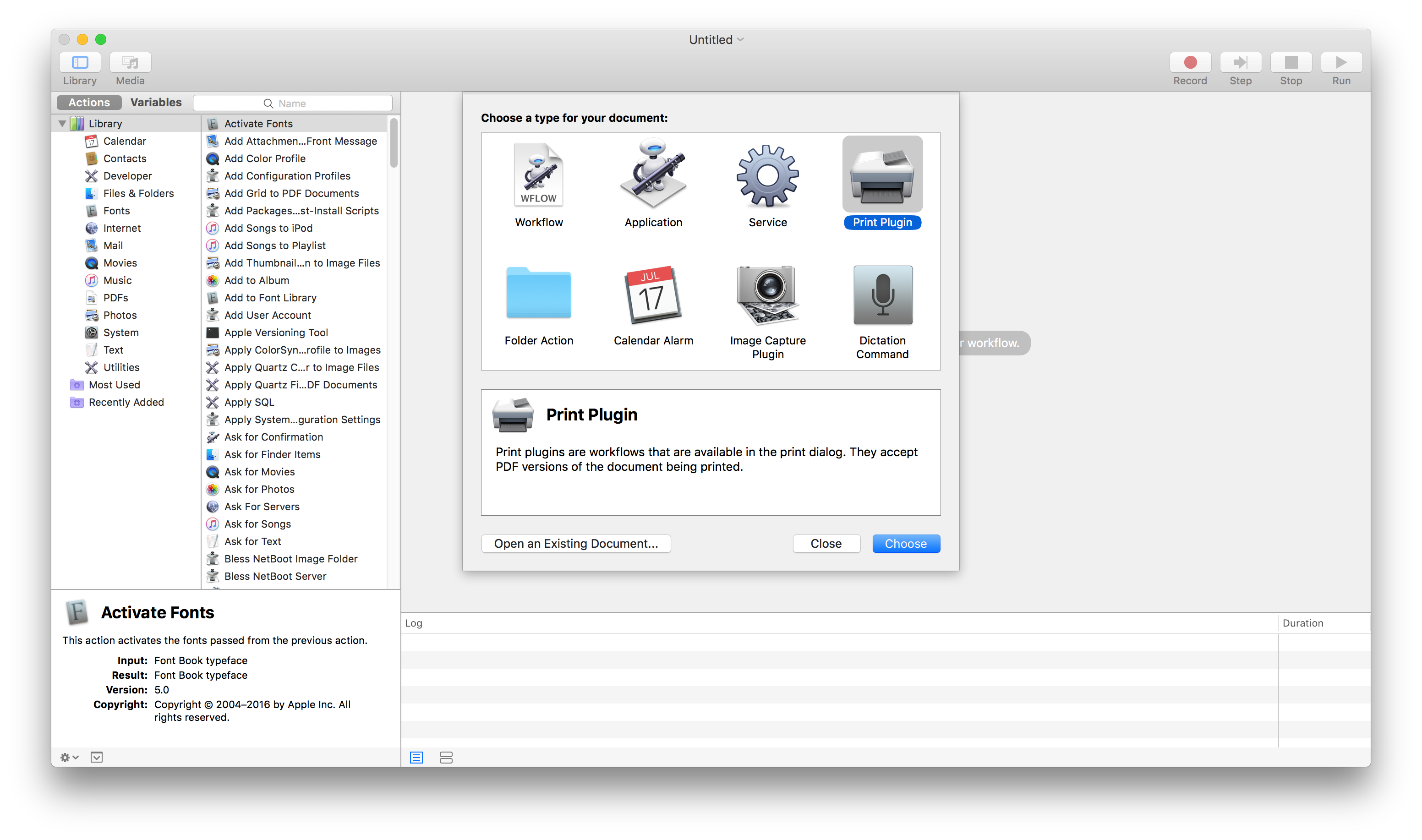
The simplest way of achieving automation. Automator which is a built in application allows you to create task workflows by simply dragging in a set of predefined routines into a specified sequence. Let us explore how it works by creating a watermarking print plugin
Let us look at how we can create a print plugin that automatically adds a watermark to the pdf file.
First get hold of an image that you will use as a watermark.
Open Automator.
Click on “New Document”
Choose Print Plugin as the type of task to create
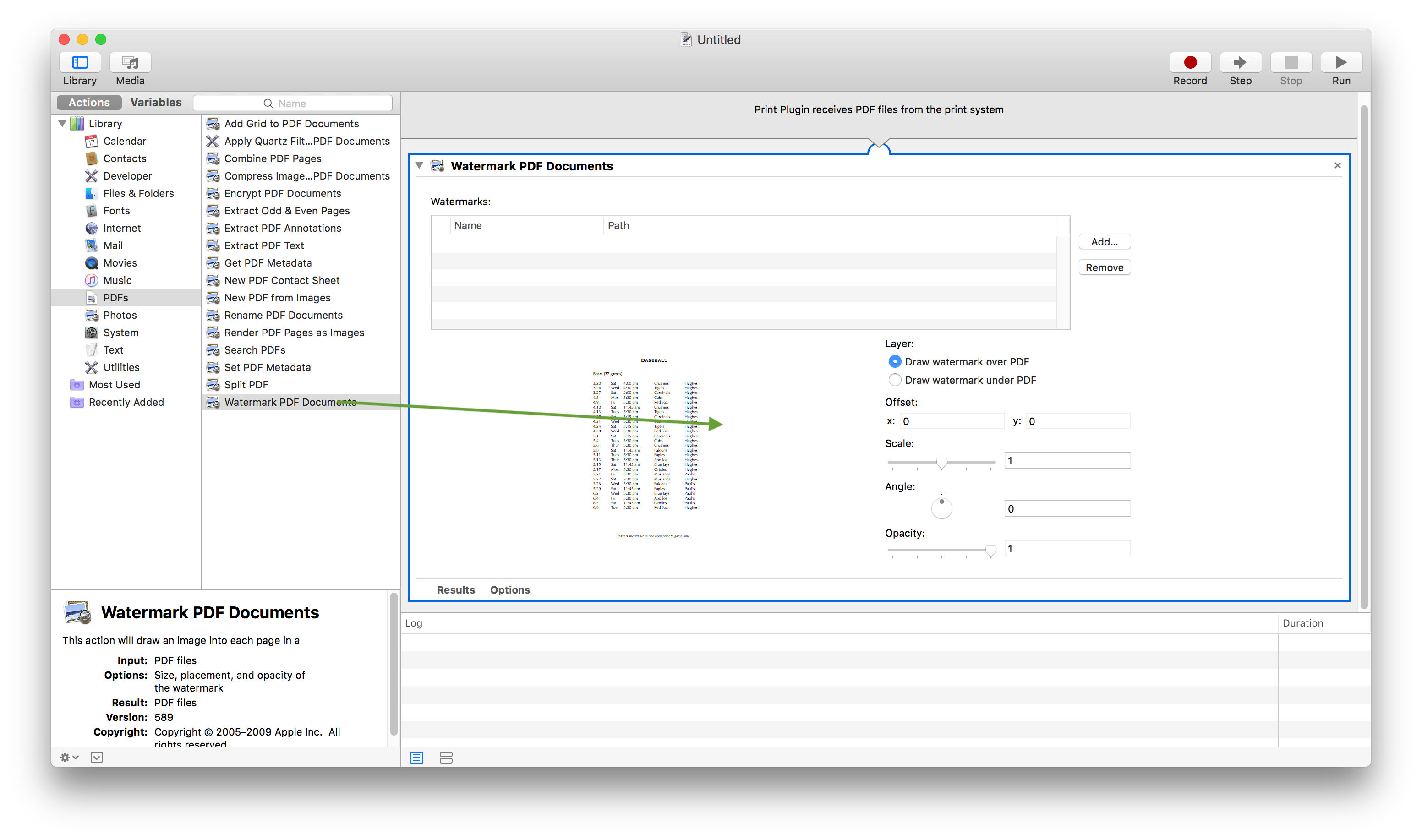
From the left hand side drag the “Watermark PDF Documents” option. You will be able to locate this from the PDF library on the extreme right.
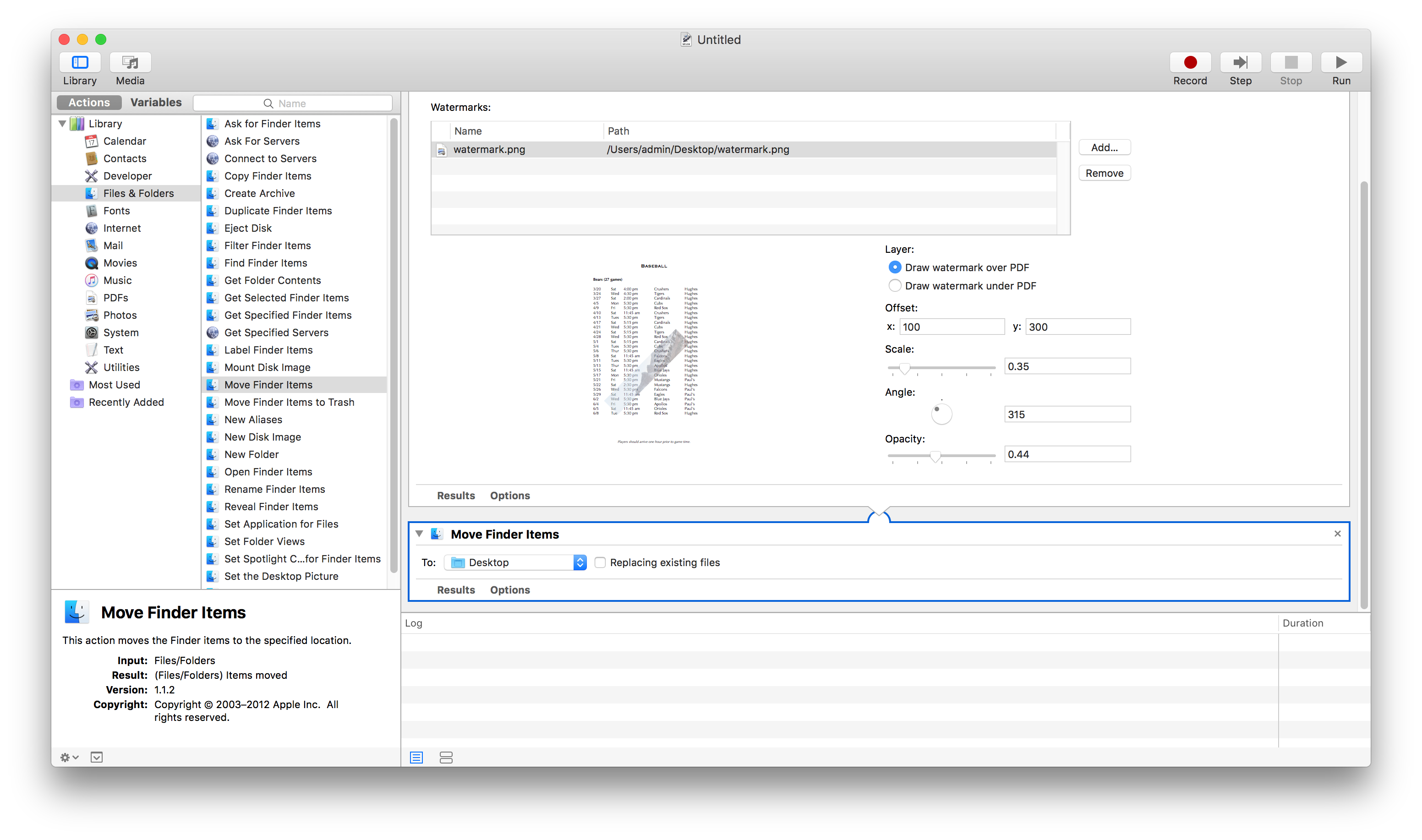
Add the image that will be used as a watermark. Customise the settings to your desired level. You may have to use trial and error till you get the desired output.
Similarly drag the Move finder Items to the right. You will be able to locate this from the Files & Folders library.
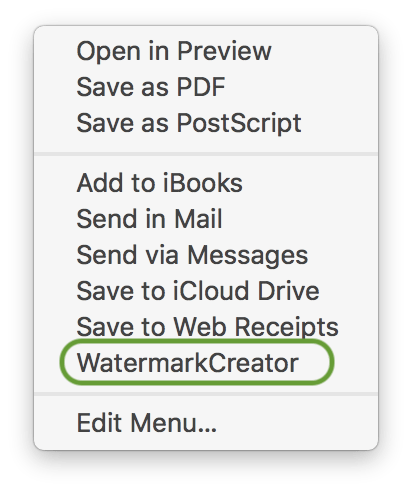
Save the task as WatermarkCreator.
Open a text file.
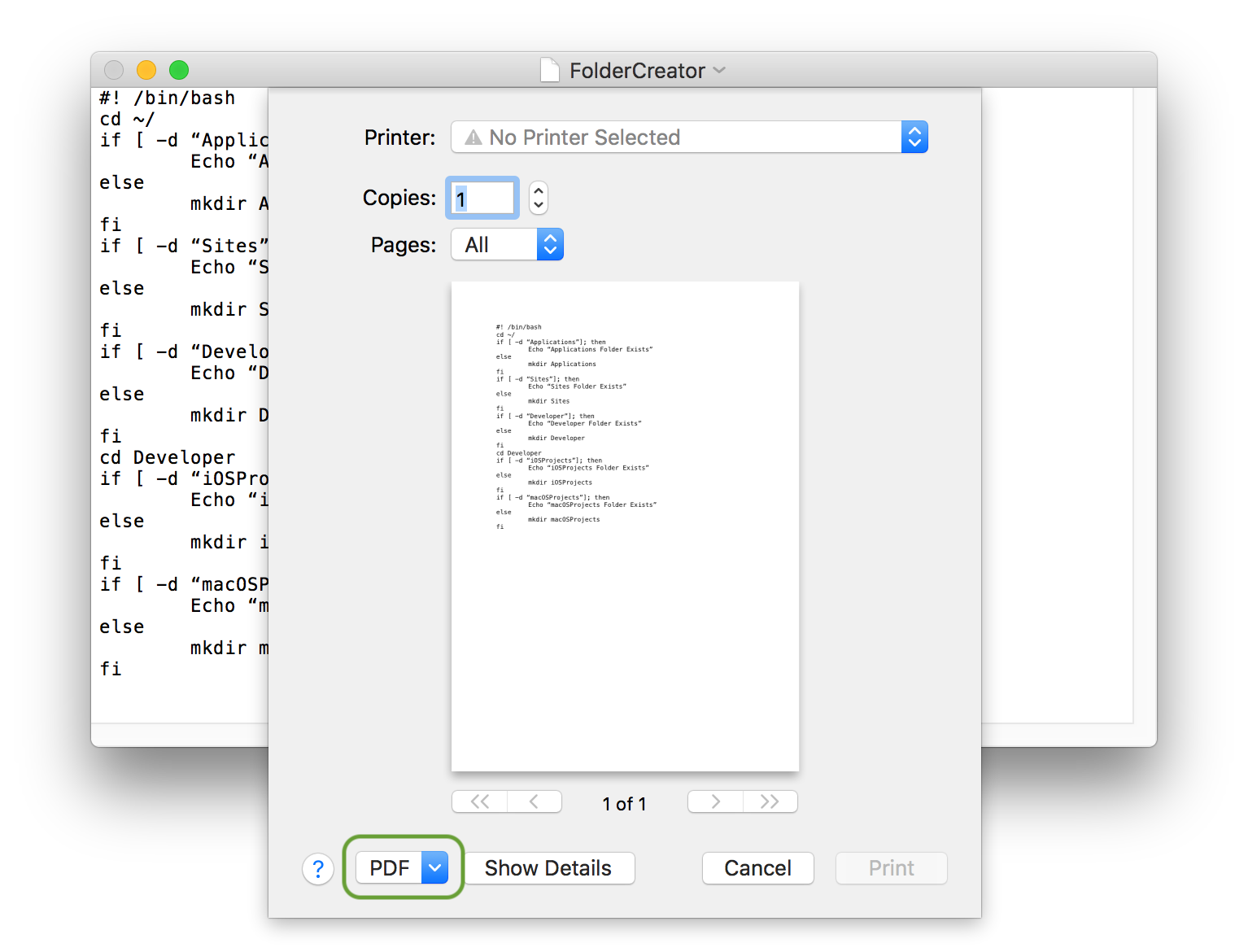
Select File > Print
Click on the PDF drop down in the print dialog.
Select the newly created task.
You have now successfully setup your own watermark creator.
Shell Scripting
For those coming from a Linux/Unix background this might be a familiar option. Very often users need to run a series of terminal commands repeatedly. While it is not difficult to do this, wouldn’t it be nice if we could write all the commands in a single file? Shell Scripts help users do just that.
To create a shell script:
Open TextEdit
Write the following code in there (We will write code to create a series of files and folders in our home folder for a user called admin):
#! /bin/sh
cd /Users/admin/
if [ -d "/Users/admin/Applications/" ]; then
echo "Applications Folder Exists"
else
mkdir Applications
fi
if [ -d "/Users/admin/Sites/" ]; then
echo "Sites Folder Exists"
else
mkdir Sites
fi
if [ -d "/Users/admin/Developer/" ]; then
echo "Developer Folder Exists"
else
mkdir Developer
fi
cd Developer
if [ -d "/Users/admin/Developer/iOSProjects/" ]; then
echo "iOSProjects Folder Exists"
else
mkdir iOSProjects
fi
if [ -d "/Users/admin/Developer/macOSProjects/" ]; then
echo "macOSProjects Folder Exists"
else
mkdir macOSProjects
fi
Save the file with the name FolderCreator on the Desktop.
Open the Terminal Application
Let us make the script executable. To do that, run the commands:
AppleScript is Apple’s proprietary scripting technology. It comes bundled as a part of macOS. To create AppleScript tasks we need to use the built in AppleScript editor.
Here is an example of a small AppleScript
tell application โFinderโ to set the view for all Finder Windows as column view
tell application โFinderโ to close every Finder Window
tell application โSafariโ
open location โ<a href="http://www.arunpatwardhan.com">http://www.arunpatwardhan.com</a>
open location โ<a href="http://www.amaranthine.in/feedback">http://www.amaranthine.in/feedback</a>
open location โ<a href="http://www.amaranthine.in/gallery">http://www.amaranthine.in/gallery</a>
end tell
Copy that block of commands in your AppleScript editor and see what comes up.
There are many more things that can be done with AppleScript. You can have popup windows asking users for commands, turn off the computer. Change the settings for different parts of the OS and for different applications. All this with commands written in a single file. All the user has to do is double click the file.
For more information about AppleScript visit Apple’s Developer site.
Launch Agents, Launch Daemons
NOTE: Scheduling Launch Agents/Launch Daemons improperly may leave your computer in an unusable state. Always test this on a computer that does not contain important data. If you are unsure, please consult someone with knowledge of the same before proceeding ahead.
Launch Agents/Launch Daemons allow you to schedule tasks which are to be performed at intervals. You can also use them to ensure that tasks are kept running and that the user does not have the possibility to quit them. To setup a launch daemon:
First create a Plist file that looks like the one below. I have created a script called echoer and placed it in the /Users/admin/Applications folder where admin is the user.
Place the file in the ~/Library/LaunchAgents folder. Name it in.amaranthine.demod.plist
Run the command in terminal to load the Launch Agent.
An easy way to automatically load, Applications/Files/Folder, as soon as well login is to use Login Items. This is very easy to do.
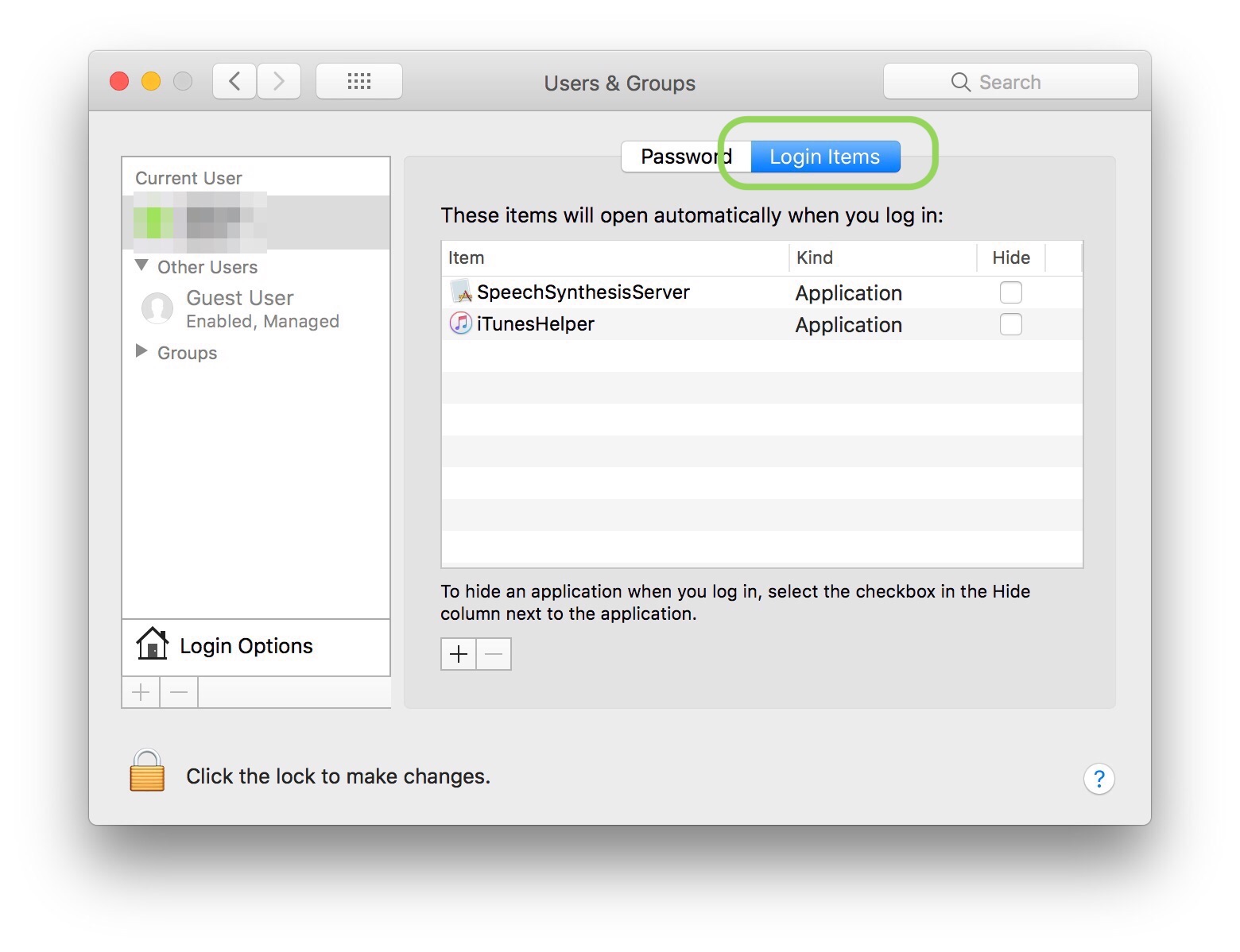
Open System Preferences > Users & Groups
Switch to the Login Items tab.
Click on the ‘+’ sign at the bottom to add new Applications. Let’s add Maps so that it launches as soon as we login. You should see it appear in the list.
That’s it. You have setup login items. You can repeat this process for as many applications as you wish.
Others
PHP, Perl, Python, Javascript, Swift allow you to create custom automated tasks and routines. These require knowledge of programming.
Choosing the right approach
Which one to choose depends on a lot of factors but we can break it down to 2:
You are a technically qualified person and understand things like programming, scripting and command line
You are an end user working either at home or in office.
End User
If you are an End user then you should really stick to Automator and Login Items. These are the ones that are the easiest to implement and least likely to cause any issues. You could venture and explore other options if you have a good understanding of them. Or you can ask the IT or Tech Support teams to help you with scripting and other technologies.
Tech Support or IT Person
Any of the tools mentioned above can be used by you. Make sure that you have a good command over the tools and are able to troubleshoot issues arising out of their usage.
Note: The programs/applications/tools and languages mentioned in this article may not cover all the available options. Also, anyone who uses or implements the items mentioned in the article does so at their own risk. The author does not take responsibility for any loss or damage that may arise from the use of the programs/applications/tools and languages mentioned above.
This article is more of a productivity article aimed at getting first time users up and running quickly on their Mac, iPhones or iPads. Anyone looking to buy one of these products or Tech Support teams that help employees with their computers would find this article helpful. The thoughts shared here are personal, readers are welcome to share their own thoughts and experiences.
The article is not a comprehensive guide. Its aim is to give potential users some idea as to how the devices can be used in their work environment. Specifically from an Application perspective.
Macintosh
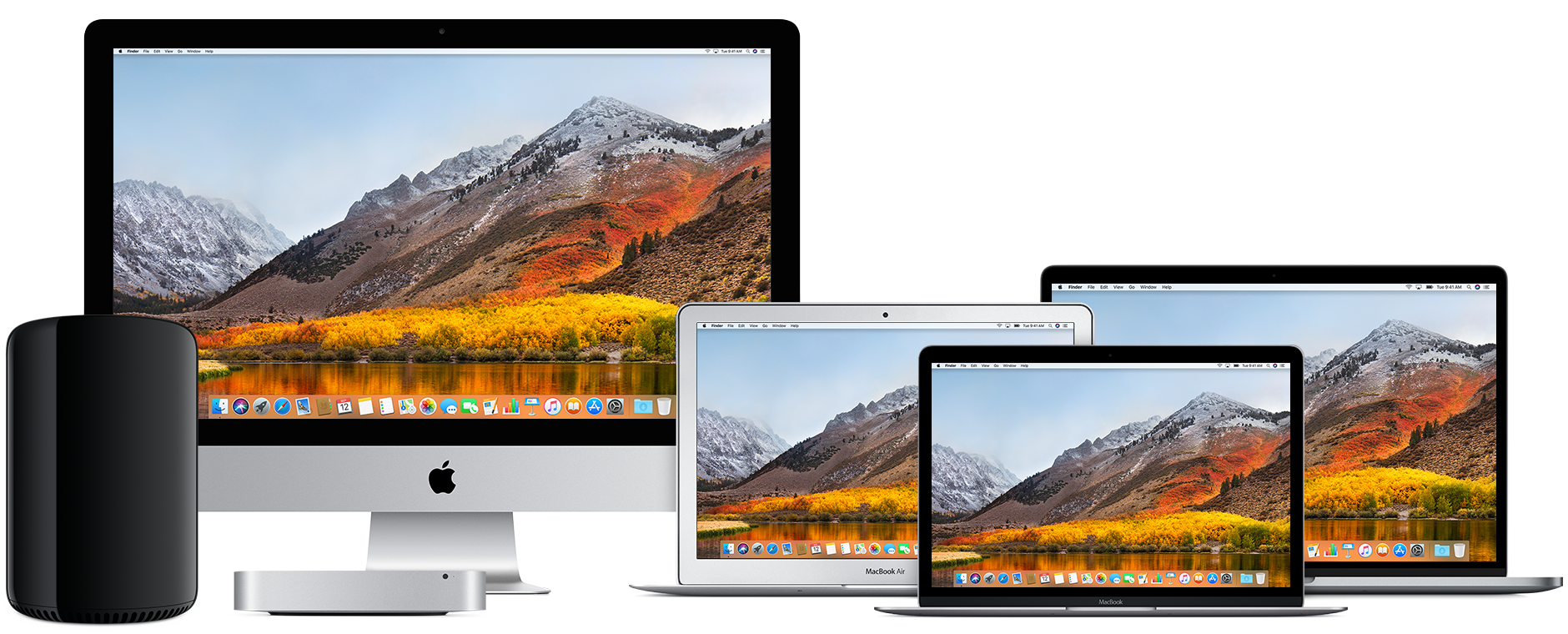
Which one to buy?
This depends on how the device is going to be used. Here are 3 general classifications:
Basic Usage
Basic usage would mean simple day to day tasks. These are the tasks that would qualify for:
Checking emails
Browsing the web
Social Media
Listening to Music
Watching Movies
Composing letters
Preparing Presentations & running presentations
Note taking
In such a case you may want to consider buying a MacBook or a MacBook Air. If portability is not required then a Mac Mini would also do.
At entry level configurations these devices would do the job very well.
Intermediate Usage
If the tasks being performed are a little more demanding then you may want to consider higher configuration devices. Again in most cases theย MacBook or a MacBook Airย would do. If portability is not required then a Mac Mini would also do. In all these cases consider one with slightly higher configuration.
For situations where the compute power is important you may even consider the MacBook Pro. For example, if there are programmers who need to work with a high configuration Mac and they need portability, then you can consider the MacBook Pro.
Pro Usage
This indicates that the tasks being performed are very compute intensive. These are some of the job profiles which may demand compute intensive resources:
In some situations even more powerful computers would be required. The iMac Pro & Mac Pro should then be considered.
Built In Applicationsย that might be useful
Productivity Tools
There are 3 applications which are a part of the suite called iWork that are very useful in organisations.
PAGES: Built in word processing application. You can easily created documents, letters, reports and even have them exported in Microsoft Office compatible format.
KEYNOTE: Built in presentation applications. Enables you to create powerful presentations from scratch. Like Pages it is possible to create presentations that are compatible with PowerPoint.
NUMBERS: Built in spreadsheet application. Enables you to quickly create spreadsheets and export them to Excel if needed.
The other advantage is the fact that these applications are also accessible from the cloud. Tight integration with iCloud means that you can make changes to documents from your Mac, iPhone, iPad, or iCloud.com.
Creative Tools
There are 2 applications which are available for creative purpose. These might be handy for people working in the creative departments.
IMOVIE: Quick create movies using videos, audios and photos that you have.
GARAGEBAND: A simple Music creation application that comes with a library of different instruments.
Show your iPhone/iPad screen on a projector using QuickTime on Mac
Backup data using Time Machine
iPhone/iPad
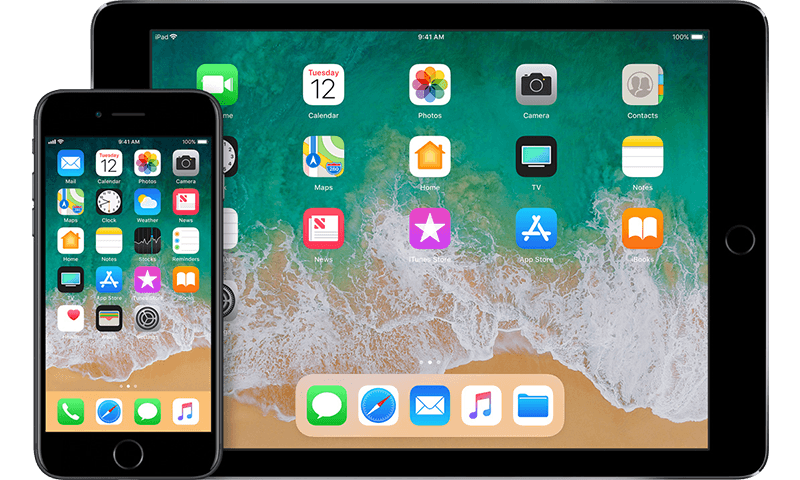
Which one to buy?
The decision on whether to buy the iPhone &/or the iPad depends a lot on what you intend to use it for. As such the major differences between the 2 devices are:
iPads tend to have larger screens
iPhone has cellular communication capability
iPhones are more portable as compared to iPads
iPads are better suited for long duration usage
iPads tend to be higher powered devices
While it appears that iPads are better than iPhones, that is not necessarily the case. iPhones being smaller and more compact have many advantages too.
Ideally speaking having both, an iPhone and an iPad, is the best thing to do.
To make a decision use the task list below to help find out if you need an iPhone or an iPad or both.
Note, even though I mention that the tasks can be performed easily on an iPhone, many of the tasks can also be done very easily on the iPad. The point is to illustrate ease of use in situations where you have to perform tasks with a single hand or when you are on the move.
Tasks easily performed on an iPhone
Making calls
Messaging
Scheduling activities such as: Reminders, Appointments, Events
Taking Photos & Videos
Emails
Banking Transactions
Finding Transit Directions
Finding a Taxi
Making E-Payments
Tasks easily performed on the iPad
Writing letters & blogs
Creating Presentations
Working with spreadsheets
Creating posters, flyers
Working with business applications
Content creation
If you do a mixture of tasks from both the lists then getting both an iPhone as well as an iPad is a good idea.
A thing to keep in mind is that the Pro version of the iPad also has a nice keyboard accessory as well as the ๏ฃฟ Pencil available. These 2 products make the whole experience so much better.
Screen size consideration
iPhone and iPad screen sizes vary quite a bit. Here are some tips on the tasks which can be best performed on specific screen sizes.
Creative Work
Generally speaking, creative tasks require a large screensize. So for an iPhone the smallest screen you should have is 4.7″. Similarly for the iPad the smallest screen you should have is the ย 9.7″.
Documents, letters, spreadsheets
These tasks are better performed on the iPads as such you can go for any screen size in them. Of the lot, its a lot easier to create documents and letters on the phone than spreadsheets. Again, for phones one should the larger the screen size the better.
Presentations
Like documents and spreadsheets presentations are a lot easier to create on the iPad. They can also be created from the phones. The larger the phone the better.
Messaging & Communication
This is one aspect where the screen size is not so much of an issue. In fact, some users may find the smaller screen size a lot better. Typically, the iPhone is a much better device than the iPad for this.
Productivity & General Tasks
This includes calling taxis, ordering food, taking notes, control keynote presentations, setting up appointments and reminders. These tasks are also best performed on iPhones. They can be done well with the iPad too.
Built In Applicationsย that might be useful
Productivity Tools
There are 3 applications which are a part of the suite called iWork that are very useful in organisations.
PAGES: Built in word processing application. You can easily created documents, letters, reports and even have them exported in Microsoft Office compatible format.
KEYNOTE: Built in presentation applications. Enables you to create powerful presentations from scratch. Like Pages it is possible to create presentations that are compatible with PowerPoint.
NUMBERS: Built in spreadsheet application. Enables you to quickly create spreadsheets and export them to Excel if needed.
The other advantage is the fact that these applications are also accessible from the cloud. Tight integration with iCloud means that you can make changes to documents from your Mac, iPhone, iPad, or iCloud.com.
Creative Tools
There are 2 applications which are available for creative purpose. These might be handy for people working in the creative departments.
IMOVIE: Quick create movies using videos, audios and photos that you have.
GARAGEBAND: A simple Music creation application that comes with a library of different instruments.
There are a few things that can be done with the ๏ฃฟ TV. It can be used to mirror both macOS & iOS Devices. In which case apps such as Reflector are not really required.
It is very easy to setup and use. This can make projecting both the iPad screen as well as the iOS Screen very easy & it allows you to move across the room as you are not physically wired to the projector.
Final Word
As we can see there are a wide variety of apps available both for macOS & iOS. These include built in apps as well as Third party apps. The community of developers creating these apps is strong and growing. There are many more apps which can be used for a wide variety of purposes.
This article should give the user a fair idea as to the capabilities of devices such as iPads, MacBooks and the rest of the line up. The good thing is that for enterprise environments its easily possible to create apps that are tailored to the needs of that organisation and this makes the devices much more attractive.
Programming Style Guide refers to the conventions followed while writing programs. This guide is going to be a series of blogs highlighting different programming standards. The series will try to cover as many standards as possible, focus will be on common and popular standards.
But why the need for programming standards? Standards help software developers design software in such a way that it is easy to read, understand, maintain & expand. It provides a consistent experience & also speeds up the way in which software development is done.
A program written with the best standards kept in mind is self explanatory, easy to read, can be built on, & is a stable piece of software
This specific article will act as a Content list for all the articles written as a part of this series.ย The examples are from the Swift & C++ programming languages.
Over the past few years I have received a number of questions with regards to Swift & Objective-C. Specifically related to the future of the 2. I will try to address those questions in the form of an FAQ.
Should I learn Swift or Objective-C?
This is a question that I get from developers new to iOS/macOS App Development. Ideally speaking, you should learn Swift. As that is going to become the main language for App development on Apple’s ecosystem. However, the reality is a little different. There are a large number of applications that are written in Objective-C. You are likely to encounter them at your workplace. You may also have to maintain, upgrade & improve those apps. In such a case, it makes sense to learn Objective-C too.
Can I mix Swift & Objective-C in the same project?
Yes! But remember that you should check for feature compatibility between the 2 languages. Adding Swift code to an Objective-C project may not be very beneficial as only those features that are compatible with Objective-C can be written in Swift.
Going the other way round is not a problem. You can read more about that here:Mixing Swift & Objective-C
Will Objective-C be deprecated in the future?
That is an interesting question. There is no formal announcement from Apple stating the Objective-C is going to be deprecated. However, one can expect more attention to be paid to Swift. That is where most of the newest techniques, tools & technologies are going to be available. Objective-C will keep running as it is as of now.
Can I mix Swift with other Programming Languages?
Swift can easily be mixed with Objective-C. If you wish to incorporate C++ or C code in your Swift Project then wrapping them inย Objective-C codeย allows you to achieve this.
Apart from that Swift does support working with C code code. You can read about that here:Interacting with C APIs.
Swift does not provide interoperability support for any other languages as of now.
Which version of Swift should I use?
It is recommended that you use the latest available version of Swift. However, the actual version that you work on depends on many other factors like: compatibility with OS Versions, support & business related choices.
Why shouldn’t we just convert all our Objective-C code to Swift and keep things simple?
A very tempting proposition. However, practical realities prevent us from doing this. The process of converting from Objective-C to Swift is time consuming. Apart from having to convert the syntax, the code also needs to be optimised taking into account the new features that are available. This will mean extensive testing and quality assurance. Most companies will not invest their resources into this endeavour.
A better approach is to migrate to Swift gradually. Here are some ways to do this:
If its a brand new product/app that you are creating, start it in Swift.
Any new reusable code components that are being created should be done in Swift (they should be Objective-C compatible if you intend to use this code in Objective-C projects).
If any part of a product is going to undergo heavy change, either due to a bug fix or a new feature. This is a good time to convert it into Swift.
A good example is how Apple is approaching the process of migrating to Swift. They are doing it component by component.
I have been developing apps in Objective-C for some time. I am able to create any reasonably complicated app now. If Objective-C hasn’t been deprecated then should I start making apps in Swift?
This is a choice that you have to make. It is recommended that new apps (at the very least) be made in Swift as that is the language that will undergo the maximum amount of changes & improvements in the future.
What do you suggest as a trainer?
Another question that I get very often. It depends on the situation. I would say learn both Swift & Objective-C. You can skip learning Objective-C if you are confident that you will not have to work with any projects written in that language.
If I am starting on a brand new project I would use Swift. But if its an Objective-C project I would stick to Objective-C.
Can Swift development only be done on macOS?
No! Swift development can also be done on Linux. However, iOS/macOS/tvOS/watchOS App Development can only be done on macOS through Xcode.
How should I migrate to Swift?
There are different approaches that one can use. It all depends on the situation and needs of your organisation. Here are some things that you can do:
Start development of brand new apps (from scratch) in Swift.
If you are creating a brand new library which will be used for future projects then go ahead with Swift.
If a major component of an existing app is going to be changed significantly then you can go ahead with Swift.
You can do all or some of the above. There may be other strategies too. You should also factor in the cost of migration from one language to another.
This is for Swift Version 2.2 & earlier. I will be adding the snippet of code for the changes the Swift 3.x have introduced.
What are the Collection Type & Sequence Type Protocols?
Theย Collection Type, Sequence Type & Generator Typeย Protocols define rules that govern how different data structures or collections of data can be used, interacted with and operated within the Swift programming language. Theย CollectionType is a special case of theย SequenceType.
Why do we need such Protocols?
Lets take the example of the Swiftย For-Loop.
var arrOfStrings : [String] = [String]()
arrOfStrings.append("Jill")
arrOfStrings.append("Jack")
arrOfStrings.append("John")
arrOfStrings.append("Jane")
for name in arrOfString
{
ย ย ย print("The name is \(name)")
}
Now, if we have created our own data type. We would not be able to use the aboveย for-loop as it would not conform to the … type protocols. Theย for-loop is expecting a data structure that acts and behaves in a way that is governed by the … protocols.
Just like theย for-loop example above there are many other features within the Swift Programming Language that expect data structures to act and behave in a particular way. By designing our data structures to conform to these protocols we can make the easily compatible with the existing code and language features out there.
How do we use these protocols for our own data structures?
First we need to decide what kind of collection are we making. For the sake of this example I will create a Custom Stack.
The above code is very simple for the purpose of this exercise. Its a stack. Which is internally really an Array. It has functions to push data and pop data. We are now going to convert this type to a collection to conform to theย CollectionType protocol.
Implementing the Indexable Protocol methods
As a first step we are going to make our CustomStack conform to the Indexable Protocol.
The above change makes the data structure conform to theย Indexable protocol. This is a requirement for it to be of type CollectionType.ย In order to conform to theย Indexable protocol we need to implement a few computed properties. Let us look at the changes
typealias Index = Int
This line informs the system that the Indexing type for my data structure is anย Int.
var startIndex : Int
{
ย ย return 0
}
var endIndex: Int
{
ย ย return (data.count - 1)
}
The next 2 are computed properties. Each provides the implementation of theย startIndexย andย endIndex properties. Note that the type for both isย Int as we have declared the Index type earlier asย Int.
Objects of type Generator allow us to navigate through our collection. Quite like howย iteratorsย work in C++. This line specifies the type to beย AnyGenerator for Elements.
func generate() -> Generator
Next we start the implementation of theย generate function. This is required as part of theย SequenceTypeย protocol.
var index = 0
This index variable is used to track the element that is currently being accessed.
Theย return statement is the main statement. Here we are creating an object of typeย AnyGenerator. As an argument to the constructor call we are passing in a closure that will be used to iterate through the sequence. Note that the closure captures theย index variable and holds a reference to its value even though we have left the original function.
Implementing the Collectionย Type Protocol
Next we will implement the Collectionย Type Protocol methods. We don’t really need to implement a lot in order to conform to theย CollectionType protocol. In fact, if we just conform to theย CollectionType protocol and use the implementations of the previous 2 extensions we should be just fine. However, for the sake of demonstration we are implementing theย subscript functionality within theย CollectionType.
Here we start the implementation of the subscript functionality.
let newStack : CustomStack<Element> = CustomStack<Element>()
ย ย ย ย ย
for i in bounds.startIndex...bounds.endIndex
{
newStack.push(Element: data[i])
}
return newStack
The rest of the code is the implementation of the subscript range behaviour. One can have different implementations to achieve the same result.
CollectionType Video
Conclusion
As we can see, by designing our data structure to conform to a particular set of protocols. We have made it possible for our data structure to take advantages of the different features, functionalities and even API’s available within the Swift Language and the Frameworks used as a part of iOS, macOS, watchOS & tvOS development.
Creating Swift Frameworks is easy. The steps below walk you through creating a Swift Framework. The steps below have been performed on Xcode 7.3
Launch Xcode.
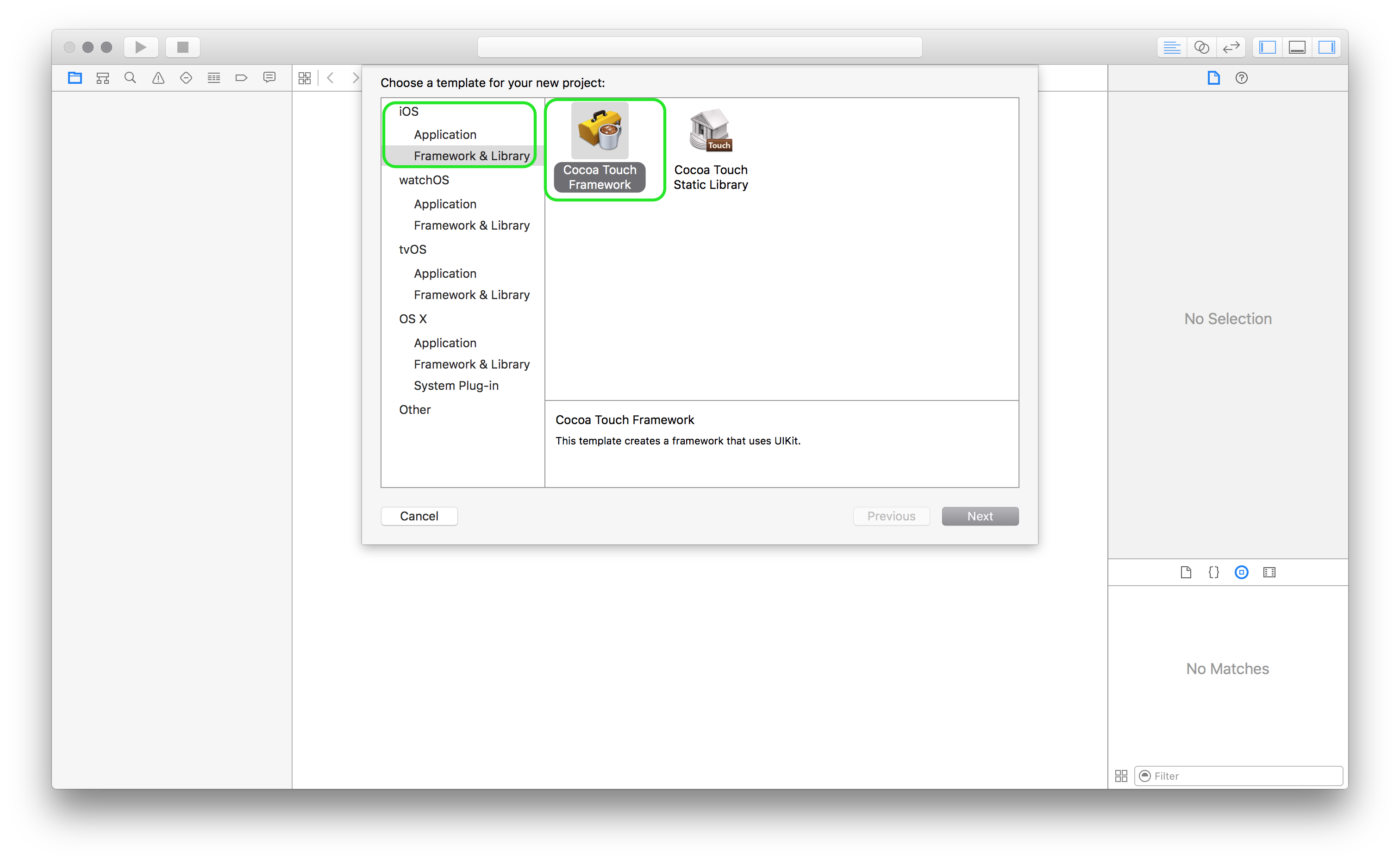
Selectย Create New Project. Or from the menu bar selectย File > New > Project
From the Template chooser select theย Framework & Libraryย Option under iOS
Select Cocoa Touch Framework
Give your project a name.
Make sure the language selected isย Swift.
Feel free to enter values of your choice for organisation name and organisation identifier.
Save your project. Optionally, if you have a version control repository like Git you may save it there.
In left hand side bar make sure you have selected the Project Navigator.
Within the Project Navigator make sure you have selected the folder named after your project.
Click onย File > New > File.
Make sure iOS Source is selected on the left hand side.
Select the file type asย Swift.
Write down the code that you want to make available through a framework.
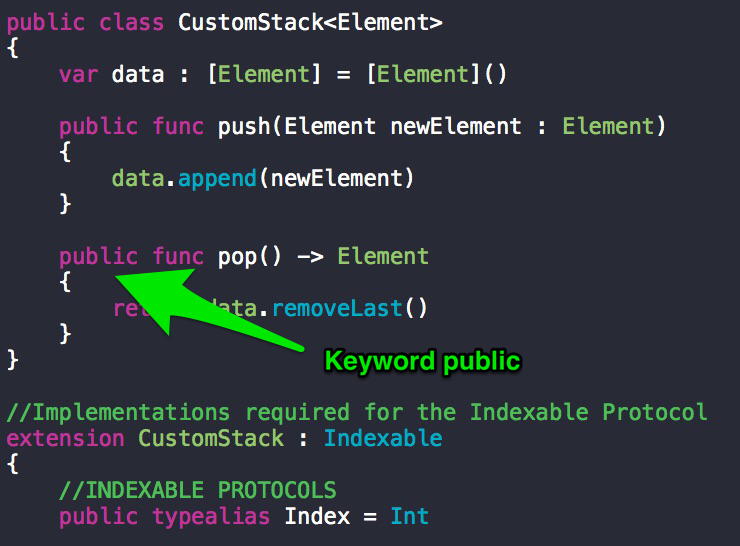
Now this is the key point. Place the keywordย public before all the elements that you want to make publicly accessible.Why do we need to do this? To understand this we need to understand the scope of different elements within a typical Swift project.
Different variables/classes/functions that are declared within a module are accessible freely within the module. Swift files contain code & are themselves found within Swift modules. So a module can mean project or a framework.So, to access the variables/functions/classes from module A in module B, we have to make those elements of module A public in order to access them in moduleย B.
For more information, do read Apple’s Swift Documentation.
The next steps depend on what your ultimate objective is. If you wish to build a framework for distribution then you need to follow a process that is similar to distributing an app. You need to get the code signing done & prepare the project for distribution.
If however, you plan to release it internally, or even just test it. Then you can follow the steps below.
Firstly, our objective is to make this framework run on both OS X(macOS) as well as iOS.
To do that we will be adding a new target. Click onย File > New > Target.
Select OS X & the Frameworks & Libraries from the sidebar.
Selectย Cocoa Touch Framework
Give your framework a unique name. Something that indicates this framework is for OS X(macOS).
Now, we don’t need to rewrite the code for the Mac. We can simply make the file we have written a member for the OS X Framework Target.
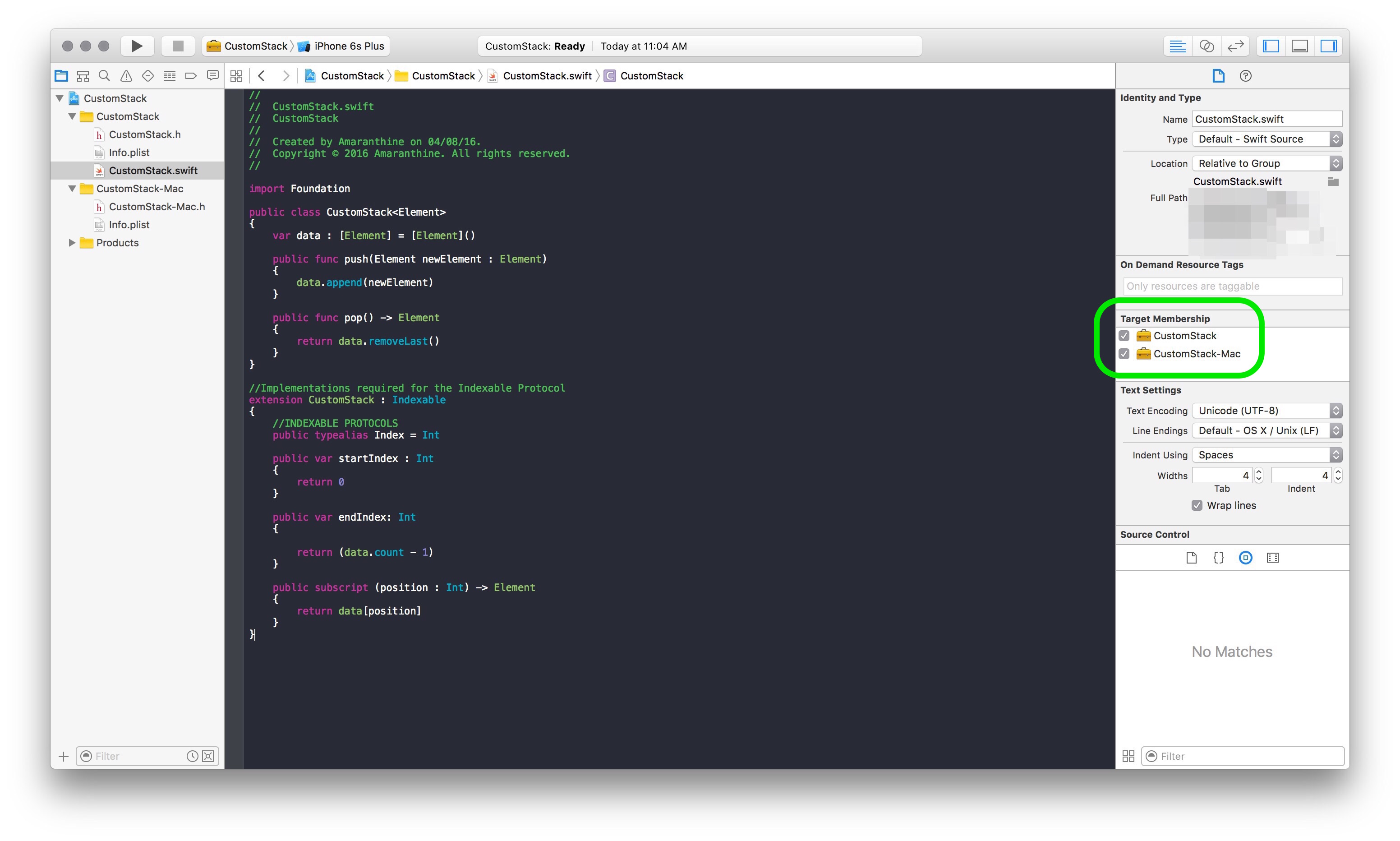
To do that make sure that the right hand side sidebar is visible.
In the left hand side sidebar make sure that you have selected the new Swift file with the code you have written in there.
In the right hand side sidebar select theย Document Inspector.
Underย Targetย Membership make sure that both the Targets are checked. The target for iOS should already be checked.
Thats it. If you do not wish to make your code available for both iOS & OS X then skip steps 19 – 27.
The next part is building the framework. We will be building this framework for use internally. We will first build the iOS framework.
From the tool bar, make sure the target selected is for iOS. For the device you can select any device that you wish.
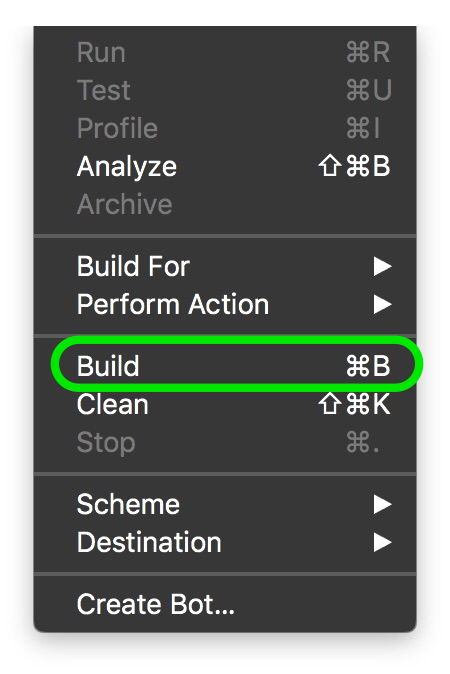
Then click onย Product > Build to build the framework. If all goes well then you should get the message Build Succeeded on your screen.
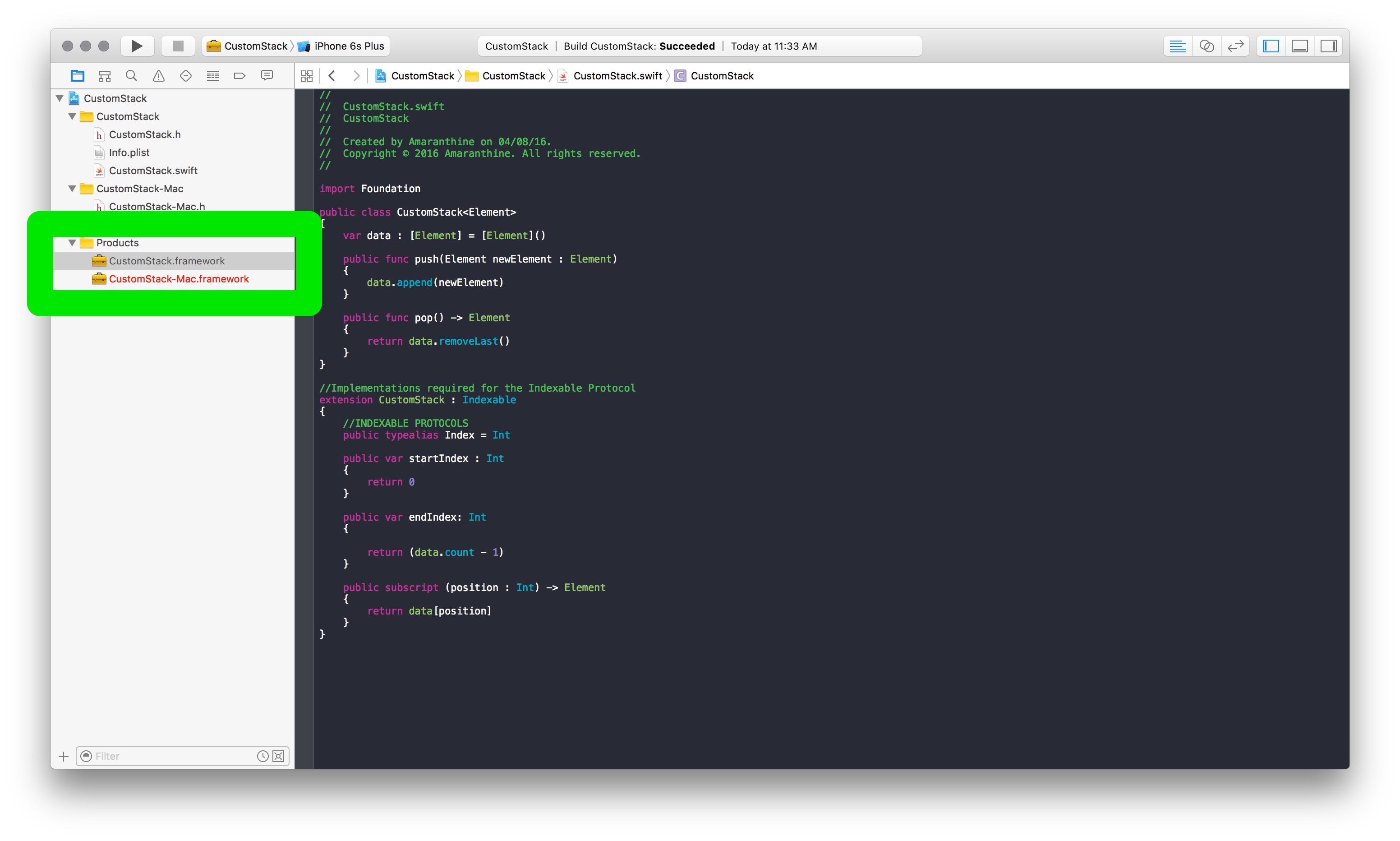
To get hold of the framework, expand the product folder from the left hand side sidebar.
Select the Framework you have just built. Note that it should be black in colour. If you have opted to make a framework for OS X, then you should see that framework listed too, it should be in red colour. The red colour indicates that it has not yet been built.
Control-click on the iOS version of the framework and selectย Show in Finder.
This will take you directly to the folder containing the framework. Copy paste it to the desktop or to any other location to easily access it when required.
Repeat steps 30 – 34 to build the OS X version of the Framework. Make sure that the target selected is OS X.
Once we have done that, we need to test the framework we just created.
Create a dummy iOS Project for testing.
From the left hand side project navigator make sure that the blue project settings file is selected.
Make sure that the Target is selected within the settings screen.
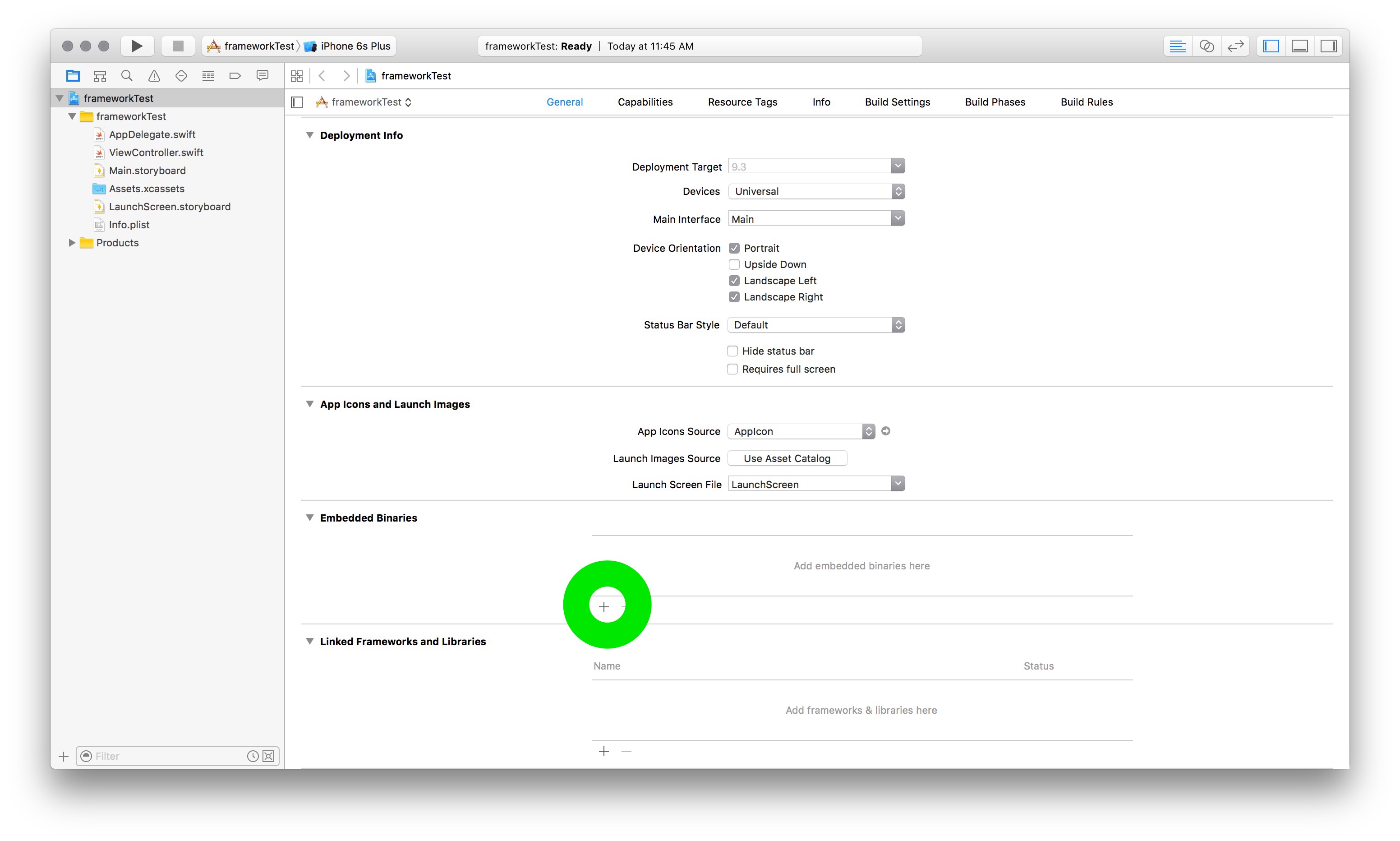
Under theย General tab scroll down to theย Embedded Binaries section.
Click on theย ‘+’ sign to add a framework.
Click onย Add other
Navigate to the folder where you saved the Framework and select it.
Clickย Open
Selectย Copy Items if needed
The framework should be added to your project.
In theย ViewController.swiftย file import your Framework: import CustomStack
Replaceย CustomStack with your frameworks name.
Try to write the code which uses the elements you have packaged within the framework.
Creating Mixed Frameworks (Swift & Objective-C)
The process of creating a mixed library is straightforward. Its almost the same as above with some minor differences.
Follow the steps mentioned above to add your Swift Code.
Add your objective-C files to the project.
While adding the files make sure that the checkbox for the targets is selected appropriately.ย
Write the code that you wish to write in Objective-C. Of course, if you are including prewritten files then you do not need to do this.
To make the Objective-C code accessible in Swift you need to make the following changes:
In the umbrella header of your framework add the line to import the header
#import "<FrameworkName>/<HeaderName>.h
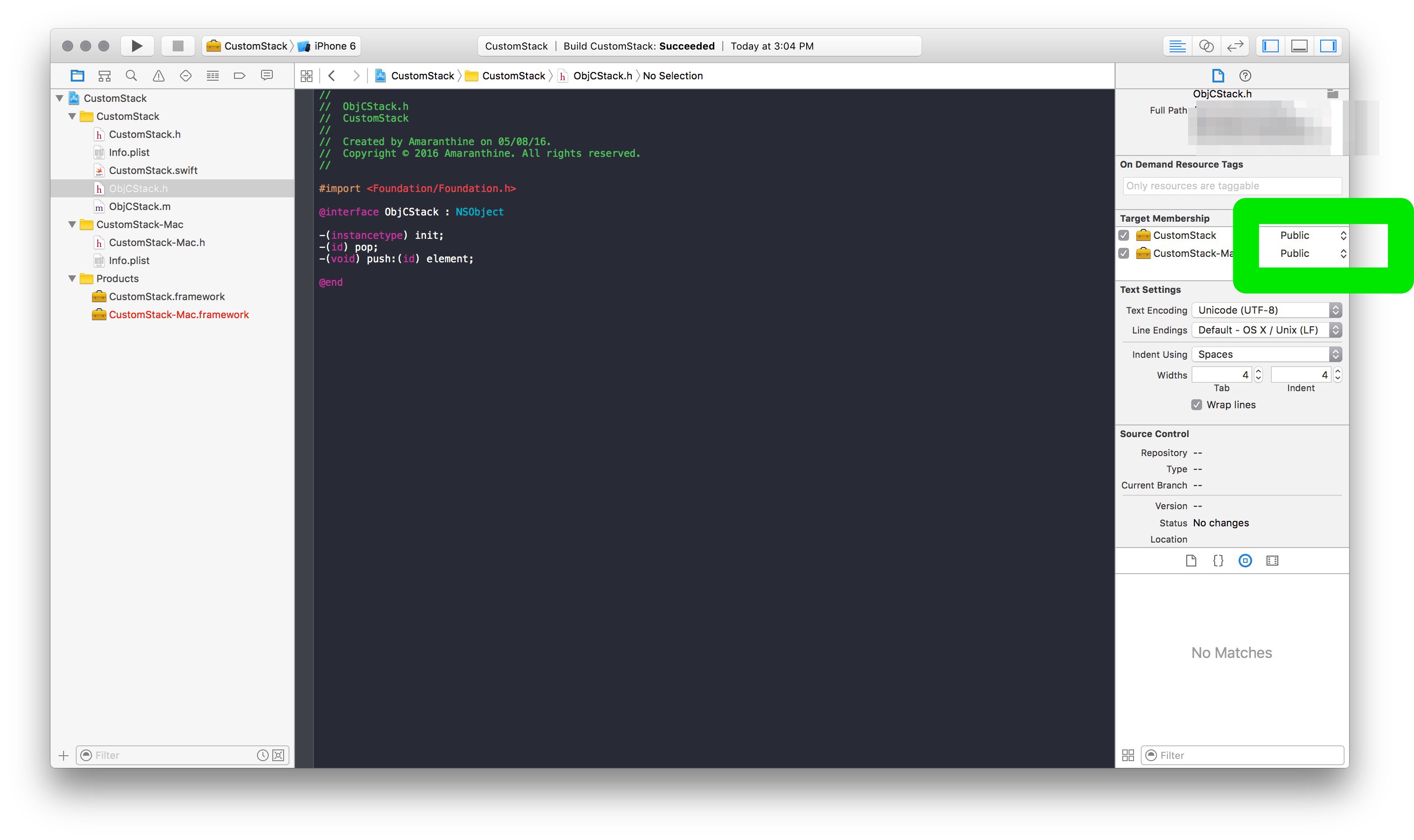
Modify the access property located within the target membership of the Objective-C header file.ย
This should make your Objective-C code accessible to the Swift files.
Test the changes by accessing your Objective-C code in your Swift files within the framework.
Test the changes further by embedding your mixed language framework into a project & then try to access both the Swift as well as Objective-C versions of the code in your new project.
To make your Swift code accessible to Objective-C File make the following changes:
Make sure that your Swift code is compatible with Objective-C. There are 2 ways of doing this. One you can make your Swift class inherit from NSObject. The second way is to use the @objc keyword before your class declaration.
In the Objective-C header file add the line to add the bridging header which is auto generated. You do not need to create your own bridging header.
#import "<FrameworkName>/<FrameworkName>-Swift.h"
Replace the wordย FrameworkName with the name of your Framework.
This should allow you to access your Swift code in your Objective-C header file within the same Framework Project.
This way you can make a single framework which contains code written in both Swift & Objective-C.
The steps below walk you through the process of downloading, installing & using the Swift Programming language on Linux. For this I will be using Ubuntu Linux 14.04.3 LTS version.
Install clang
The next step is to get hold of clang which is ย a compiler front end for C,C++,Objective-C & Objective-C++. For more information on clang: https://en.wikipedia.org/wiki/Clang http://clang.llvm.org
To install clang run the command: sudo apt-get install clang
Extract the Swift files you downloaded and place them in a folder of your choice.
Next we will addย swift to our path. Do that by running the command: export PATH=/path to your swift folder/usr/bin/:”${PATH}”
Verify whether it works by trying the following 2 commands which swift swift –version
Testing the REPL
Next we try the REPL for swift. To invoke this just type the command: swift
Write something likeย let myName : String = “Swift Code” and then hit enter.
Follow it byย print(myName) and then hit enter.
You should see the output printed. This is a nice way to test individual Swift statements.
Creating a Single File Project
To create a file based project:
Create a folder of your choice, lets call it Hello World:mkdir HelloWorld
Create a manifest file for the Package with the command:ย touch Package.swift
The source files for all your projects must be in theย Sourcesย folder, let’s create that:ย mkdir Sources
Create a file called main.swift using an editor of your choice. Place the statementย print(“Hello, World”) in it.
Step out of the sources folder and then run the command to build the project:ย swift build
The executable will be inside a hidden folder called .build/debug
The name of the executable will be the same as the name of the project folder.
To run it simply type:ย .build/debug/HelloWorld
Creating a multi file project
Create a folder of your choice, lets call it Hello World:mkdirย CentigradeToFahrenheit
Create a manifest file for the Package with the command:ย touch Package.swift
The source files for all your projects must be in theย Sourcesย folder, let’s create that:ย mkdir Sources
Create a file called converter.swift using an editor of your choice.