Most of the things are the same here are some of the changes:
The Indexable protocol is now not necessarily required. All the aspects of the indexable protocol now fall under the Collection Protocol
The names of the protocols have changed from SequenceType & CollectionType to Sequence & Collection
The keyword Generator has been renamed to Iterator. Accordingly the generate function has been renamed makeIterator function.
The collection protocol now requires the implementation of the function index, this function returns the value of the next index.
The sample code below should clarify
class CustomStack
{
    var data : [Element] = [Element]()

    func push(Element newElement : Element)
    {
        data.append(newElement)
    }

    func pop() -> Element
    {
        return data.removeLast()
    }
}

//Additional Implementations - not strictly required
extension CustomStack
{
    typealias Index = Int

    var startIndex : Index
    {
        return 0
    }

    var endIndex: Index
    {
        return (data.count - 1)
    }

    subscript (position : Index) -> Element
    {
        return data[position]
    }
}

extension CustomStack : Sequence
{
    typealias Iterator = AnyIterator

    func makeIterator() -> Iterator
    {
        var index = 0
        return AnyIterator({() -> Element? in
            if index < self.data.count
            {
                let res =  self.data[index]
                index += 1
                return res
            }
            return nil
        })
    }
}

extension CustomStack : Collection
{
    typealias SubSequence = CustomStack

    subscript (bounds: Range) -> CustomStack.SubSequence
    {
        let newStack : CustomStack = CustomStack()

        for i in bounds.lowerBound...bounds.upperBound
        {
            newStack.push(Element: data[i])
        }
        return newStack
    }

    /// Returns the position immediately after the given index.
    /// - Parameter i: A valid index of the collection. `i` must be less than
    ///   `endIndex`.
    /// - Returns: The index value immediately after `i`.
    func index(after i: Int) -> Int
    {
        if i < endIndex
        {
            return i + 1
        }
        return i
    }
}
This is for Swift Version 2.2 & earlier. I will be adding the snippet of code for the changes the Swift 3.x have introduced.
What are the Collection Type & Sequence Type Protocols?
The Collection Type, Sequence Type & Generator Type Protocols define rules that govern how different data structures or collections of data can be used, interacted with and operated within the Swift programming language. The CollectionType is a special case of the SequenceType.
Why do we need such Protocols?
Lets take the example of the Swift For-Loop.
var arrOfStrings : [String] = [String]()

arrOfStrings.append("Jill")
arrOfStrings.append("Jack")
arrOfStrings.append("John")
arrOfStrings.append("Jane")

for name in arrOfString
{
     print("The name is \(name)")
}
Now, if we have created our own data type. We would not be able to use the above for-loop as it would not conform to the … type protocols. The for-loop is expecting a data structure that acts and behaves in a way that is governed by the … protocols.
Just like the for-loop example above there are many other features within the Swift Programming Language that expect data structures to act and behave in a particular way. By designing our data structures to conform to these protocols we can make the easily compatible with the existing code and language features out there.
How do we use these protocols for our own data structures?
First we need to decide what kind of collection are we making. For the sake of this example I will create a Custom Stack.
class CustomStack<Element>
{
    var data : [Element] = [Element]()

    func push(Element newElement : Element)
    {
        data.append(newElement)
    }

    func pop() -> Element
    {
        return data.removeLast()
    }
}
The above code is very simple for the purpose of this exercise. Its a stack. Which is internally really an Array. It has functions to push data and pop data. We are now going to convert this type to a collection to conform to the CollectionType protocol.
Implementing the Indexable Protocol methods
As a first step we are going to make our CustomStack conform to the Indexable Protocol.
extension CustomStack : Indexable
{
    //INDEXABLE PROTOCOLS
    typealias Index = Int

    var startIndex : Int
    {
        return 0
    }

    var endIndex: Int
    {
        return (data.count - 1)
    }

    subscript (position : Int) -> Element
    {
        return data[position]
    }
}
The above change makes the data structure conform to the Indexable protocol. This is a requirement for it to be of type CollectionType. In order to conform to the Indexable protocol we need to implement a few computed properties. Let us look at the changes
typealias Index = Int
This line informs the system that the Indexing type for my data structure is an Int.
var startIndex : Int
{
    return 0
}

var endIndex: Int
{
    return (data.count - 1)
}
The next 2 are computed properties. Each provides the implementation of the startIndex and endIndex properties. Note that the type for both is Int as we have declared the Index type earlier as Int.
subscript (position : Int) -> Element
{
    return data[position]
}
The last implementation is of subscript. This provides the implementation to access an Element from the Stack using the Subscript operator.
Implementing the Sequence Type Protocol
Next we will implement the Sequence Type Protocol methods.
extension CustomStack : SequenceType
{
    typealias Generator = AnyGenerator<Element>

    func generate() -> Generator
    {
        var index = 0

        return AnyGenerator(body: {() -> Element? in
            if index < self.data.count
            {
                let res =  self.data[index]
                index += 1
                return res
            }
            return nil
        })
    }
}
Let us examine this code line by line.
typealias Generator = AnyGenerator<Element>
Objects of type Generator allow us to navigate through our collection. Quite like how iterators work in C++. This line specifies the type to be AnyGenerator for Elements.
func generate() -> Generator
Next we start the implementation of the generate function. This is required as part of the SequenceType protocol.
var index = 0
This index variable is used to track the element that is currently being accessed.
return AnyGenerator(body: {() -> Element? in
            if index < self.data.count
            {
                let res =  self.data[index]
                index += 1
                return res
            }
            return nil
        })
The return statement is the main statement. Here we are creating an object of type AnyGenerator. As an argument to the constructor call we are passing in a closure that will be used to iterate through the sequence. Note that the closure captures the index variable and holds a reference to its value even though we have left the original function.
Implementing the Collection Type Protocol
Next we will implement the Collection Type Protocol methods. We don’t really need to implement a lot in order to conform to the CollectionType protocol. In fact, if we just conform to the CollectionType protocol and use the implementations of the previous 2 extensions we should be just fine. However, for the sake of demonstration we are implementing the subscript functionality within the CollectionType.
extension CustomStack : CollectionType
{
    typealias SubSequence = CustomStack<Element>

    subscript (bounds: Range<CustomStack.Index>) -> CustomStack.SubSequence
    {
        let newStack : CustomStack<Element> = CustomStack<Element>()

        for i in bounds.startIndex...bounds.endIndex
        {
            newStack.push(Element: data[i])
        }
        return newStack
    }
}
Let us look at the code line by line.
typealias SubSequence = CustomStack<Element>
Again, as before this line indicates that the SubSequence type is actually a CustomStack.
Here we start the implementation of the subscript functionality.
let newStack : CustomStack<Element> = CustomStack<Element>()

for i in bounds.startIndex...bounds.endIndex
{
     newStack.push(Element: data[i])
}
return newStack
The rest of the code is the implementation of the subscript range behaviour. One can have different implementations to achieve the same result.
CollectionType Video
Conclusion
As we can see, by designing our data structure to conform to a particular set of protocols. We have made it possible for our data structure to take advantages of the different features, functionalities and even API’s available within the Swift Language and the Frameworks used as a part of iOS, macOS, watchOS & tvOS development.
Apple’s devices are getting more and more popular by the day. People are really excited to get hold of the newest product that comes out of its stable. This guide walks you through some of the things you need to keep in mind while buying used devices or selling your existing device. This may not apply when buying a new product from the store for the first time, however, its still good to know these things & run your device through a checklist.
Note the checklist provided below is by no means comprehensive nor is it complete. There might be other things to keep in mind before buying &/or selling used devices, depending on the geographic area, situation, and circumstances.
Buying
Before buying a used products run them through this checklist. Some items are device specific.
Make sure there is no physical damage to the device. Dents, scratches, cracks, missing screws.
Start the device & make sure it loads up as expected.
Check the different user interface elements: touch screen, 3d touch, keyboard, iSight camera, speakers, home button, Microphone
Check the different ports: USB, Ethernet, FireWire, Thunderbolt, USB-C, HDMI, Audio-out, SD card reader, lightning connector, 30-pin connector
Check the power cord, adapter & charging port
Note the version of the OS. Eg: OS X 10.10.3
Note the build number
Check the model number. This is important for Software Upgrades/Hardware upgrades. Older hardware may have an upper limit on the hardware expansion capability &/or the ability to run latest software optimally.
Make sure that the device does not contain any personal data belonging to the seller. While it is the sellers responsibility to ensure this, it still is a good idea to verify that there are no accounts are signed into. This is VERY IMPORTANT for iOS Devices due to its implications on Activation Lock.
Activation lock is used to prevent anyone from using a stolen device: https://support.apple.com/en-us/HT201365
Before buying please check the Activation lock status: https://www.icloud.com/activationlock/
Make sure there is no personal digital content in the form of Apps/Song/Movies or documents.
For Mac, make sure that there is no Firmware Password that is set.
Selling
The list above should give you a good idea on what you need to do while planning to sell your Apple device.
Delete all personal data. Make sure you have a backup of the same.
Remove any applications you may have installed.
Sign out of all accounts: Gmail, Hotmail, Facebook, iCloud, Apple ID…
Delete any user accounts you may have created. Leave a single admin account.
If you have used any Encryption service then make sure you turn off encryption before selling the device. This is more of a precaution to prevent issues that may arise in the future.
This article illustrates what to do if you are selling giving away iOS Devices: https://support.apple.com/en-in/HT201351
As a good measure, delink your Apple ID from your device. You can do this by:
Click on the cross to remove it from your Apple ID
De-register from iMessage.
Remove any custom settings, passwords (Firmware Password) that may compromise your security or prevent the user from fully using the device.
As a good measure completely erase the hard drive of your device.
Document items such as OS Version, Serial Number for your own reference.
Enterprises may take additional steps
To ensure data security, Enterprises may perform Secure Erase or drive replacement to prevent recovery of corporate information, when assigning devices to employees or selling them out in the market.
Enterprises should also protect against Activation lock. When collecting iOS Devices, assigned to an employee who is leaving the organisation, always check to make sure that the device is not locked to the employees Apple ID.
These are some of the things that you can do to make the transaction easy on both the sides.
This article covers some of the things troubleshooters would need during their everyday work. I’ve also listed links to some products and applications as an example. It is by no means an endorsement of the same.
OS X Install Disk: This is probably one of the most important tool that a troubleshooter must carry around with him/her. Ideally it would be one disk with multiple versions, each corresponding to a specific version of the OS. Exactly how many versions depends on the situation, for example one can have all instances of the present and previous 2 versions of the OS (For example OS X Mavericks 10.9, 10.9.1, 10.9.2, 10.9.3, 10.9.4, 10.9.5 OS X Yosemite 10.10, 10.10.1, 10.10.2, 10.10.3, 10.10.4, 10.10.5 OS X El Capitan 10.11, 10.11.1)
Thunderbolt & FireWire Cables: These come in handy when it comes to transferring data. These cables are necessary when you wish to perform target disk mode troubleshooting. Make sure you have the correct version of the cable.
Portable Storage Device: Along with the cables mentioned earlier having a portable storage device with a large capacity is useful. Mainly when it comes to taking a back up. The user may or may not have a storage device available for this. (Ideally, taking a backup of the data should be done by the user on his/her own storage device.)
Internet access via USB Dongle: Yet another important tool. Application & OS upgrades require internet access. This will also come in handy when you are trying to perform network troubleshooting. Make sure there is sufficient data available for upload/download. Optionally one can carry multiple Internet dongles from different vendors.
Portable Power Bank: This is more useful for portable devices. Carry one with a large capacity, enough for multiple recharges or charging multiple devices.
Display adapters: Necessary to troubleshoot when the main display isn’t working or to heck the display ports. Carry all combinations HDMI to VGA, MiniDisplay to VGA, MiniDisplay to HDMI, HDMI to HDMI and any others depending on the device to be connected to.
Secondary Display: This might not be practical as displays tend to be very large and not necessarily portable. However, one can carry a small pocket projector. A secondary display is always handy as it reduces dependency on the user/client to provide one.
Power adapters: Not strictly required but can come in handy. Useful for checking if the user’s power cord is functioning properly. Make sure you carry all the different versions of the power cords.
Lightning & 30 pin cables: Again not strictly necessary but would be useful for checking if the user’s power cord is functioning properly. Make sure you carry all the different versions of the power cords.
MacBook Pro &/or iPad: Carrying your own Mac & iPhone/iPad is very important. Load these devices with various tools required to diagnose and/or fix issues.
Continuing on from the previous post, where we learnt to secure our iOS devices, we will now apply similar steps on the Mac.
The security of a computer is easy to maintain if physical access to the device is restricted to yourself as far as possible. If any unauthorised person has physical access to your computer then all bets on security are off. While it’s easy for us to say that no one else is going to use the computer, one must always take some precautions. The following are just some of the steps one could take to secure their Mac.
User Accounts
This is the simplest way of ensuring very basic security. If more than one person is using a Mac one can have different accounts for each user. The account type that can be used for other users are:
Standard Users: This is a basic account that is used everyday. This accounts limits the user to his own files & folders only. The user has the option to install applications too.
Managed Users: They are standard users with restrictions. An administrator can specify what the user can or cannot do. This includes time limits, restrictions on applications & websites.
Guest User: This is the simplest of the lot. Good for people who wish to access their emails & leave no data behind.
User Account Password
This is the simplest form of security. It is the password that you use to login to the computer. Having a strong password goes a long way in securing your Mac.
Setting a password
A password to your account will very likely be set when it was first created.
Changing the password
This can be changed at any point in time.
Open System Preferences
Click on Users & Groups
If necessary unlock the padlock icon and authenticate as the administrator on your Mac.
Select your user account
On the right hand side click on change password
The other approach towards changing the password is:
Open System Preferences
Click on Security & Privacy
Click on the General tab
Click on the “Change Password” button next to the sentence: “A login password has been set for this user”
Note: for both the approaches you must know your existing password.
To create a strong password use the built in Password Assistant
Encrypted Disk Images
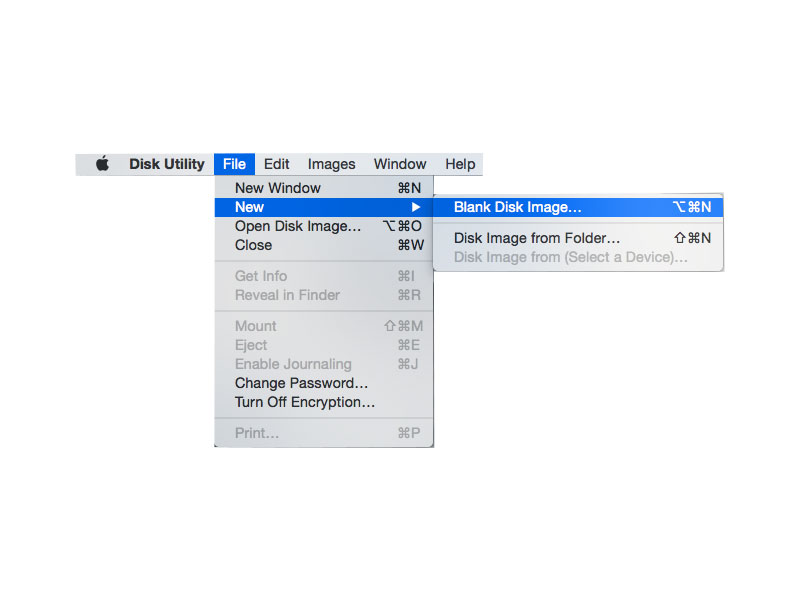
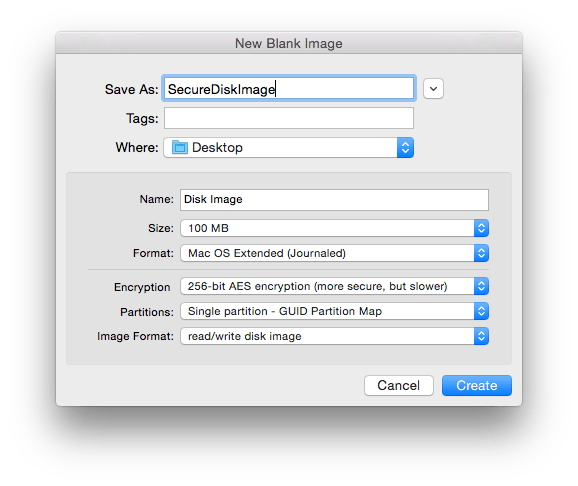
This offers a convenient approach towards storing your files securely. Disk Images are created using Disk Utility. To create encrypted disk images:
Open Disk Utility. It’s located in the Applications > Utilities folder.
Click File > New > Blank Disk Image.
Don’t select the ‘Disk Image from Folder ‘ option.
Specify the size of the image.
In the Image Format select ‘Read/Write’
Under security select the level of encryption desired.
Provide a name and click create.
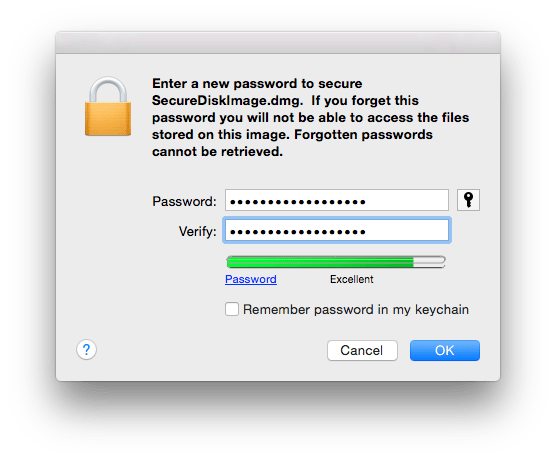
Choose where you wish to save the disk image, provide an appropriate password.
Once the image is created, open the image.
It mounts as a virtual disk, you will be prompted to enter the password you set earlier.
Now you can add files you wish to secure.
Once you are done simply eject the volume.
The next time you wish to access the files simply open the image and authenticate with the password.
This ensures that your information is completely safe.
Firewall
The firewall option is nice if you want to secure your communications over the network. From here you can control which applications can communicate over the internet or receive communications over the network. Simply turn on the Firewall & control access to the computer.
To customise the access to a network:
Click on Firewall Options
You can then click on the +/- buttons to add or remove applications from your firewall list. You can also modify whether a particular application is blocked.
FileVault
Disk images provide the option of securing some of your files. But what if there is a lot of secure information that you have? Disk images maybe used but it can become tedious if there are too many files. In such situations using FileVault to secure your files is preferable.
FileVault encrypts your main partition, that is, the partition from where you boot your OS from. Most users would have a single partition on their disk, for them it would mean that FileVault encrypts the whole hard disk. So anything you create on the encrypted partition is automatically secured.
To turn on FileVault:
Open System Preferences > Security & Privacy > FileVault Tab.
Click ‘Turn on FileVault’.
Authenticate as the administrator if necessary.
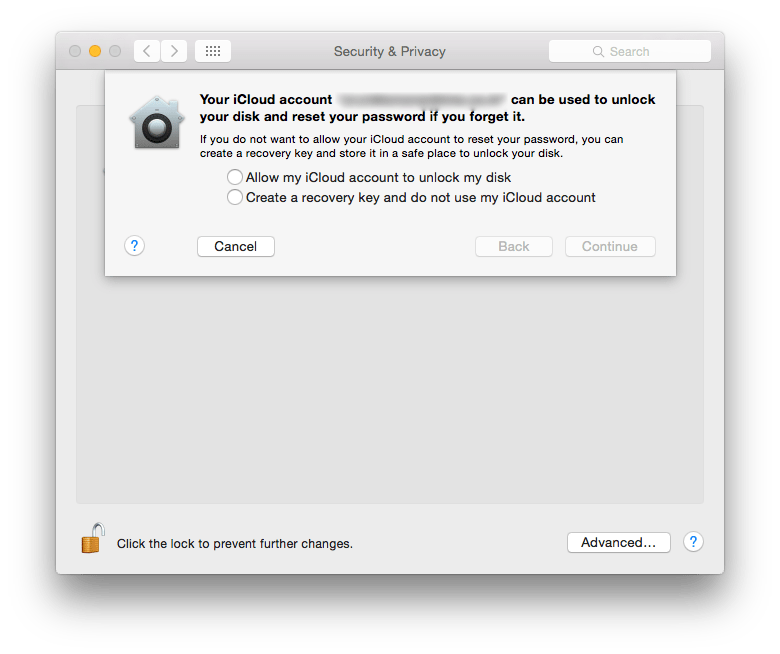
You will be asked where you wish to save the ‘Recovery Key’? This key is important because you would need the recovery key to reset your account password if all administrator users forget their password.
You can choose to save it to your iCloud Account
Click continue.
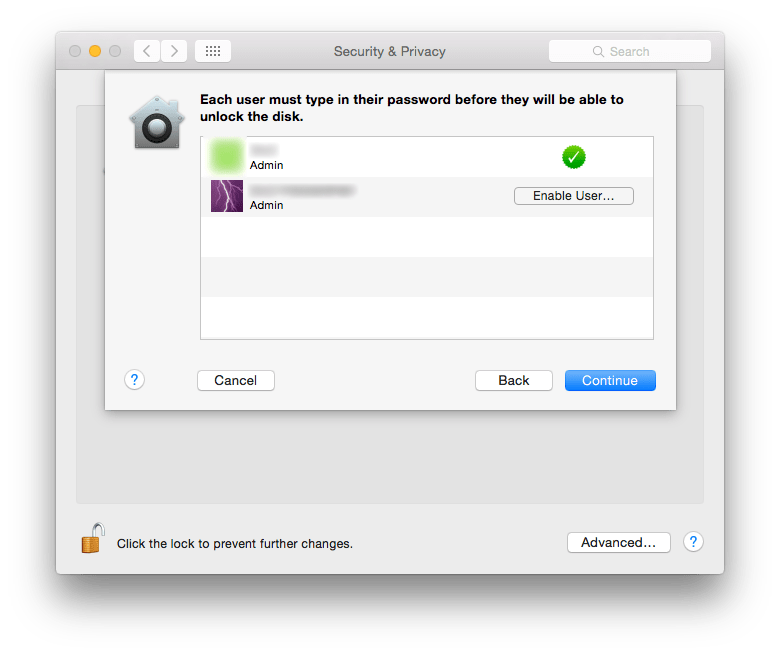
Choose the users who will have the privilege of decrypting the system for daily use.
Click Continue.
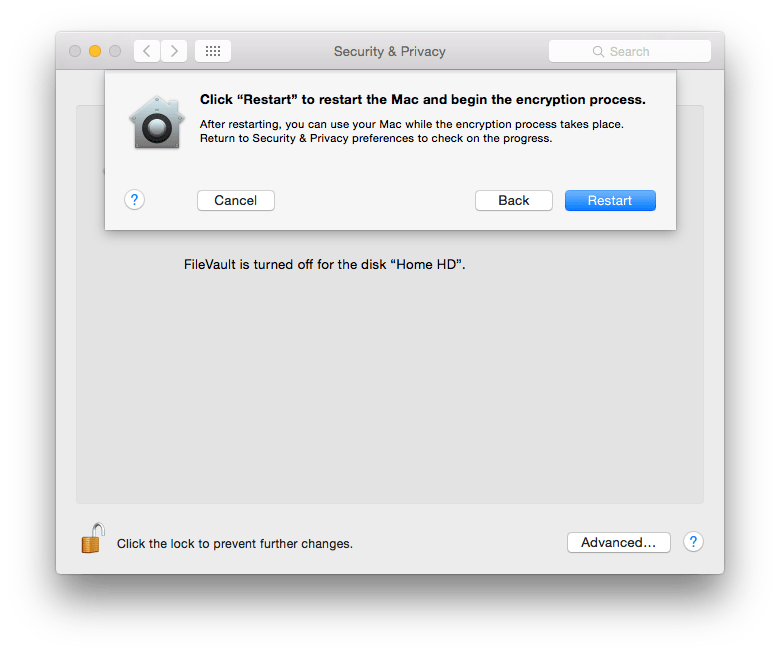
Click Restart to start the Encryption process.
Logout & Sleep
If you are leaving the computer idle or unattended for a period of time, then it is a good idea to make sure that the computer itself is locked automatically. These settings can easily be set from System Preferences:
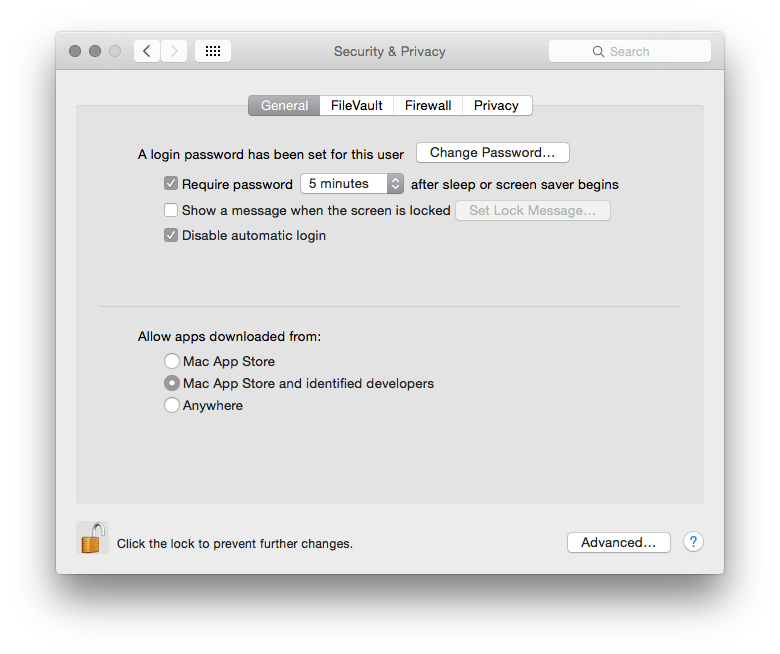
Open System Preferences > Security & Privacy
Click on the General Tab.
Check the box for “Require password after sleep or screen saver begins“. This way the user will have to enter his/her password to start using the computer again. Specify the time duration after which this can happen.
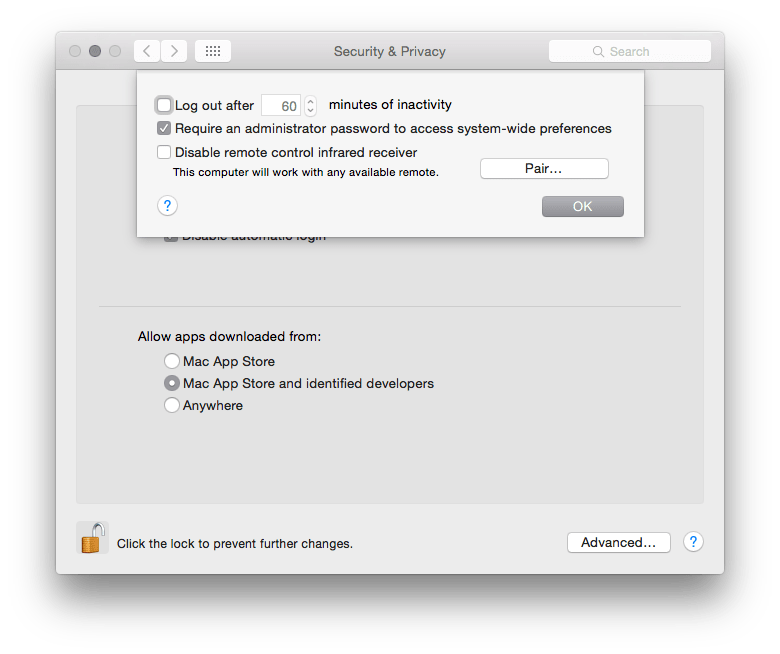
Click on “Advanced“
Select the check box to log out after a certain period of inactivity. Specify the time duration.
Find My Mac
This feature has more to do with locating a device that is missing. While it is called Find My Mac, one can locate both OS X as well as iOS devices. There are a few things to keep in mind:
All the devices to be tracked should be signed in with the same Apple ID.
The device must be connected to the Internet.
Setting up Find My Mac is easy:
Open System Preferences > iCloud.
Make sure you are signed in.
On the service list, located on the right hand side, scroll down to the checkbox for Find My Mac.
Select the checkbox for Find My Mac if it is not already selected.
You may need to grant access to location services.
Sign in with the same Apple ID/iCloud ID you had signed in with on your Mac.
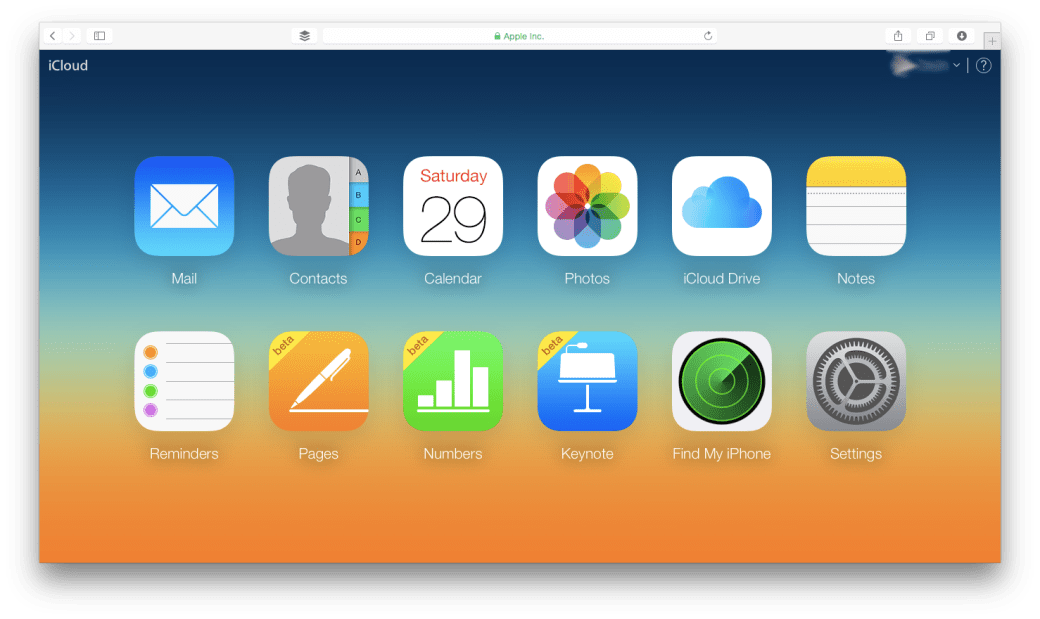
Once you log in click on the Find My iPhone app. Remember, even if it is called Find my iPhone, you can search for any iOS or OS X device.
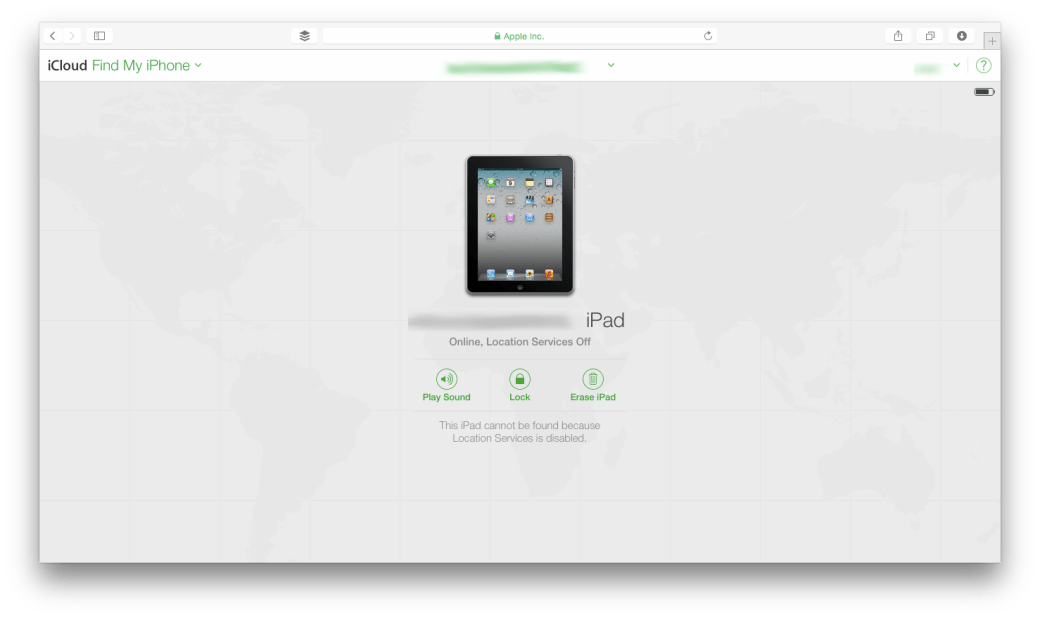
The page should now load with a map of all your devices which are currently online.
You can select a specific device & perform various actions such as: Play Sound, Lock Device, Erase Device. Select the activity appropriate for your needs.
Privacy
it is possible to restrict access to a particular set of data on your Mac. Through the privacy tab within System Preferences > Security & Privacy.
From here once can give access to your data at an application level. The kind of data that can be moderated are:
Contacts
Calendar events
Location
Reminders
Facebook/Twitter credentials
Certain resources such as Location & Diagnostics are controlled by the administrator.
Firmware Password
A Firmware Password is a Logic Board level password. The main purpose of a Firmware Password is to prevent unauthorised modification of the startup process of a Mac. It doesn’t secure your data. But it makes sure that no one can gain access to your computer by changing the boot sequence. It becomes difficult for people to boot your Mac off a network or an external disk.
The process of setting up a Firmware Password is a bit technical. Please consult with a member from the IT Department of your company or contact an Apple Certified Support Professional. You can also approach an Apple Authorised Service Centre for the same. If you have forgotten one, then you will have to approach an Apple Authorised Service Centre for the same. Here are the steps.
Data safety is always a must. With portable devices it gets even more important. Here are a few steps that one can take to make sure their iPhone/iPad/iPod touch is secure. While the guide says iPhone, you can apply many of these steps to other iOS devices, subject to feature availability.
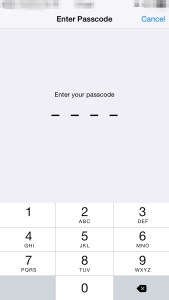
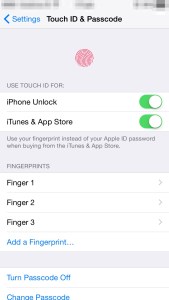
PASSCODE & TOUCH ID UNLOCK
This is the simplest form of security. You are prompted to setup your passcode during the initial device setup itself. While it is not necessary, it is highly recommended. Of course, you can change this at any time. The other option on the newer devices is to use the fingerprint scanner called Touch ID. This adds a convenience to the user while taking care of the security needs. The important thing is that your finger print details are left on the device. Nothing is shared over the internet. The Touch ID is limited to newer devices.
ACTIVATION LOCK
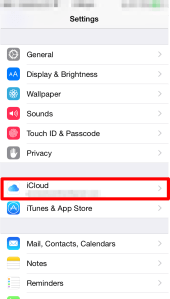
Activation lock is a feature that was first introduced in iOS 7. The idea behind Activation lock is to make sure that no one is able to use a stolen device, even if it is erased. This is activated automatically once you sign into your iCloud account. To use a device after it has been erased, the user must enter the Apple ID & password that was used to sign into iCloud on the device.
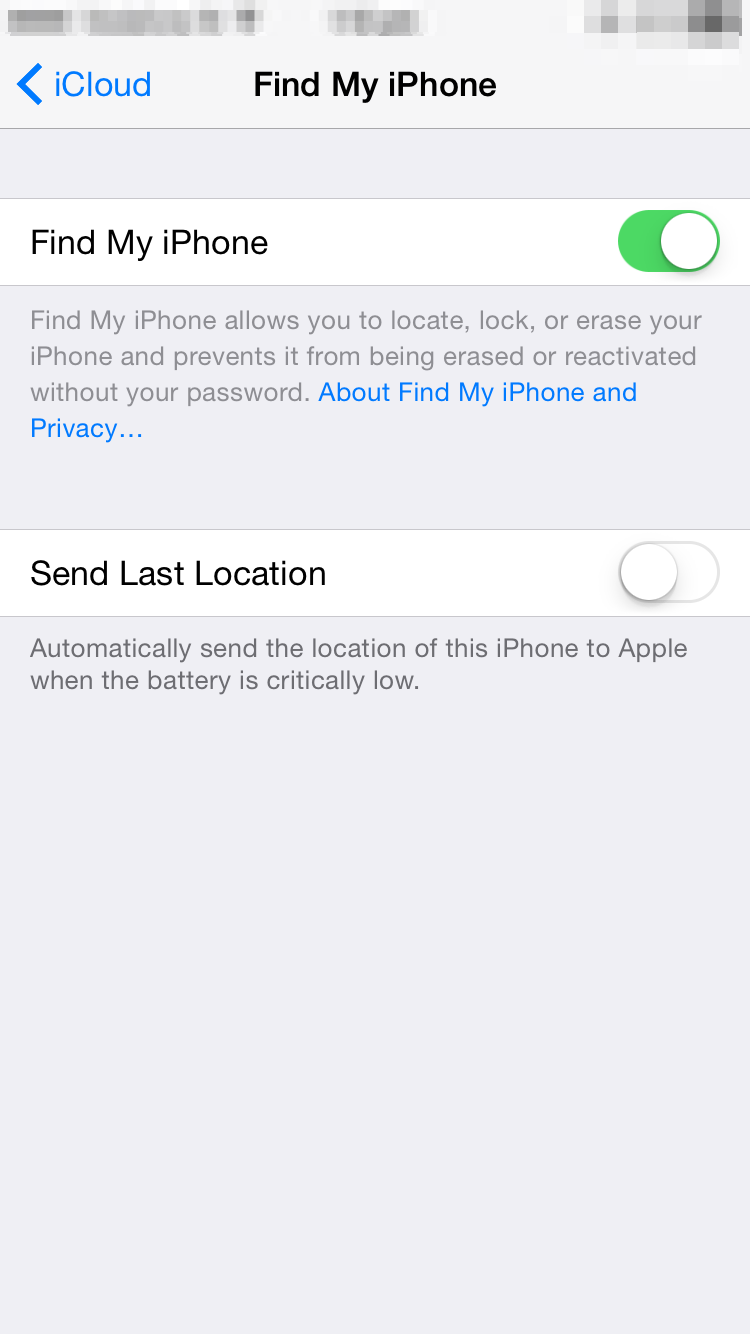
This feature is available via the iCloud service. It allows you to locate your device & shows it up on the map itself. This feature is extremely useful if you have lost the device. Note: For this to work, the device requires an active network connection.
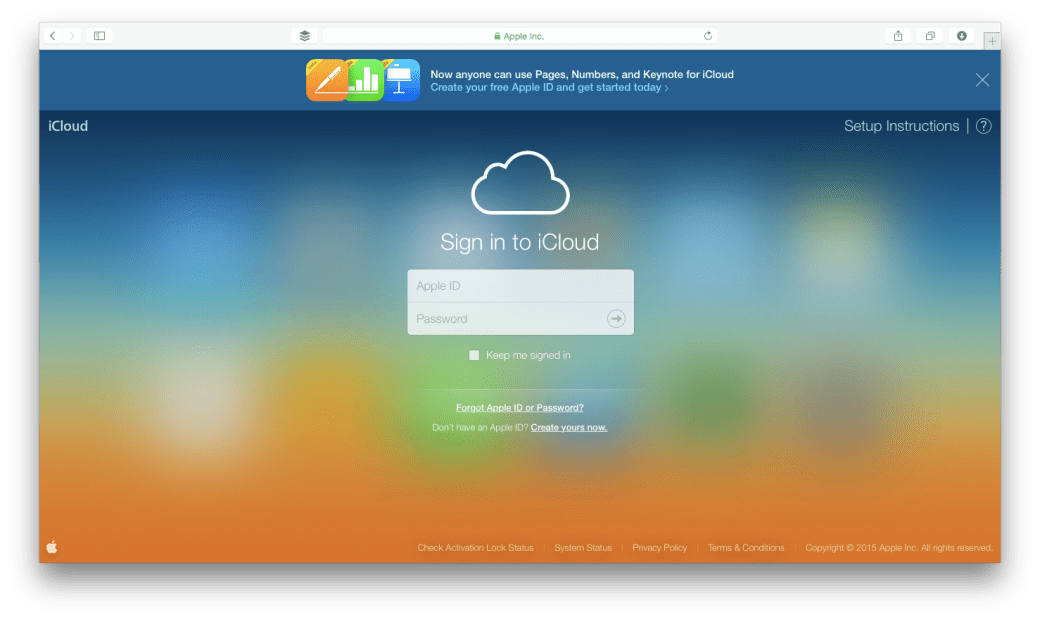
Once configured, you can locate the device using the web that is via http://www.icloud.com or through the “Find my iPhone” app on another iOS device.
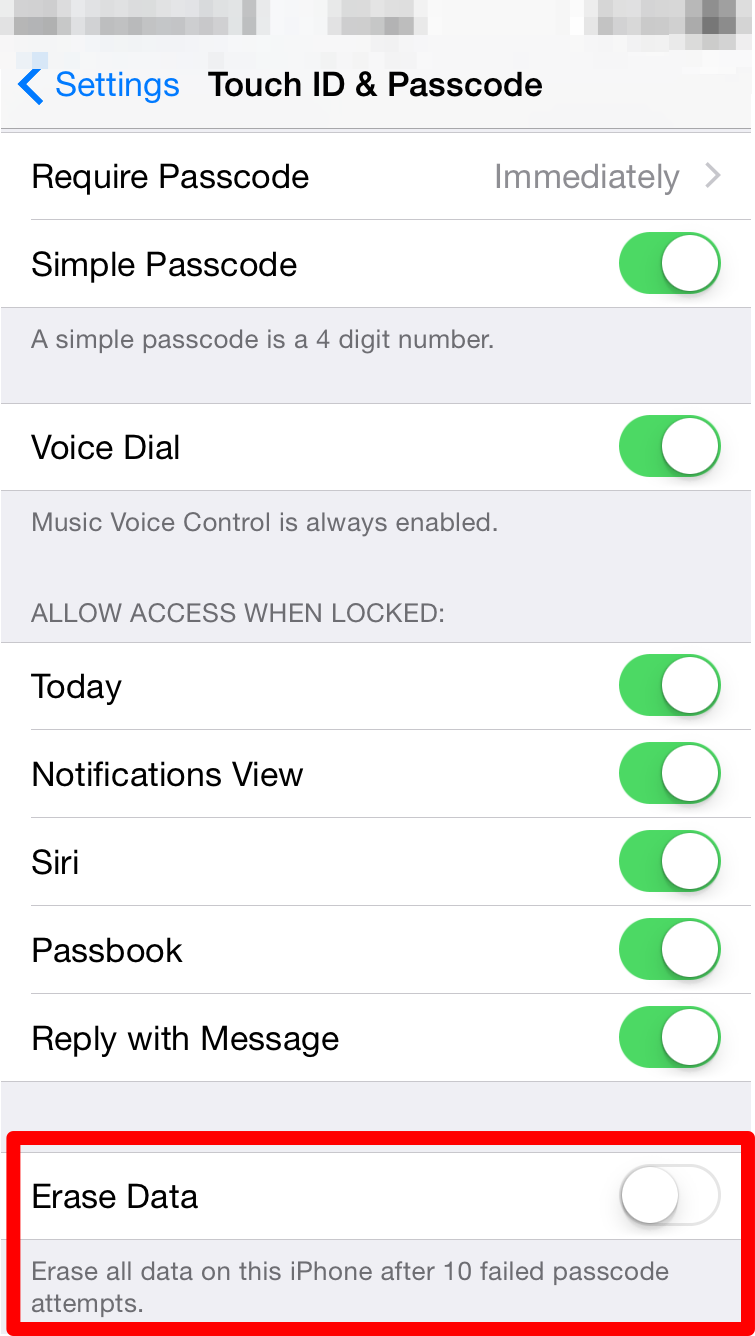
ERASE PHONE
Another useful option is to automatically erase the phone, if the number of passcode attempts by a user exceeds the maximum specified limit.
This is setup in the Touch ID & Passcode section within the Settings app.
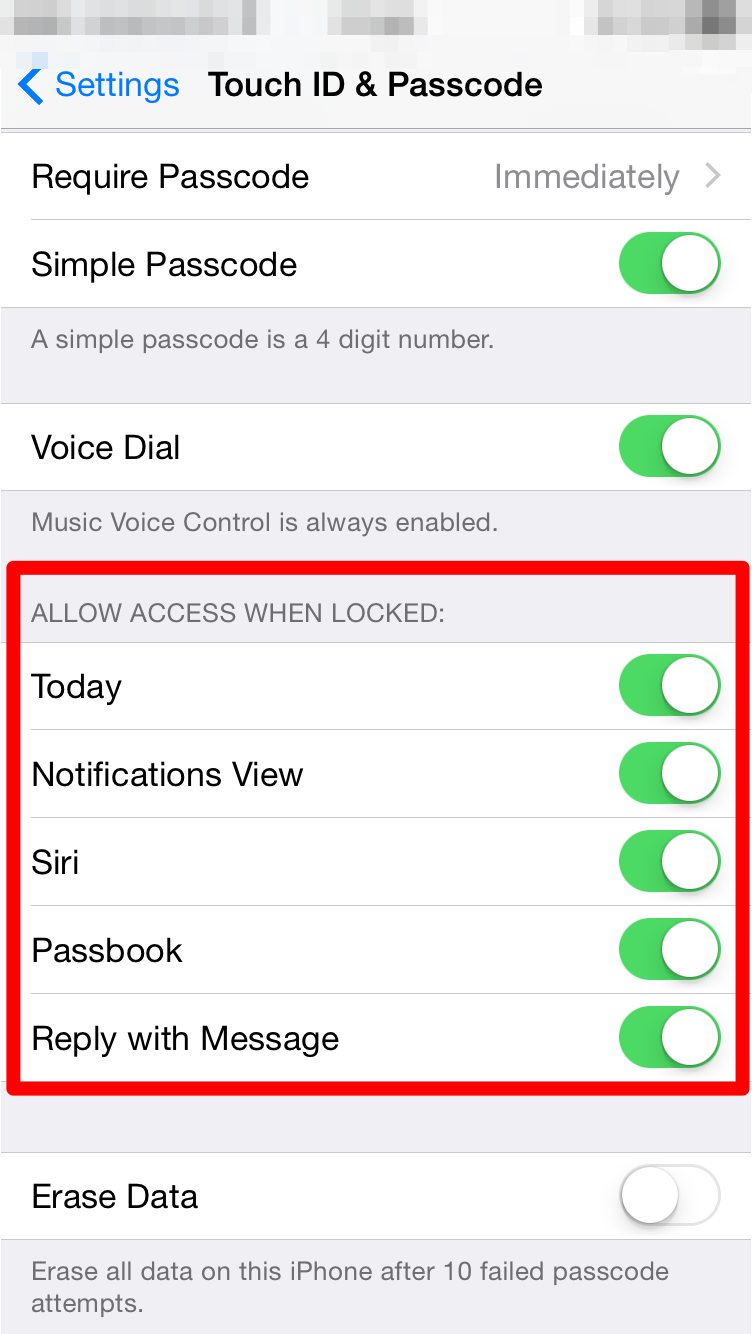
ALLOW ACCESS FOR SERVICES WHEN DEVICE IS LOCKED
Just having a passcode or Touch ID may not be enough in all cases. Some data is also available from the lock screen. One can control the availability of data on the lock screen from the Touch ID & Passcode screen within the Settings app.
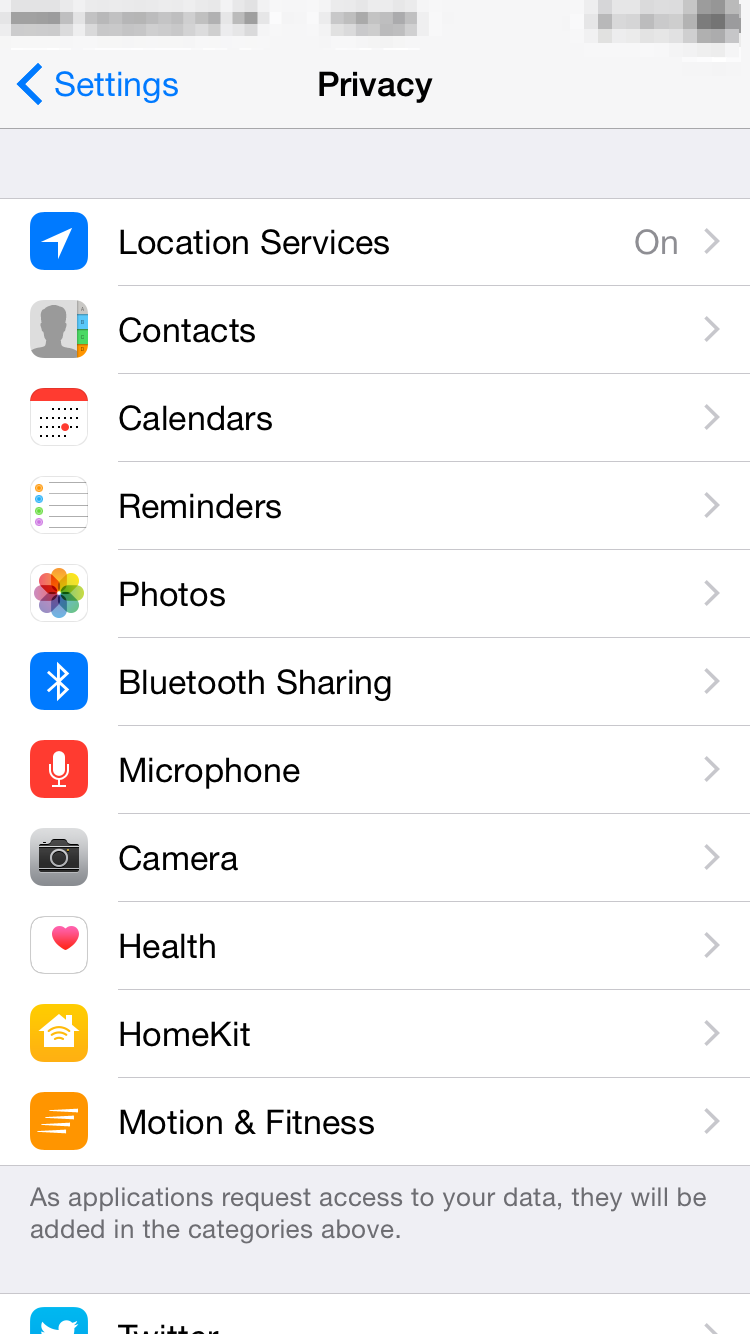
PRIVACY
Additionally, you can also control what information from your device is being shared & which apps have access to that information. There is a lot of flexibility available when it comes to controlling the kind of information being shared.
The user can specify which apps can access their contacts, calendar events, location & other data.
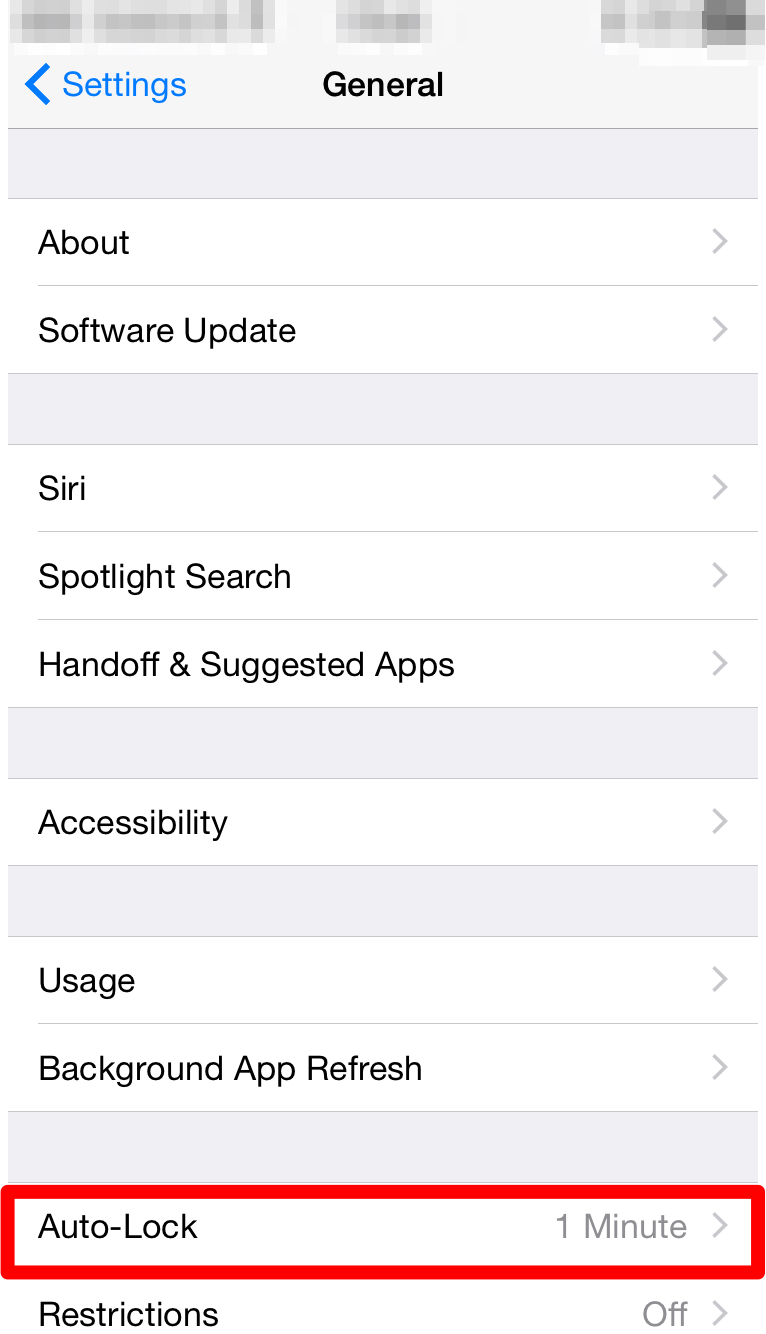
AUTO LOCK
It’s very rare that one leaves their iPhone unattended. But in the rare cases that one is distracted from the task they are performing on the device, it would be nice to know if the device can lock itself up.
This is done through auto lock within the General settings under the settings app.
RESTRICTIONS
Located under the general settings within the settings app, restrictions, as the name says, allows us to disable certain applications and actions from being executed.
The passcode is required to enable/disable the feature.


 The firewall option is nice if you want to secure your communications over the network. From here you can control which applications can communicate over the internet or receive communications over the network. Simply turn on the Firewall & control access to the computer.



 Arun Patwardhan's Blog