Creating multi-OS Install Disk

In this article we are going to look at how to create a multi-OS Install Disk. We are going to look at the example of creating a multi-OS Install Disk for the following versions of the OS:

  • 10.9.1
  • 10.10
  • 10.10.4
  • 10.11.5
  • 10.12
  • 10.12.1
  • 10.12.2
  • 10.12.3

The idea is to have a single disk with multiple versions of the Install Disk on it. The versions should reflect the need of the organisation.

REQUIREMENTS

  1. USB Drive at least 75GB in Size. This depends on the number of Install drives you wish to have. At the very least there should be enough space to create 2 partitions of 8 GB each. 
    While I have mentioned USB drive, it need not be restricted to that interface. You can use Thunderbolt, FireWire or even an SDXC slot for this. Ideally the port should be one that is supported on maximum possible computers.
  2. Install setup for each version of the OS for which you want to create the install disk. The setup must match the version desired.
  3. A Mac running the same major version of the OS. You can only create an install disk for 10.9.x on a Mac running OS X 10.9.x, the same applies for the other versions of the OS.

The process is the same. It’s just that it needs to be repeated.

STEPS

  1. Create 8 partitions on a USB Drive. Assume that the USB Drive is called Recovery Drive. Give the partitions names Partition 1, Partition 2,….
  2. Connect the USB Drive to a Mac running 10.9.1 or later.
  3. Make sure that the OS Installer setup is located in the Applications folder.
  4. Run the following command in the command line.
    sudo /Applications/Install\ OS\ X\ Mavericks.app/Contents/Resources/createinstallmedia --volume /Volumes/Partition\ 1 --applicationpath  /Applications/Install\ OS\ X\ Mavericks.app
  5. Rename the partition as Install disk for OS X 10.9.1, if necessary.
  6. Once completed eject the USB Drive & connect it to a Mac running 10.10
  7. Make sure that the OS Installer setup is located in the Applications folder.
  8. Run the following command in the command line.
    sudo /Applications/Install\ OS\ X\ Yosemite.app/Contents/Resources/createinstallmedia --volume /Volumes/Partition\ 2 --applicationpath  /Applications/Install\ OS\ X\ Yosemite.app
  9. Rename the partition as Install disk for OS X 10.10, if necessary.
  10. Once completed eject the USB Drive & connect it to a Mac running 10.10.4
  11. Make sure that the OS Installer setup is located in the Applications folder.
  12. Run the following command in the command line.
    sudo /Applications/Install\ OS\ X\ Yosemite.app/Contents/Resources/createinstallmedia --volume /Volumes/Partition\ 3 --applicationpath  /Applications/Install\ OS\ X\ Yosemite.app
  13. Rename the partition as Install disk for OS X 10.10.4, if necessary.
  14. Once completed eject the USB Drive & connect it to a Mac running 10.11.5 or later.
  15. Make sure that the OS Installer setup is located in the Applications folder.
  16. Run the following command in the command line.
    sudo /Applications/Install\ OS\ X\ El\ Capitan.app/Contents/Resources/createinstallmedia --volume /Volumes/Partition\ 4 --applicationpath  /Applications/Install\ OS\ X\ El\ Capitan.app
  17. Rename the partition as Install disk for OS X 10.11.5, if necessary.
  18. Once completed eject the USB Drive & connect it to a Mac running 10.12 or later.
  19. Make sure that the OS Installer setup is located in the Applications folder.
  20. Run the following command in the command line.
    sudo /Applications/Install\ macOS\ Sierra.app/Contents/Resources/createinstallmedia --volume /Volumes/Partition\ 5 --applicationpath  /Applications/Install\ macOS\ Sierra.app
  21. Rename the partition as Install disk for OS X 10.12., if necessary.
  22. Once completed eject the USB Drive & connect it to a Mac running 10.12.1 or later.
  23. Make sure that the OS Installer setup is located in the Applications folder.
  24. Run the following command in the command line.
    sudo /Applications/Install\ macOS\ Sierra.app/Contents/Resources/createinstallmedia --volume /Volumes/Partition\ 6 --applicationpath  /Applications/Install\ macOS\ Sierra.app
  25. Rename the partition as Install disk for OS X 10.12.1., if necessary.
  26. Once completed eject the USB Drive & connect it to a Mac running 10.12.2 or later.
  27. Make sure that the OS Installer setup is located in the Applications folder.
  28. Run the following command in the command line.
    sudo /Applications/Install\ macOS\ Sierra.app/Contents/Resources/createinstallmedia --volume /Volumes/Partition\ 7 --applicationpath  /Applications/Install\ macOS\ Sierra.app
  29. Rename the partition as Install disk for OS X 10.12.2, if necessary.
  30. Once completed eject the USB Drive & connect it to a Mac running 10.12.3 or later.
  31. Make sure that the OS Installer setup is located in the Applications folder.
  32. Run the following command in the command line.
    sudo /Applications/Install\ macOS\ Sierra.app/Contents/Resources/createinstallmedia --volume /Volumes/Partition\ 8 --applicationpath  /Applications/Install\ macOS\ Sierra.app
  33. Rename the partition as Install disk for OS X 10.12.3, if necessary.

The commands shown above might be different from what appears on your screen. A lot will depend on what you have named your partitions as, the name you may have given to the OS Installer file, and the location of the OS Installer.

The process of renaming the partitions post creation of the install disk is not necessary, but very useful because that will help you identify the appropriate partition when using the drive.

The above process is very scalable & can be done for even more versions of the OS if required.
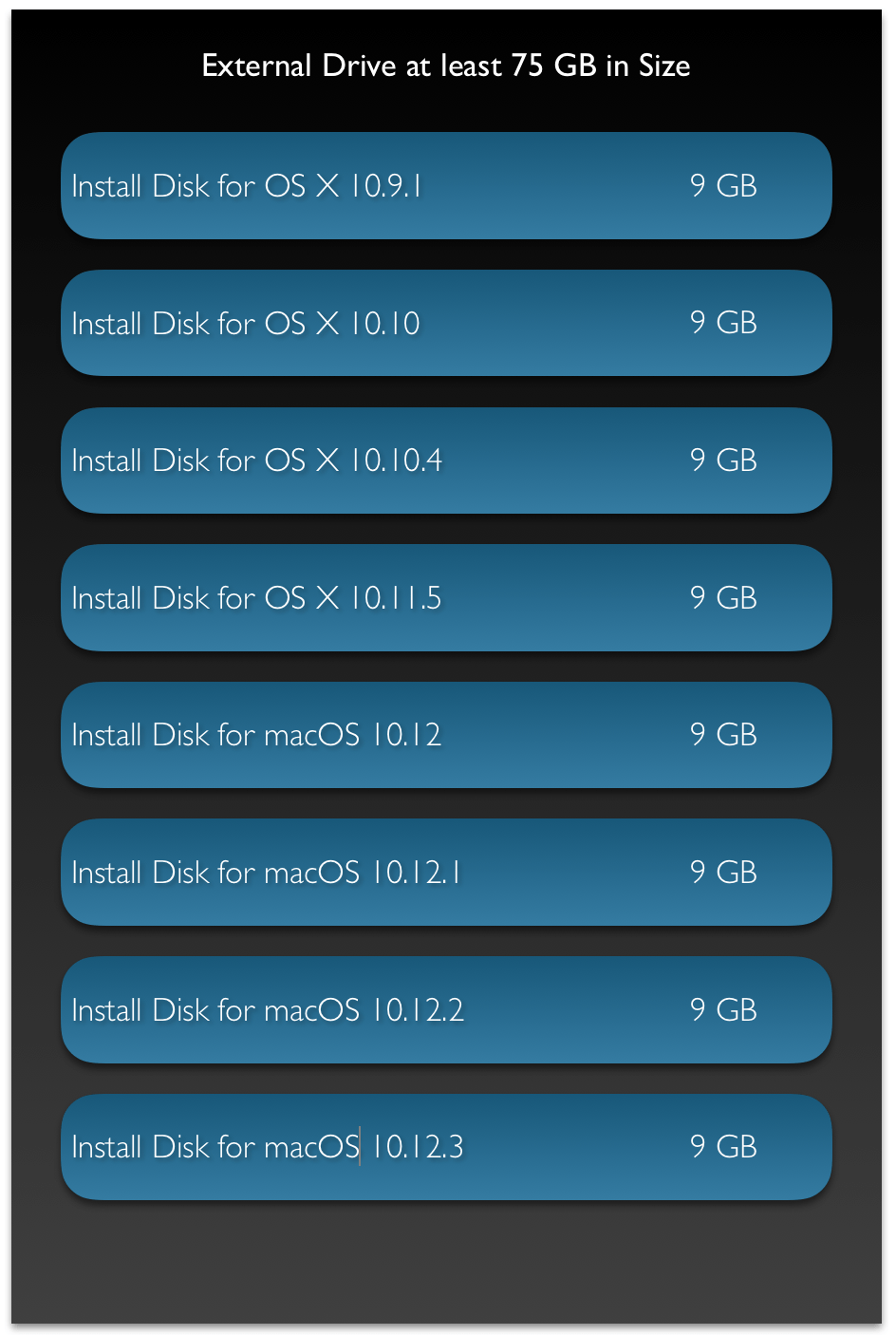
Screen Shot 2017-04-17 at 11.11.39 AM
This diagram illustrates the layout of the different partitions on a single USB Drive.

Configuring/Troubleshooting OS X Using Command Line

The following are some commands that you can use for Configuration &/or Troubleshooting. This list is by no means exhaustive. Do check the man pages for more information. This article assumes familiarity with Terminal commands. If you are new to the Terminal Application, please read the following articles before reading this one.

Terminal Commands for OS X – Basic
Terminal Commands for OS X – Part 2
Terminal Commands for OS X – Part 3

SYSTEM SETUP

softwareupdate

This command is used to install software updates remotely. View the following support article for more information.

dscl

This command is used to manage the different Users & Groups on your Mac. Using this command one can create, modify & view the different settings related to Users & Groups locally on the Mac. Amongst the other things, User Authentication through passwords can also be managed from here. View the man page for more information on the options available.

createhomedir

This command is used to create & populate home folders on the Mac. View the man page for more information on the options available.

systemsetup

As the name says, this command is used to setup the system. One of the more generic commands, using this we can set the date/time, energy preferences & various other settings. View the man page for more information on the different options available.

SECURITY

security

This is the command line version of the GUI application Keychain Access. Use this command to manage your Keychain. Some of the things that can be done using this command include: creating keychains, locking/unlocking keychains, finding your secure information within the Keychain. View the man page for more information on the options available.

FILE SYSTEM TROUBLESHOOTING

fsck

This command is used for running File System Checks. View the man page for more information on the options available.

diskutil

This command is used to run disk utility options. This is the command line equivalent of  the Disk Utility application. There are many operations available within this command line utility that are not available directly in the GUI version of the tool. View the man page for more information on the options available.

fdesetup

This command is used to control the FileVault settings on the Mac. Again, like the distil command this utility gives a lot more options than the GUI version of the Mac. Including the ability to change the recovery keys. View the man page for more information on the options available.

chmod

This command is used to modify permissions to files & folders. View the man page for more information on the different options available.

ln

This is the command used to create both hard links & soft links in the terminal. View the man page for more information on the different options available.

xattr

This command is used to examine &/or modify the attributes/metadata for a given file or folder. View the man page for more information on the different options available.

tmutil

This command allows you to configure &/or setup the Time Machine service. This is the command line version of the Time Machine settings located within System Preferences. View the man page for more information on the different options available.

locate

This command is used to search for files on the Mac. View the man page for more information on the different options available.

hdiutil

This command is also used to manage storage devices & Filesystems. The diskutil & hdiutil are command line versions of the Disk Utility app. View the man page for more information on the different options available.

NETWORK SETTINGS & TROUBLESHOOTING

networksetup

This command is used to set up & configure your network settings. This is the command line equivalent of the Network Preferences located under System Preferences. View the man page for more information on the different options available.

ipconfig

This command lets you view & control the IP configuration settings. View the man page for more information on the different options available.

ifconfig

This command is used to configure the Network Interface parameters. View the man page for more information on the different options available.

route

This command allows you to manually manipulate the routing tables. View the man page for more information on the different options available.

ping

Used to send ping diagnostic requests. View the man page for more information on the different options available.

scutil

Used to manage the System Configuration parameters. View the man page for more information on the different options available.

START/SLEEP/SHUTDOWN

shutdown

This command is used to shut down the Mac from the command line. View the man page for more information on the options available.

sleep

This command is used to put the system to sleep. View the man page for more information on the options available.

reboot/halt

This command is used for restarting the system. View the man page for more information on the options available.

caffeinate

Used to prevent the system from sleeping. View the man page for more information on the options available.

FILE EDITING

There are various editors available for command line. I am just listing a few. A lot of the editing can also be done in the GUI but in some cases the changes have to be done as a Super User. In Such situations loading one of the following editors using the sudo command can come in handy.

Emacs

https://en.wikipedia.org/wiki/Emacs
https://www.gnu.org/software/emacs/
http://www.xemacs.org

Vi

https://en.wikipedia.org/wiki/Vi

Vim

https://en.wikipedia.org/wiki/Vim_(text_editor)
http://www.vim.org

GEdit

https://en.wikipedia.org/wiki/Gedit