Creating multi-OS Install Disk

In this article we are going to look at how to create a multi-OS Install Disk. We are going to look at the example of creating a multi-OS Install Disk for the following versions of the OS:

  • 10.9.1
  • 10.10
  • 10.10.4
  • 10.11.5
  • 10.12
  • 10.12.1
  • 10.12.2
  • 10.12.3

The idea is to have a single disk with multiple versions of the Install Disk on it. The versions should reflect the need of the organisation.

REQUIREMENTS

  1. USB Drive at least 75GB in Size. This depends on the number of Install drives you wish to have. At the very least there should be enough space to create 2 partitions of 8 GB each. 
    While I have mentioned USB drive, it need not be restricted to that interface. You can use Thunderbolt, FireWire or even an SDXC slot for this. Ideally the port should be one that is supported on maximum possible computers.
  2. Install setup for each version of the OS for which you want to create the install disk. The setup must match the version desired.
  3. A Mac running the same major version of the OS. You can only create an install disk for 10.9.x on a Mac running OS X 10.9.x, the same applies for the other versions of the OS.

The process is the same. It’s just that it needs to be repeated.

STEPS

  1. Create 8 partitions on a USB Drive. Assume that the USB Drive is called Recovery Drive. Give the partitions names Partition 1, Partition 2,….
  2. Connect the USB Drive to a Mac running 10.9.1 or later.
  3. Make sure that the OS Installer setup is located in the Applications folder.
  4. Run the following command in the command line.
    sudo /Applications/Install\ OS\ X\ Mavericks.app/Contents/Resources/createinstallmedia --volume /Volumes/Partition\ 1 --applicationpath  /Applications/Install\ OS\ X\ Mavericks.app
  5. Rename the partition as Install disk for OS X 10.9.1, if necessary.
  6. Once completed eject the USB Drive & connect it to a Mac running 10.10
  7. Make sure that the OS Installer setup is located in the Applications folder.
  8. Run the following command in the command line.
    sudo /Applications/Install\ OS\ X\ Yosemite.app/Contents/Resources/createinstallmedia --volume /Volumes/Partition\ 2 --applicationpath  /Applications/Install\ OS\ X\ Yosemite.app
  9. Rename the partition as Install disk for OS X 10.10, if necessary.
  10. Once completed eject the USB Drive & connect it to a Mac running 10.10.4
  11. Make sure that the OS Installer setup is located in the Applications folder.
  12. Run the following command in the command line.
    sudo /Applications/Install\ OS\ X\ Yosemite.app/Contents/Resources/createinstallmedia --volume /Volumes/Partition\ 3 --applicationpath  /Applications/Install\ OS\ X\ Yosemite.app
  13. Rename the partition as Install disk for OS X 10.10.4, if necessary.
  14. Once completed eject the USB Drive & connect it to a Mac running 10.11.5 or later.
  15. Make sure that the OS Installer setup is located in the Applications folder.
  16. Run the following command in the command line.
    sudo /Applications/Install\ OS\ X\ El\ Capitan.app/Contents/Resources/createinstallmedia --volume /Volumes/Partition\ 4 --applicationpath  /Applications/Install\ OS\ X\ El\ Capitan.app
  17. Rename the partition as Install disk for OS X 10.11.5, if necessary.
  18. Once completed eject the USB Drive & connect it to a Mac running 10.12 or later.
  19. Make sure that the OS Installer setup is located in the Applications folder.
  20. Run the following command in the command line.
    sudo /Applications/Install\ macOS\ Sierra.app/Contents/Resources/createinstallmedia --volume /Volumes/Partition\ 5 --applicationpath  /Applications/Install\ macOS\ Sierra.app
  21. Rename the partition as Install disk for OS X 10.12., if necessary.
  22. Once completed eject the USB Drive & connect it to a Mac running 10.12.1 or later.
  23. Make sure that the OS Installer setup is located in the Applications folder.
  24. Run the following command in the command line.
    sudo /Applications/Install\ macOS\ Sierra.app/Contents/Resources/createinstallmedia --volume /Volumes/Partition\ 6 --applicationpath  /Applications/Install\ macOS\ Sierra.app
  25. Rename the partition as Install disk for OS X 10.12.1., if necessary.
  26. Once completed eject the USB Drive & connect it to a Mac running 10.12.2 or later.
  27. Make sure that the OS Installer setup is located in the Applications folder.
  28. Run the following command in the command line.
    sudo /Applications/Install\ macOS\ Sierra.app/Contents/Resources/createinstallmedia --volume /Volumes/Partition\ 7 --applicationpath  /Applications/Install\ macOS\ Sierra.app
  29. Rename the partition as Install disk for OS X 10.12.2, if necessary.
  30. Once completed eject the USB Drive & connect it to a Mac running 10.12.3 or later.
  31. Make sure that the OS Installer setup is located in the Applications folder.
  32. Run the following command in the command line.
    sudo /Applications/Install\ macOS\ Sierra.app/Contents/Resources/createinstallmedia --volume /Volumes/Partition\ 8 --applicationpath  /Applications/Install\ macOS\ Sierra.app
  33. Rename the partition as Install disk for OS X 10.12.3, if necessary.

The commands shown above might be different from what appears on your screen. A lot will depend on what you have named your partitions as, the name you may have given to the OS Installer file, and the location of the OS Installer.

The process of renaming the partitions post creation of the install disk is not necessary, but very useful because that will help you identify the appropriate partition when using the drive.

The above process is very scalable & can be done for even more versions of the OS if required.
Screen Shot 2017-04-17 at 11.11.39 AM
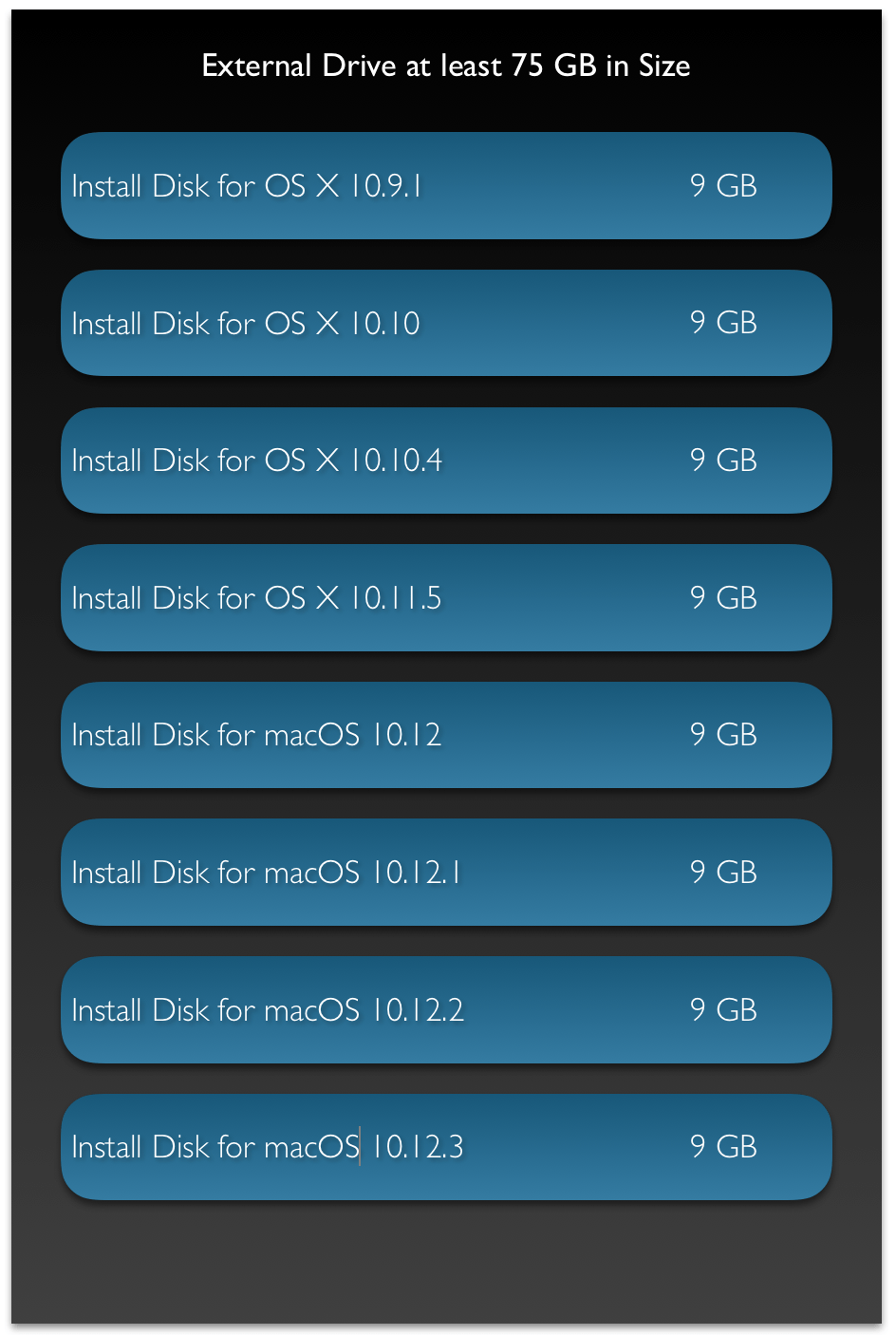
This diagram illustrates the layout of the different partitions on a single USB Drive.

When to use Swift & when to use Objective-C?

Over the past few years I have received a number of questions with regards to Swift & Objective-C. Specifically related to the future of the 2. I will try to address those questions in the form of an FAQ.

Should I learn Swift or Objective-C?

This is a question that I get from developers new to iOS/macOS App Development. Ideally speaking, you should learn Swift. As that is going to become the main language for App development on Apple’s ecosystem. However, the reality is a little different. There are a large number of applications that are written in Objective-C. You are likely to encounter them at your workplace. You may also have to maintain, upgrade & improve those apps. In such a case, it makes sense to learn Objective-C too.

Can I mix Swift & Objective-C in the same project?

Yes! But remember that you should check for feature compatibility between the 2 languages. Adding Swift code to an Objective-C project may not be very beneficial as only those features that are compatible with Objective-C can be written in Swift.

Going the other way round is not a problem. You can read more about that here:Mixing Swift & Objective-C

Will Objective-C be deprecated in the future?

That is an interesting question. There is no formal announcement from Apple stating the Objective-C is going to be deprecated. However, one can expect more attention to be paid to Swift. That is where most of the newest techniques, tools & technologies are going to be available. Objective-C will keep running as it is as of now.

Can I mix Swift with other Programming Languages?

Swift can easily be mixed with Objective-C. If you wish to incorporate C++ or C code in your Swift Project then wrapping them in Objective-C code allows you to achieve this.

Apart from that Swift does support working with C code code. You can read about that here:Interacting with C APIs.

Swift does not provide interoperability support for any other languages as of now.

Which version of Swift should I use?

It is recommended that you use the latest available version of Swift. However, the actual version that you work on depends on many other factors like: compatibility with OS Versions, support & business related choices.

Why shouldn’t we just convert all our Objective-C code to Swift and keep things simple?

A very tempting proposition. However, practical realities prevent us from doing this. The process of converting from Objective-C to Swift is time consuming. Apart from having to convert the syntax, the code also needs to be optimised taking into account the new features that are available. This will mean extensive testing and quality assurance. Most companies will not invest their resources into this endeavour.

A better approach is to migrate to Swift gradually. Here are some ways to do this:

  1. If its a brand new product/app that you are creating, start it in Swift.
  2. Any new reusable code components that are being created should be done in Swift (they should be Objective-C compatible if you intend to use this code in Objective-C projects).
  3. If any part of a product is going to undergo heavy change, either due to a bug fix or a new feature. This is a good time to convert it into Swift.

A good example is how Apple is approaching the process of migrating to Swift. They are doing it component by component.

I have been developing apps in Objective-C for some time. I am able to create any reasonably complicated app now. If Objective-C hasn’t been deprecated then should I start making apps in Swift?

This is a choice that you have to make. It is recommended that new apps (at the very least) be made in Swift as that is the language that will undergo the maximum amount of changes & improvements in the future.

What do you suggest as a trainer?

Another question that I get very often. It depends on the situation. I would say learn both Swift & Objective-C. You can skip learning Objective-C if you are confident that you will not have to work with any projects written in that language.

If I am starting on a brand new project I would use Swift. But if its an Objective-C project I would stick to Objective-C.

Can Swift development only be done on macOS?

No! Swift development can also be done on Linux. However, iOS/macOS/tvOS/watchOS App Development can only be done on macOS through Xcode.

How should I migrate to Swift?

There are different approaches that one can use. It all depends on the situation and needs of your organisation. Here are some things that you can do:

  • Start development of brand new apps (from scratch) in Swift.
  • If you are creating a brand new library which will be used for future projects then go ahead with Swift.
  • If a major component of an existing app is going to be changed significantly then you can go ahead with Swift.

You can do all or some of the above. There may be other strategies too. You should also factor in the cost of migration from one language to another.


What to do before buying/selling Apple devices?

Apple’s devices are getting more and more popular by the day. People are really excited to get hold of the newest product that comes out of its stable. This guide walks you through some of the things you need to keep in mind while buying used devices or selling your existing device. This may not apply when buying a new product from the store for the first time, however, its still good to know these things & run your device through a checklist.

Note the checklist provided below is by no means comprehensive nor is it complete. There might be other things to keep in mind before buying &/or selling used devices, depending on the geographic area, situation, and circumstances.

Buying

Before buying a used products run them through this checklist. Some items are device specific.

  • Make sure there is no physical damage to the device. Dents, scratches, cracks, missing screws.
  • Start the device & make sure it loads up as expected.
  • Check the different user interface elements: touch screen, 3d touch, keyboard, iSight camera, speakers, home button, Microphone
  • Check the different ports: USB, Ethernet, FireWire, Thunderbolt, USB-C, HDMI, Audio-out, SD card reader, lightning connector, 30-pin connector
  • Check the power cord, adapter & charging port
  • Note the version of the OS. Eg: OS X 10.10.3
  • Note the build number
  • Check the model number. This is important for Software Upgrades/Hardware upgrades. Older hardware may have an upper limit on the hardware expansion capability &/or the ability to run latest software optimally.
  • Check the Support Coverage for your device. This is important, especially if you have to take your device in for repairs.
    https://checkcoverage.apple.com/in/en/
    https://support.apple.com/en-us/HT204308 – Find your devices Serial Number
  • Note down the serial number
  • Make sure that the device does not contain any personal data belonging to the seller. While it is the sellers responsibility to ensure this, it still is a good idea to verify that there are no accounts are signed into. This is VERY IMPORTANT for iOS Devices due to its implications on Activation Lock.
    Activation lock is used to prevent anyone from using a stolen device: https://support.apple.com/en-us/HT201365
  • Before buying please check the Activation lock status: https://www.icloud.com/activationlock/
  • Make sure there is no personal digital content in the form of Apps/Song/Movies or documents.
  • For Mac, make sure that there is no Firmware Password that is set.

Selling

The list above should give you a good idea on what you need to do while planning to sell your Apple device.

  • Delete all personal data. Make sure you have a backup of the same.
  • Remove any applications you may have installed.
  • Sign out of all accounts: Gmail, Hotmail, Facebook, iCloud, Apple ID…
  • Delete any user accounts you may have created. Leave a single admin account.
  • If you have used any Encryption service then make sure you turn off encryption before selling the device. This is more of a precaution to prevent issues that may arise in the future.
  • This article illustrates what to do if you are selling giving away iOS Devices: https://support.apple.com/en-in/HT201351
  • As a good measure, delink your Apple ID from your device. You can do this by:
    • Go to http://www.icloud.com
    • Sign in with your Apple ID
    • Click on Settings
    • Select the device you want to give away: IMG_2941
    • Click on the cross to remove it from your Apple IDIMG_2978
  • De-register from iMessage.
  • Remove any custom settings, passwords (Firmware Password) that may compromise your security or prevent the user from fully using the device.
  • As a good measure completely erase the hard drive of your device.
  • Document items such as OS Version, Serial Number for your own reference.

Enterprises may take additional steps

  • To ensure data security, Enterprises may perform Secure Erase or drive replacement to prevent recovery of corporate information, when assigning devices to employees or selling them out in the market.
  • Enterprises should also protect against Activation lock. When collecting iOS Devices, assigned to an employee who is leaving the organisation, always check to make sure that the device is not locked to the employees Apple ID.

These are some of the things that you can do to make the transaction easy on both the sides.


Simple steps towards securing your iPhone

Data safety is always a must. With portable devices it gets even more important. Here are a few steps that one can take to make sure their iPhone/iPad/iPod touch is secure. While the guide says iPhone, you can apply many of these steps to other iOS devices, subject to feature availability.

PASSCODE & TOUCH ID UNLOCK

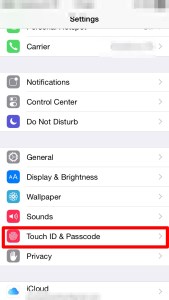
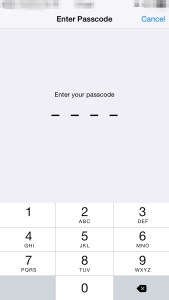
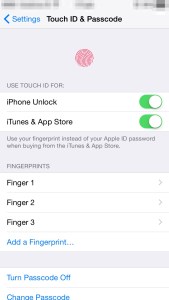
This is the simplest form of security. You are prompted to setup your passcode during the initial device setup itself. While it is not necessary, it is highly recommended. Of course, you can change this at any time. The other option on the newer devices is to use the fingerprint scanner called Touch ID. This adds a convenience to the user while taking care of the security needs. The important thing is that your finger print details are left on the device. Nothing is shared over the internet. The Touch ID is limited to newer devices.

IMG_0076

IMG_0077

IMG_0078


ACTIVATION LOCK

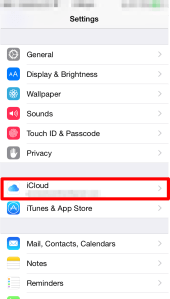
Activation lock is a feature that was first introduced in iOS 7. The idea behind Activation lock is to make sure that no one is able to use a stolen device, even if it is erased. This is activated automatically once you sign into your iCloud account. To use a device after it has been erased, the user must enter the Apple ID & password that was used to sign into iCloud on the device.

Care must also be taken when transferring devices & Activation Lock: https://support.apple.com/kb/PH13695?locale=en_US

FIND MY IPHONE

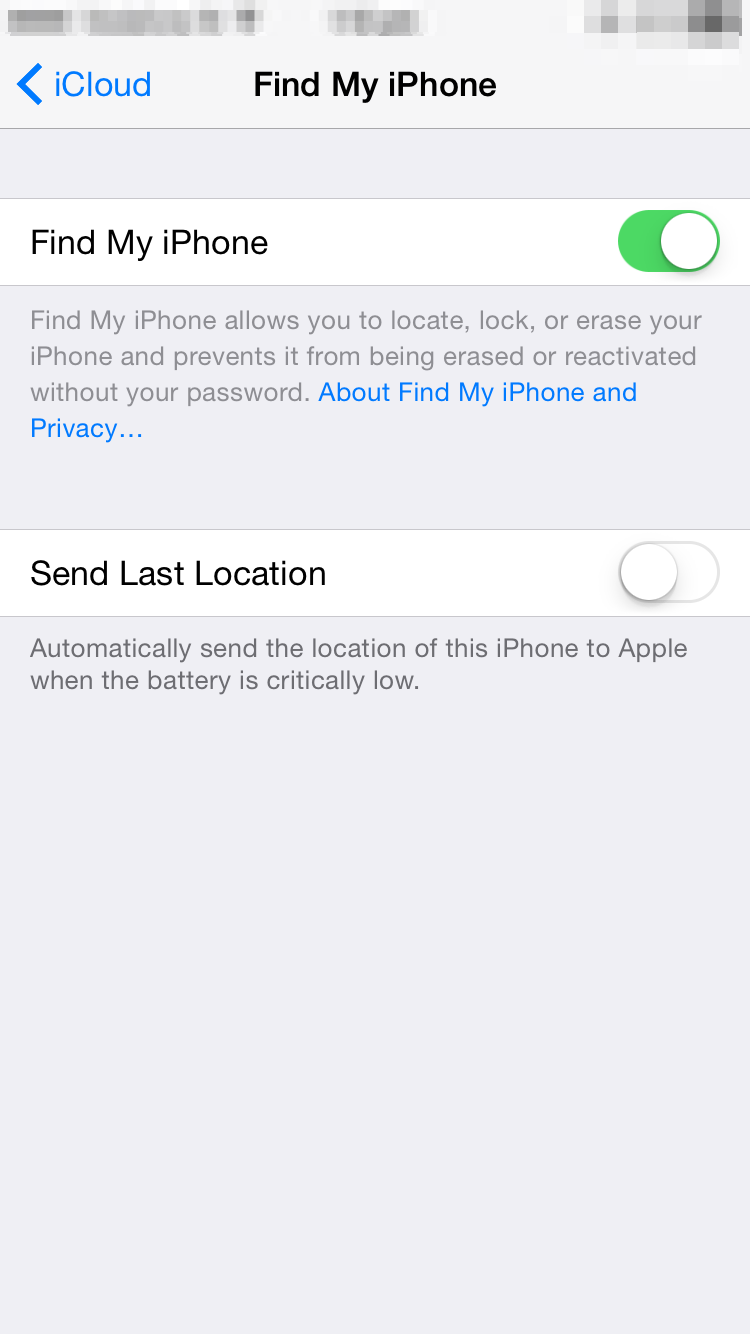
This feature is available via the iCloud service. It allows you to locate your device & shows it up on the map itself. This feature is extremely useful if you have lost the device. Note: For this to work, the device requires an active network connection.


IMG_0519

IMG_0439 IMG_0440


Once configured, you can locate the device using the web that is via http://www.icloud.com or through the “Find my iPhone” app on another iOS device.

ERASE PHONE

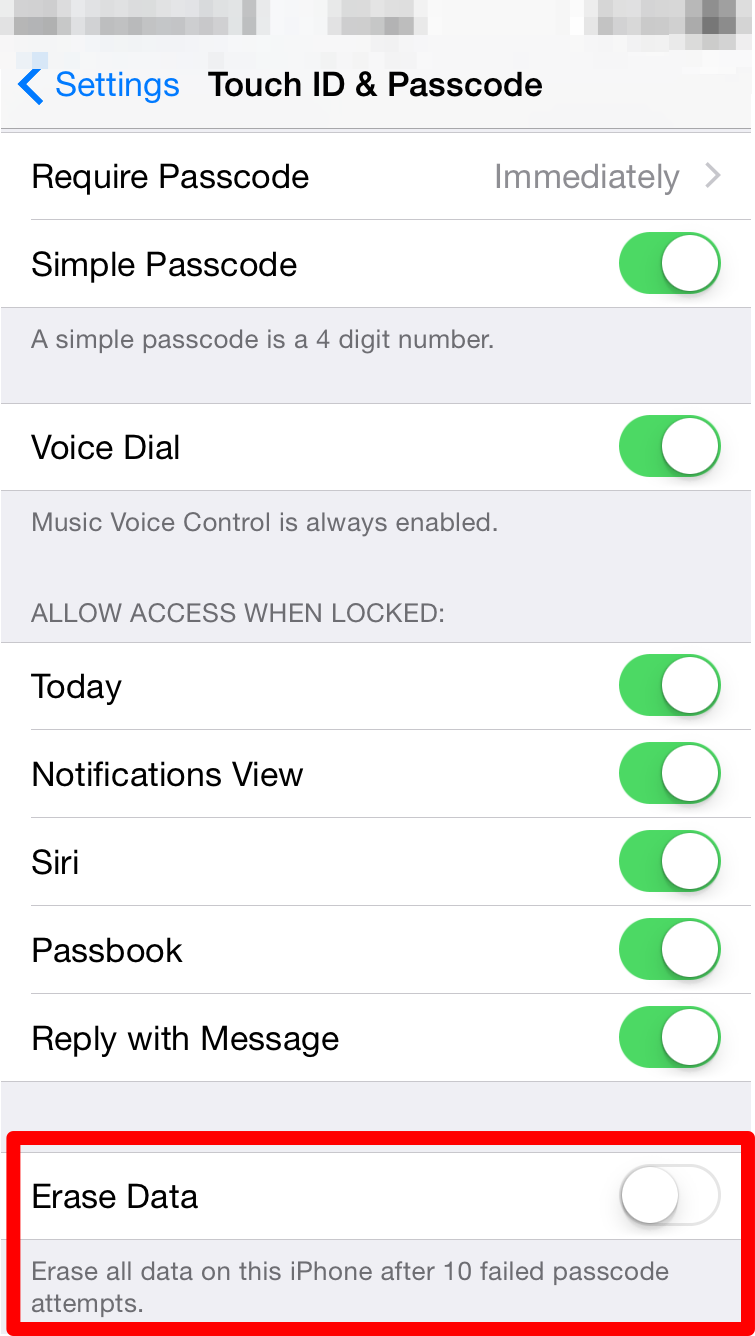
Another useful option is to automatically erase the phone, if the number of passcode attempts by a user exceeds the maximum specified limit.

This is setup in the Touch ID  & Passcode section within the Settings app.

IMG_0076

IMG_0516

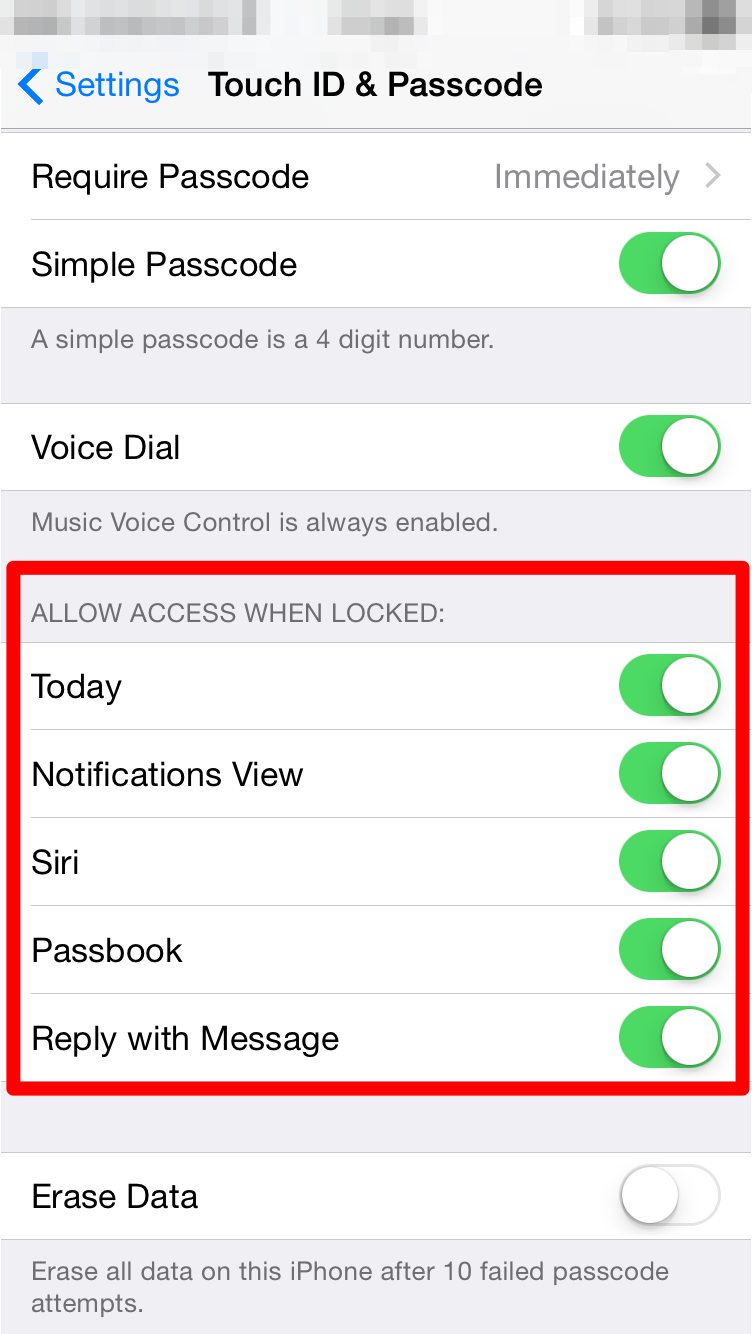
ALLOW ACCESS FOR SERVICES WHEN DEVICE IS LOCKED

Just having a passcode or Touch ID may not be enough in all cases. Some data is also available from the lock screen. One can control the availability of data on the lock screen from the Touch ID & Passcode screen within the Settings app.

IMG_0076IMG_0518

PRIVACY

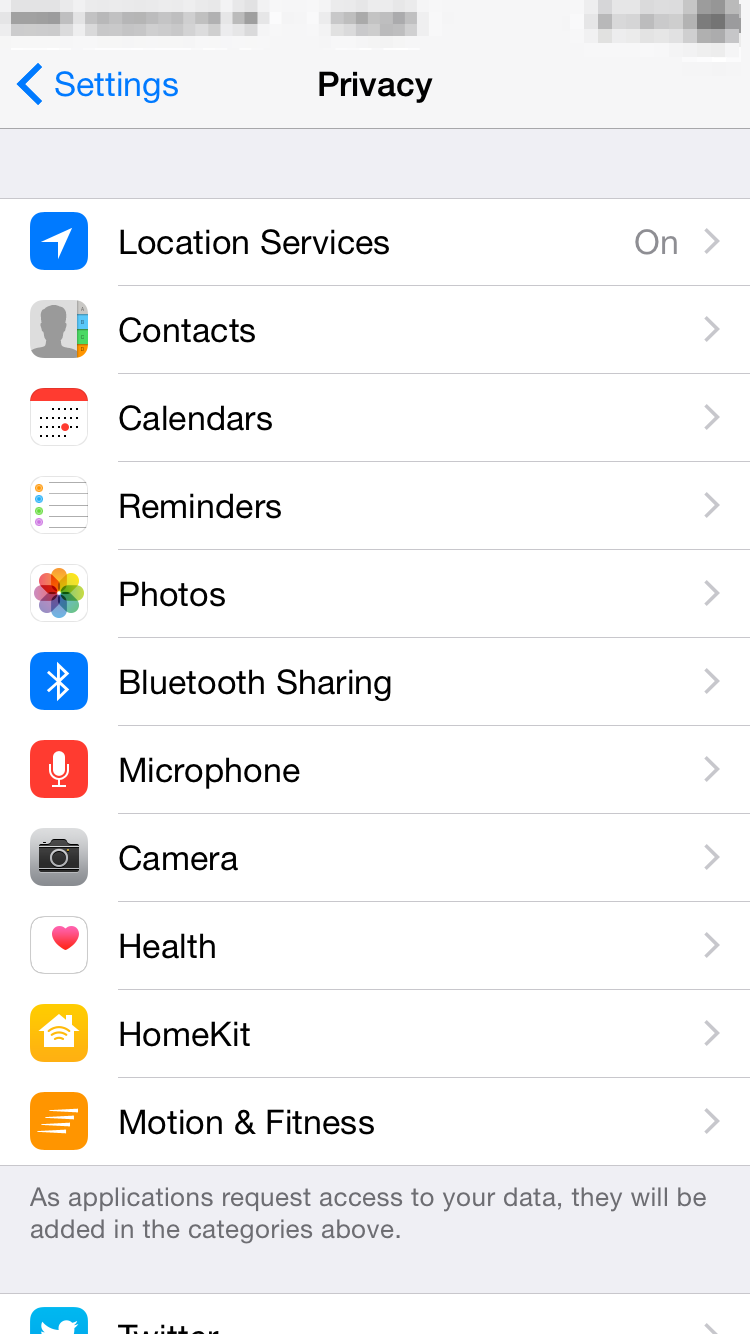
Additionally, you can also control what information from your device is being shared & which apps have access to that information. There is a lot of flexibility available when it comes to controlling the kind of information being shared.

IMG_0438

The user can specify which apps can access their contacts, calendar events, location & other data.

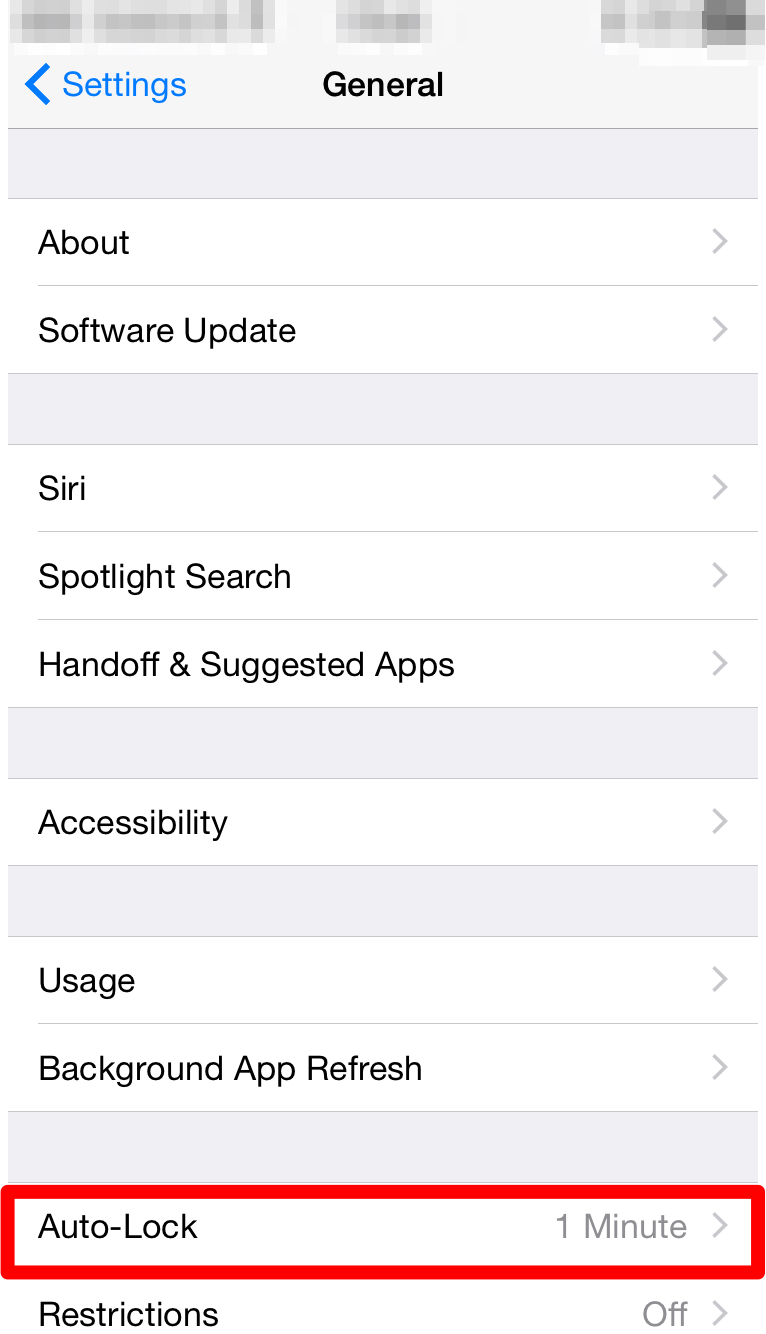
AUTO LOCK

It’s very rare that one leaves their iPhone unattended. But in the rare cases that one is distracted from the task they are performing on the device, it would be nice to know if the device can lock itself up.

IMG_0441

This is done through auto lock within the General settings under the settings app.


RESTRICTIONS

Located under the general settings within the settings app, restrictions, as the name says, allows us to disable certain applications and actions from being executed.

IMG_0523IMG_0521

The passcode is required to enable/disable the feature.


Managing all your data on your Mac

One of the single most important aspects of using a computer is Data Management. In this article I will be going over the various features available & steps that you can take to manage your data in a safe, secure & efficient way.

TimeMachineBACKUP

It happens ever so often that we are faced with a situation where we need a file to which we no longer have any access to. The reasons may be varied: lost computer, damaged or lost hard drive, accidental deletion. While there are applications that do retrieve lost files, they only work if the storage media is available & do not guarantee 100% recovery. The best solution to this is to backup your data.

The most common approach used is to manually copy the file onto an external storage. While this is easy, it can be tedious for the user & is error prone.

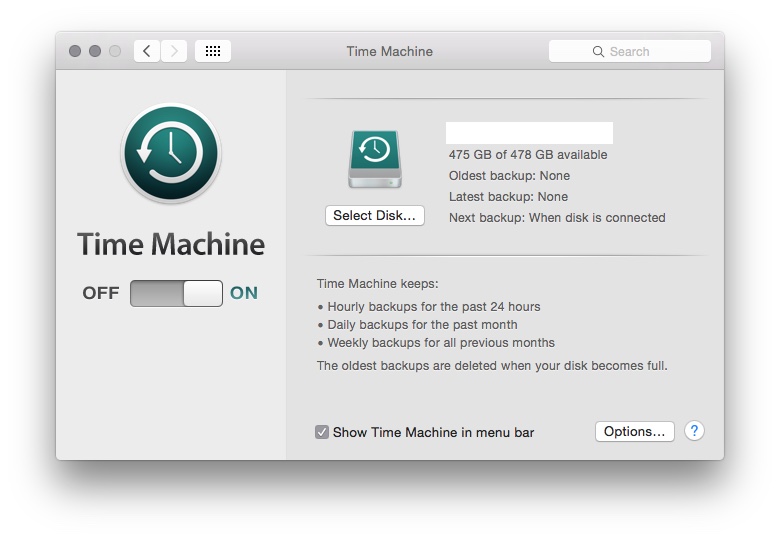
One of the easiest solutions is to use a backup tool called Time Machine. This is built right into OS X. You don’t need to install anything new. Just connect the hard drive where you would want to store all your backups. The OS will periodically backup all your data every hour as long as your backup drive is connected to the Mac. Many a times you are prompted to choose an external drive for backup, but that pops up only when you connect a new hard drive or a hard drive which isn’t used for backup.Once you have this activated you can then navigate back in time (just as you would expect from a time machine) and look for a file that you have lost.

Steps to Backup using Time Machine:

1) Connect the Hard drive you want to use as a backup destination.

2) Click on System Preferences > Time Machine to customise your backup.
TimeMachine

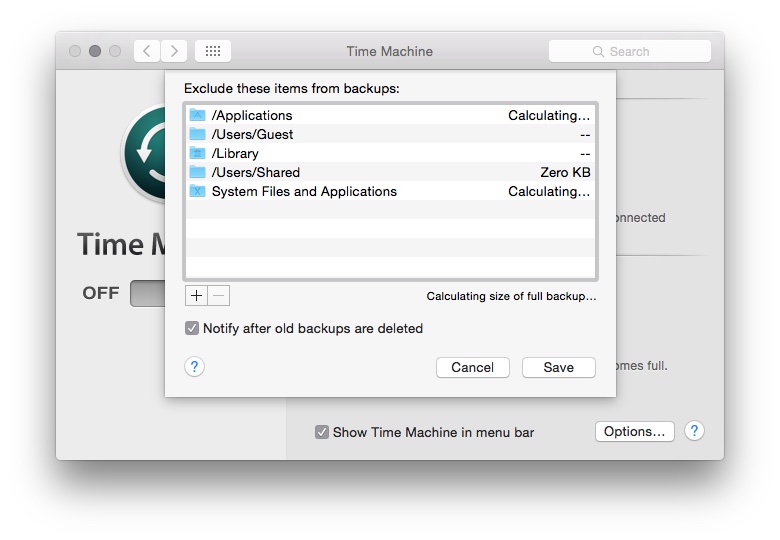
3) Click on Options to select the folders to exclude from Time Machine Backups.

TimeMachineOptionsThere are other third party tools which you could use if you wish. Retrospect and Carbon Copy Cloner are 2 of the many 3rd party tools available for this.

icloudDriveSYNCHRONISATION

In todays world most of us are using more than one device for our daily activities. This means that we would like to have most of the information on all the devices. This can be achieved through various applications that are available to manage our portables such as smart phones & tablets. But by far the easiest approach is to take advantage of Cloud Services.

If you have an iPhone &/or an iPad which you use along with your Mac then the best service for this is iCloud. However if you use a mix of platforms such as Android or Windows for your smart phones & tablets then using any third party service such as Google Drive, Drop Box, OneDrive will help you ensure that your information is available via the cloud across all devices.

Steps to turn on iCloud Services on your Mac:

1) Click on System Preferences > iCloud.

2) Sign in with your iCloud ID & password.

3) You should come to the iCloud panel where you can configure different iCloud Services.

iCLoud

4) Select the different content you want managed under iCloud.

SECURITY

This is one area which is increasingly gaining more importance. An important aspect of data management is keeping your data secure. While there is no such thing as a completely secure computer, one can definitely take steps to make sure that one’s information is kept as secure as possible.

ACCOUNT PASSWORDS: This is probably your first line of defence. Having a good strong password goes a long way in securing your data. There is a nice built in tool that evaluates & rates the passwords that you create, called as password assistant.

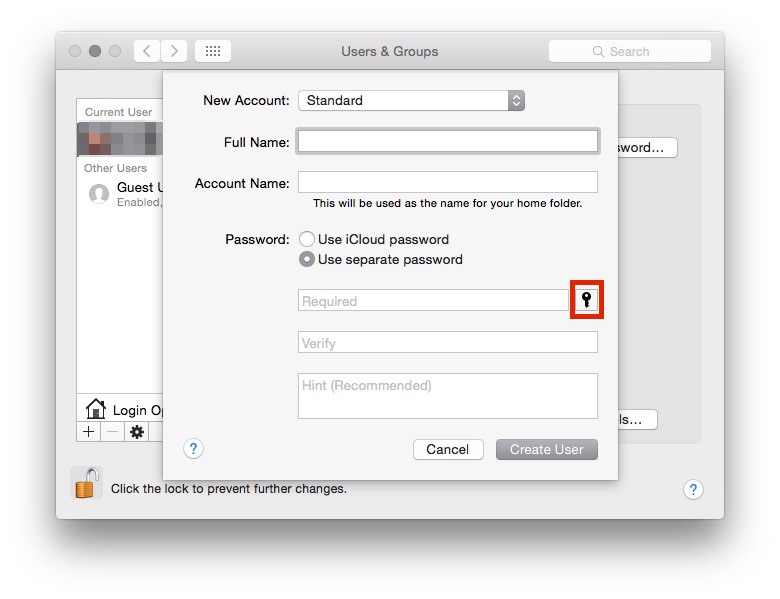
Password Assistant can be found on any screen within the Mac that prompts for a Password. Like the screen shot below when we are creating a new user for the Mac.

The key icon is to be clicked to launch Password Assistant.

The key icon is to be clicked to launch Password Assistant.

The Password Assistant itself gives you a lot of options when it comes to choosing your password type.

Use the drop down to select the password type.

Use the drop down to select the password type.


KEYCHAIN ACCESS NOTES: Keychain access is a builtin application that manages your secrets such as passwords, keys & certificates. There is also an option to save a note. Information within the note is saved in an encrypted way thereby securing it.

ENCRYPTION: This is the most secure way of saving information. There is a builtin encryption feature called FileVault which encrypts all the data on your system. There are 3rd party tools that can do this for you too: GPGAES Crypt, PGP to name a few.

Once can use a combination of the 3 or all 3 depending on the level of security required. It is also a good idea to keep your backup secure. Securing your computer but not the backup is a bad idea.

STORAGE

Yet another common issue that a lot of us face. Most computers that have come in over the past few years offer very large built in storage space & in most cases it is sufficient. But with the growing number of photographs, movies & songs we often find that space on our computers isn’t sufficient. This is not an easy problem to solve.

A simple approach is to keep only those things we require on the Mac. Also using cloud services to store information that we don’t need to access frequently is a good idea. Compressing data using zip files is also a good approach. But a better option, especially for large amounts of data, is to compress them into ReadWrite disk images. External storage can also be considered for placing extra data.

One area where storage management is not looked at but is equally important is related to the backup drive. Overtime as your backup drive fills up it starts removing older backs (in case of Time Machine). To ensure you have as long a history of backups, make sure that you only backup those things that you need. For example there isn’t a pressing need to backup all the OS files & applications, one can reduce the backup size by eliminating unnecessary items from the backup.