Screen and Audio recording on macOS & iOS

In this article we are going to look at how we can use the built in Application: QuickTime to record a screen or a movie. In fact, the videos that you are about to see in the article below were created using QuickTime.

A good reason to record the activity on the screen would be to create a visual step by step guide which can be distributed to employees in the organisation. For example, you can create a video to show employees how they can sign into their company’s email account and access it from their iPhone or Mac.

Recording your Mac’s screen

Follow the steps given below to record your Mac’s screen:

  1. Open QuickTime Player
  2. Click on File > New Screen RecordingScreen Shot 2018-01-24 at 4.46.22 PM
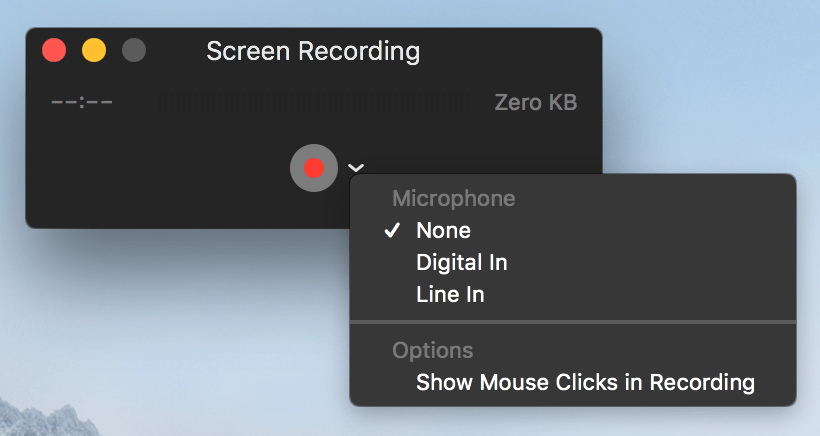
  3. You should see the window popping up.
  4. From the drop down next to the Record button select the audio input & whether mouse clicks should be shown.Screen Shot 2018-01-24 at 4.47.29 PM
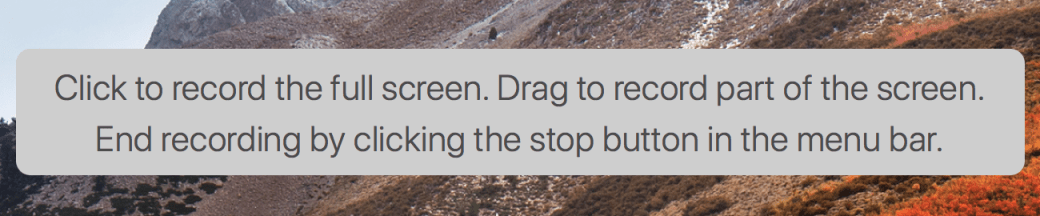
  5. Click on the Record Button. You should see a dialog asking you whether you want to record a small area or a full screen.Screen Shot 2018-01-24 at 4.47.52 PM
  6. The recording starts once the stop button in the menu bar becomes dark.
  7. Click on the stop button to stop the recording.
    Screen Shot 2018-01-24 at 4.57.49 PM
  8. Save the file that was created.

Recording your iPhone/iPad Screen

(Mirroring your iPhone Screen on the Projector)

The process of recording the iPhone/iPad screen is quite similar to recording your computer’s screen. The key thing to remember is to connect your iPhone/iPad to the Mac with the lightning cable.

Follow the steps given below to record your iPhone/iPad screen:

  1. Open QuickTime Player
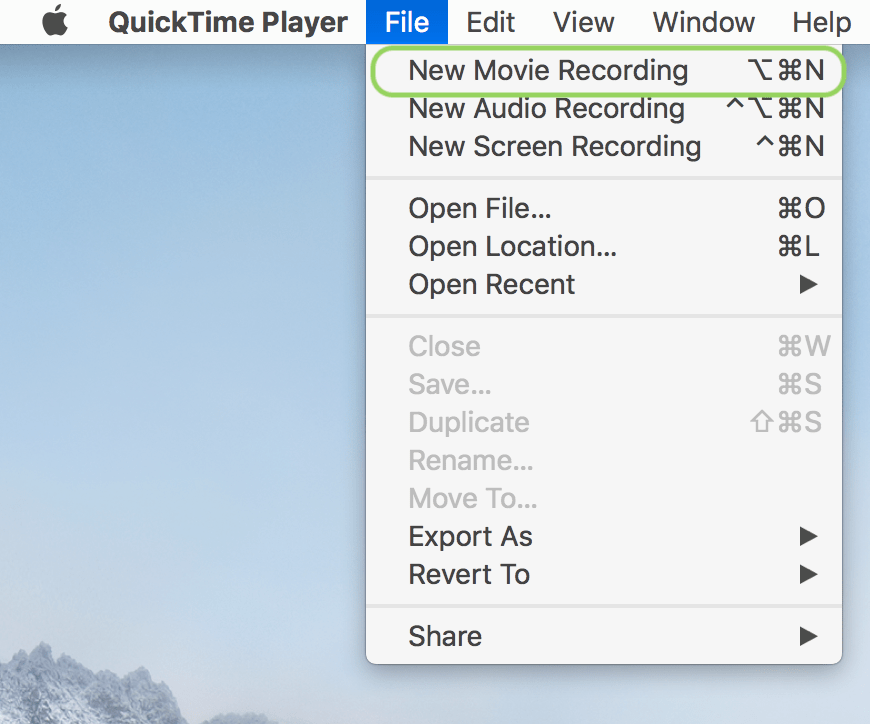
  2. Click on File > New Movie Recording
  3. You should see the window popping up.
  4. From the drop down next to the Record button select the audio input & whether mouse clicks should be shown. The difference now is the fact that you get an extra option to choose the source.

Recording a Movie

Follow the steps given below to record a Movie on your Mac:

  1. Open QuickTime Player
  2. Click on File > New Movie RecordingScreen Shot 2018-01-29 at 4.11.38 PM
  3. You should see the window popping up.
  4. From the drop down next to the Record button select the audio input. You can also select your camera source from here.
    Screen Shot 2018-01-29 at 4.21.41 PM
  5. Click record to start recording & click on the stop button to stop recording.

Recording Audio

Follow the steps given below to record an Audio on your Mac:

  1. Open QuickTime Player
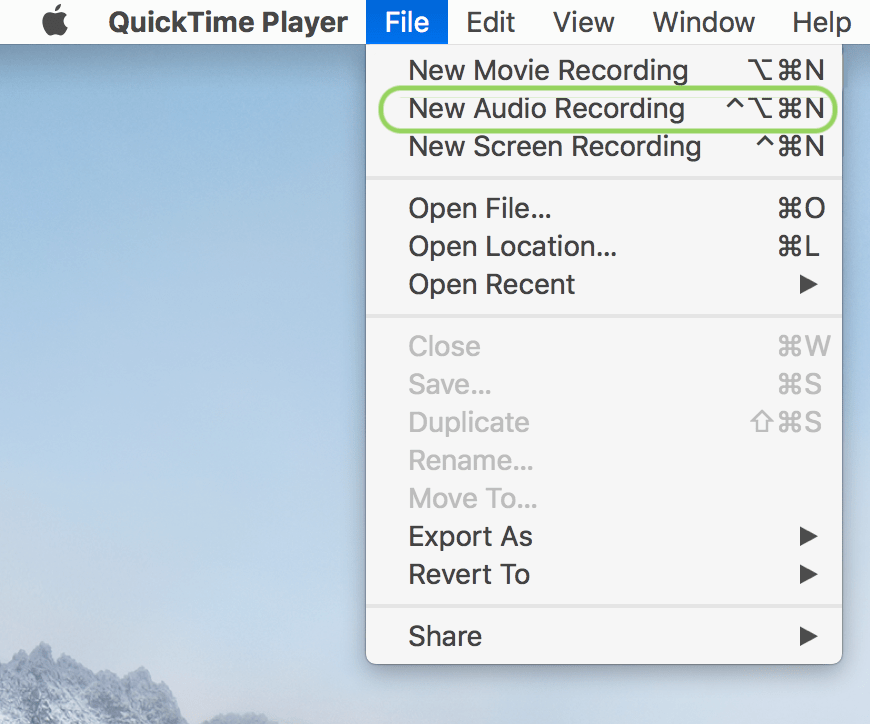
  2. Click on File > New Audio RecordingScreen Shot 2018-01-29 at 4.11.38 PM copy
  3. You should see the window popping up.
  4. From the drop down next to the Record button select the audio input.
  5. Click record to start recording and stop to stop recording.

Here is a quick video on how to perform the different tasks that we have seen above.

Buyers Guide for macOS & iOS in the Enterprise

This article is more of a productivity article aimed at getting first time users up and running quickly on their Mac, iPhones or iPads. Anyone looking to buy one of these products or Tech Support teams that help employees with their computers would find this article helpful. The thoughts shared here are personal, readers are welcome to share their own thoughts and experiences.

The article is not a comprehensive guide. Its aim is to give potential users some idea as to how the devices can be used in their work environment. Specifically from an Application perspective.

Macintosh

macFamily


Which one to buy?

This depends on how the device is going to be used. Here are 3 general classifications:

Basic Usage

Basic usage would mean simple day to day tasks. These are the tasks that would qualify for:

  • Checking emails
  • Browsing the web
  • Social Media
  • Listening to Music
  • Watching Movies
  • Composing letters
  • Preparing Presentations & running presentations
  • Note taking

In such a case you may want to consider buying a MacBook or a MacBook Air. If portability is not required then a Mac Mini would also do.

At entry level configurations these devices would do the job very well.

Intermediate Usage

If the tasks being performed are a little more demanding then you may want to consider higher configuration devices. Again in most cases the  MacBook or a MacBook Air would do. If portability is not required then a Mac Mini would also do. In all these cases consider one with slightly higher configuration.

For situations where the compute power is important you may even consider the MacBook Pro. For example, if there are programmers who need to work with a high configuration Mac and they need portability, then you can consider the MacBook Pro.

Pro Usage

This indicates that the tasks being performed are very compute intensive. These are some of the job profiles which may demand compute intensive resources:

  • Programmers
  • Video Editors
  • Audio Editors
  • Post Production Teams
  • Marketing & Creative Teams
  • Scientific Research

For such situations the higher end desktops & MacBook Pros would be required. So the iMac or the highest configuration Mac Mini, or the 15″ MacBook Pro would be best suited for such environments.

In some situations even more powerful computers would be required. The iMac Pro & Mac Pro should then be considered.


Built In Applications that might be useful

Productivity Tools

There are 3 applications which are a part of the suite called iWork that are very useful in organisations.

  • PAGES: Built in word processing application. You can easily created documents, letters, reports and even have them exported in Microsoft Office compatible format.
  • KEYNOTE: Built in presentation applications. Enables you to create powerful presentations from scratch. Like Pages it is possible to create presentations that are compatible with PowerPoint.
  • NUMBERS: Built in spreadsheet application. Enables you to quickly create spreadsheets and export them to Excel if needed.

The other advantage is the fact that these applications are also accessible from the cloud. Tight integration with iCloud means that you can make changes to documents from your Mac, iPhone, iPad, or iCloud.com.

Creative Tools

There are 2 applications which are available for creative purpose. These might be handy for people working in the creative departments.

  • IMOVIE: Quick create movies using videos, audios and photos that you have.
  • GARAGEBAND: A simple Music creation application that comes with a library of different instruments.

Popular Third Party Applications

These are just some of the applications.

Office Suite

Productivity

Cloud

Creative

Security

Communication

Data Backup

Virtualisation (Running Windows or Windows Applications on the Mac)


Some tasks that can be done with built in Applications

  • Scanning Documents using Preview
  • Signing Documents using Preview
  • Record Screen Activity using QuickTime
  • Record a quick movie using QuickTime
  • Automate Tasks & create workflows using Automator
  • Encrypt Data using FileVault
  • Show your iPhone/iPad screen on a projector using QuickTime on Mac
  • Backup data using Time Machine

iPhone/iPad
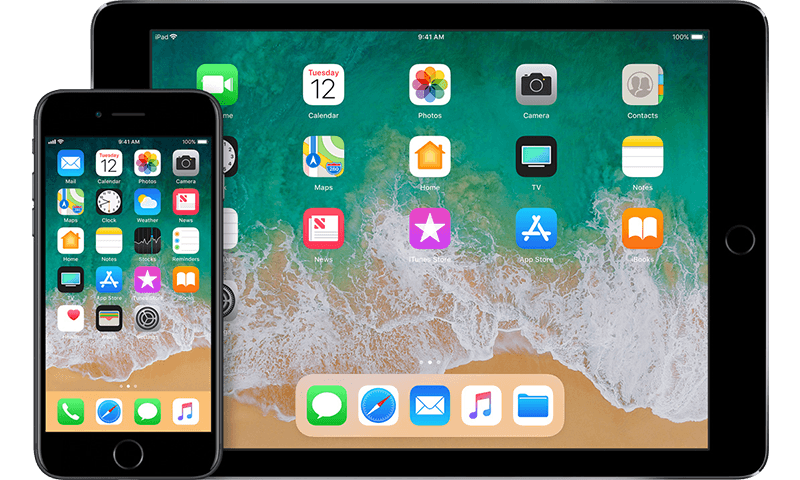
iosFamily


Which one to buy?

The decision on whether to buy the iPhone &/or the iPad depends a lot on what you intend to use it for. As such the major differences between the 2 devices are:

  • iPads tend to have larger screens
  • iPhone has cellular communication capability
  • iPhones are more portable as compared to iPads
  • iPads are better suited for long duration usage
  • iPads tend to be higher powered devices

While it appears that iPads are better than iPhones, that is not necessarily the case. iPhones being smaller and more compact have many advantages too.

Ideally speaking having both, an iPhone and an iPad, is the best thing to do.

To make a decision use the task list below to help find out if you need an iPhone or an iPad or both.

Note, even though I mention that the tasks can be performed easily on an iPhone, many of the tasks can also be done very easily on the iPad. The point is to illustrate ease of use in situations where you have to perform tasks with a single hand or when you are on the move.

Tasks easily performed on an iPhone

  • Making calls
  • Messaging
  • Scheduling activities such as: Reminders, Appointments, Events
  • Taking Photos & Videos
  • Emails
  • Banking Transactions
  • Finding Transit Directions
  • Finding a Taxi
  • Making E-Payments

Tasks easily performed on the iPad

  • Writing letters & blogs
  • Creating Presentations
  • Working with spreadsheets
  • Creating posters, flyers
  • Working with business applications
  • Content creation

If you do a mixture of tasks from both the lists then getting both an iPhone as well as an iPad is a good idea.

A thing to keep in mind is that the Pro version of the iPad also has a nice keyboard accessory as well as the  Pencil available. These 2 products make the whole experience so much better.

Screen size consideration

iPhone and iPad screen sizes vary quite a bit. Here are some tips on the tasks which can be best performed on specific screen sizes.

Creative Work

Generally speaking, creative tasks require a large screensize. So for an iPhone the smallest screen you should have is 4.7″. Similarly for the iPad the smallest screen you should have is the  9.7″.

Documents, letters, spreadsheets

These tasks are better performed on the iPads as such you can go for any screen size in them. Of the lot, its a lot easier to create documents and letters on the phone than spreadsheets. Again, for phones one should the larger the screen size the better.

Presentations

Like documents and spreadsheets presentations are a lot easier to create on the iPad. They can also be created from the phones. The larger the phone the better.

Messaging & Communication

This is one aspect where the screen size is not so much of an issue. In fact, some users may find the smaller screen size a lot better. Typically, the iPhone is a much better device than the iPad for this.

Productivity & General Tasks

This includes calling taxis, ordering food, taking notes, control keynote presentations, setting up appointments and reminders. These tasks are also best performed on iPhones. They can be done well with the iPad too.


Built In Applications that might be useful

Productivity Tools

There are 3 applications which are a part of the suite called iWork that are very useful in organisations.

  • PAGES: Built in word processing application. You can easily created documents, letters, reports and even have them exported in Microsoft Office compatible format.
  • KEYNOTE: Built in presentation applications. Enables you to create powerful presentations from scratch. Like Pages it is possible to create presentations that are compatible with PowerPoint.
  • NUMBERS: Built in spreadsheet application. Enables you to quickly create spreadsheets and export them to Excel if needed.

The other advantage is the fact that these applications are also accessible from the cloud. Tight integration with iCloud means that you can make changes to documents from your Mac, iPhone, iPad, or iCloud.com.

Creative Tools

There are 2 applications which are available for creative purpose. These might be handy for people working in the creative departments.

  • IMOVIE: Quick create movies using videos, audios and photos that you have.
  • GARAGEBAND: A simple Music creation application that comes with a library of different instruments.

Other Apps

  • Notes
  • Voice Memos
  • Files

Popular Third Party Applications

Office Suite

Productivity

Cloud

Creative

Security

Communication


Some tasks that can be done with built in Applications

  • Scanning Documents using Notes
  • Recording Voice Memos
  • Control HomeKit devices
  • Edit PDFs through iBooks
  • Create PDF documents through pages & then edit the PDFs either through iBooks or markup utilities
  • Record and Edit videos using the camera & iMovie

Useful iPad Accessories

 TV

There are a few things that can be done with the  TV. It can be used to mirror both macOS & iOS Devices. In which case apps such as Reflector are not really required.

It is very easy to setup and use. This can make projecting both the iPad screen as well as the iOS Screen very easy & it allows you to move across the room as you are not physically wired to the projector.

Final Word

As we can see there are a wide variety of apps available both for macOS & iOS. These include built in apps as well as Third party apps. The community of developers creating these apps is strong and growing. There are many more apps which can be used for a wide variety of purposes.

This article should give the user a fair idea as to the capabilities of devices such as iPads, MacBooks and the rest of the line up. The good thing is that for enterprise environments its easily possible to create apps that are tailored to the needs of that organisation and this makes the devices much more attractive.

Programming Style Guide: Naming Conventions

Today we are going to look at Naming conventions you can follow while writing code.

Naming conventions lay down the basic rules for naming different elements in your code. The objectives are simple:

  • Make the element easy to read
  • Should be self explanatory
  • Should contain information in a compact and concise manner.

Ideally a well named variable or function should not need a comment to explain what it is for.

With the above objectives in mind let us look at some of the naming conventions that can be followed. The examples are from the Swift & C++ programming languages.

Naming Conventions

Camel Case Names

In camel case naming convention the entire name of the element is constructed by forming a sentence joined into a single word. So for example if we have a variable for keeping track of the price of oil in US dollars then the variable name might be priceOfOilUSD.

Here are some examples of naming conventions with the camel case.

SWIFT

var priceOfOil : Float = 23.49

C++

float priceOfOil = 3.45;
class PersonInfo
{

};

Underscore Separated Names

In the underscore separated naming convention the entire name of the element is constructed by forming a sentence joined together with the help of underscores in-between them. So if we take the example of the variable keeping track of the price of oil in US dollars the the variable name might be price_of_oil_usd.

Swift

var price_of_oil : Float = 45.71

C++

float price_of_oil = 99.87;

void print_value_of_pi()
{
     //print something
}

Names with type information

A naming convention that is quite popular is the one that mixes the previous 2 naming conventions, with the underscore used to separate the type description in the prefix. So if we take the example of the variable keeping track of the price of oil in US dollars then the variable name might be f_priceOfOil or float_priceOfOil. Either of the design styles work. The prefix is popularly abbreviated and you can create your own rules for abbreviating the type description.

This style is often referred to as the Hungarian notation. The additional information that is provided as a part of the prefix can be:

  • Whether the variable is a pointer
  • Whether the variable is an object
  • The scope of the variable
  • Type size
  • Whether the data can vary or is a constant

Swift

var f_priceOfOil : Float = 0.0

C++

float f_priceOfOil = 22.3;
int *ptr_memmoryBuffer = NULL; //ptr indicates variable is a pointer

Naming Rules

There are some rules that are typically followed while designing names for variables and  functions. Like the conventions themselves the rules are not binding but they are very useful an give the added punch that naming conventions provide.

  1. Variable names always start in lower case.
  2. Type names always start in upper case.
  3. The naming conventions is consistently applied through all the projects
  4. Names should be kept as small as possible without sacrificing on the description

Naming Strategies

As far as strategies are concerned there are multiple approaches that one can follow. Here are some potential strategies.

  • Follow one naming convention for variables and another convention for functions.
  • Let constants be all upper case
  • Prefix types with your companies initials.

Summary

The above illustrate just some of the naming conventions that can be followed. By no means are they comprehensive or complete. Also it is not necessarily true that everyone follows the above naming conventions. You may find that many software development firms have their own unique naming convention. This article should give you an an idea about naming conventions. Feel free to share some naming conventions that you have come across.

macOS & iOS IT Tool List

This list is based on questions that I have been asked by various IT admins.

It is more of a collection of tools (mainly software, but a few hardware tools too) that Enterprise IT Teams might find useful while supporting/managing Macs & iPhones in the enterprise. Some of the tools are free, while others are paid. Also, it is not necessary that all the tools will be required. Of course, some tools are not meant for troubleshooting but provide a service themselves.

The below list is not an endorsement or recommendation of any of the products mentioned. These are just some of the products I have come across. You may have to do your own research to see which tool fits your organisation’s needs. The author is not responsible for any damages or loss of data that might occur from usage of these tools.

*This list is not a complete list but an ongoing project. Feel free to share your comments on tools that you may have used & I will add them to this list.

DEPLOYMENT

DeployStudio

Munki

macOS Server – NetInstall Service. To be used along with System image Utility

PACKAGE MANAGEMENT

Iceberg

pkgbuild

Suspicious Package

REMOTE MANAGEMENT

RealVNC

TeamViewer

Apple Remote Desktop

LogMeIn

BACKUPS

macOS Server – Time Machine Service

Retrospect

Carbon Copy Cloner

Chronosync

Crash Plan

DEVICE MANAGEMENT

Centrify

JAMF Casper Suite

AirWatch

Mobile Iron

macOS Server – Profile Manager Service

Apple Configurator 2

Heat LANRev

Cisco Meraki

filewave

Absolute Software

BoxTone

Maas 360 – IBM

Tangoe

Lightspeed Systems

VIRTUALIZATION

Parallels Desktop

VMWare Fusion

Oracle VirtualBox

DISK MANAGEMENT

Tuxera

Disk Drill

APPLE APPLICATIONS FOR THIRD PARTY OS

iTunes

iCloud Control Panel

Move to iOS from Android

Migration Assistant

AUTOMATION

Workflow for iOS

Automator – Built in app for creating Workflows.

AppleScript

Command Line Script

NETWORK TROUBLESHOOTING

iNetTools

Network Diagnostics

Network Ping

Wireshark

DISPLAY

Air Squirrel

SYSTEM TROUBLESHOOTING

Install Disk – I will be talking about how to create a multi-OS install disk in a later article.

SOFTWARE MANAGEMENT

macOS Server – Caching Service

Reposado

AutoPKG

Munki

HARDWARE

Thunderbolt 1,2,3 Cables
Thunderbolt 1,2
USB-C Cable

FireWire 400/800 Cables

Portable disk with macOS installed on it. Not the same as install disk. Its an external bootable hard drive with the OS installed on it. You can plug this into any Mac & boot from the external HDD.

VGA to MiniDisplay adapter

HDMI to HDMI Cable

Thunderbolt Ethernet Bridge

USB Ethernet Bridge

Adapters for the different ports supported by Macs & iPhones

Lightning Cables

Creating multi-OS Install Disk

In this article we are going to look at how to create a multi-OS Install Disk. We are going to look at the example of creating a multi-OS Install Disk for the following versions of the OS:

  • 10.9.1
  • 10.10
  • 10.10.4
  • 10.11.5
  • 10.12
  • 10.12.1
  • 10.12.2
  • 10.12.3

The idea is to have a single disk with multiple versions of the Install Disk on it. The versions should reflect the need of the organisation.

REQUIREMENTS

  1. USB Drive at least 75GB in Size. This depends on the number of Install drives you wish to have. At the very least there should be enough space to create 2 partitions of 8 GB each. 
    While I have mentioned USB drive, it need not be restricted to that interface. You can use Thunderbolt, FireWire or even an SDXC slot for this. Ideally the port should be one that is supported on maximum possible computers.
  2. Install setup for each version of the OS for which you want to create the install disk. The setup must match the version desired.
  3. A Mac running the same major version of the OS. You can only create an install disk for 10.9.x on a Mac running OS X 10.9.x, the same applies for the other versions of the OS.

The process is the same. It’s just that it needs to be repeated.

STEPS

  1. Create 8 partitions on a USB Drive. Assume that the USB Drive is called Recovery Drive. Give the partitions names Partition 1, Partition 2,….
  2. Connect the USB Drive to a Mac running 10.9.1 or later.
  3. Make sure that the OS Installer setup is located in the Applications folder.
  4. Run the following command in the command line.
    sudo /Applications/Install\ OS\ X\ Mavericks.app/Contents/Resources/createinstallmedia --volume /Volumes/Partition\ 1 --applicationpath  /Applications/Install\ OS\ X\ Mavericks.app
  5. Rename the partition as Install disk for OS X 10.9.1, if necessary.
  6. Once completed eject the USB Drive & connect it to a Mac running 10.10
  7. Make sure that the OS Installer setup is located in the Applications folder.
  8. Run the following command in the command line.
    sudo /Applications/Install\ OS\ X\ Yosemite.app/Contents/Resources/createinstallmedia --volume /Volumes/Partition\ 2 --applicationpath  /Applications/Install\ OS\ X\ Yosemite.app
  9. Rename the partition as Install disk for OS X 10.10, if necessary.
  10. Once completed eject the USB Drive & connect it to a Mac running 10.10.4
  11. Make sure that the OS Installer setup is located in the Applications folder.
  12. Run the following command in the command line.
    sudo /Applications/Install\ OS\ X\ Yosemite.app/Contents/Resources/createinstallmedia --volume /Volumes/Partition\ 3 --applicationpath  /Applications/Install\ OS\ X\ Yosemite.app
  13. Rename the partition as Install disk for OS X 10.10.4, if necessary.
  14. Once completed eject the USB Drive & connect it to a Mac running 10.11.5 or later.
  15. Make sure that the OS Installer setup is located in the Applications folder.
  16. Run the following command in the command line.
    sudo /Applications/Install\ OS\ X\ El\ Capitan.app/Contents/Resources/createinstallmedia --volume /Volumes/Partition\ 4 --applicationpath  /Applications/Install\ OS\ X\ El\ Capitan.app
  17. Rename the partition as Install disk for OS X 10.11.5, if necessary.
  18. Once completed eject the USB Drive & connect it to a Mac running 10.12 or later.
  19. Make sure that the OS Installer setup is located in the Applications folder.
  20. Run the following command in the command line.
    sudo /Applications/Install\ macOS\ Sierra.app/Contents/Resources/createinstallmedia --volume /Volumes/Partition\ 5 --applicationpath  /Applications/Install\ macOS\ Sierra.app
  21. Rename the partition as Install disk for OS X 10.12., if necessary.
  22. Once completed eject the USB Drive & connect it to a Mac running 10.12.1 or later.
  23. Make sure that the OS Installer setup is located in the Applications folder.
  24. Run the following command in the command line.
    sudo /Applications/Install\ macOS\ Sierra.app/Contents/Resources/createinstallmedia --volume /Volumes/Partition\ 6 --applicationpath  /Applications/Install\ macOS\ Sierra.app
  25. Rename the partition as Install disk for OS X 10.12.1., if necessary.
  26. Once completed eject the USB Drive & connect it to a Mac running 10.12.2 or later.
  27. Make sure that the OS Installer setup is located in the Applications folder.
  28. Run the following command in the command line.
    sudo /Applications/Install\ macOS\ Sierra.app/Contents/Resources/createinstallmedia --volume /Volumes/Partition\ 7 --applicationpath  /Applications/Install\ macOS\ Sierra.app
  29. Rename the partition as Install disk for OS X 10.12.2, if necessary.
  30. Once completed eject the USB Drive & connect it to a Mac running 10.12.3 or later.
  31. Make sure that the OS Installer setup is located in the Applications folder.
  32. Run the following command in the command line.
    sudo /Applications/Install\ macOS\ Sierra.app/Contents/Resources/createinstallmedia --volume /Volumes/Partition\ 8 --applicationpath  /Applications/Install\ macOS\ Sierra.app
  33. Rename the partition as Install disk for OS X 10.12.3, if necessary.

The commands shown above might be different from what appears on your screen. A lot will depend on what you have named your partitions as, the name you may have given to the OS Installer file, and the location of the OS Installer.

The process of renaming the partitions post creation of the install disk is not necessary, but very useful because that will help you identify the appropriate partition when using the drive.

The above process is very scalable & can be done for even more versions of the OS if required.

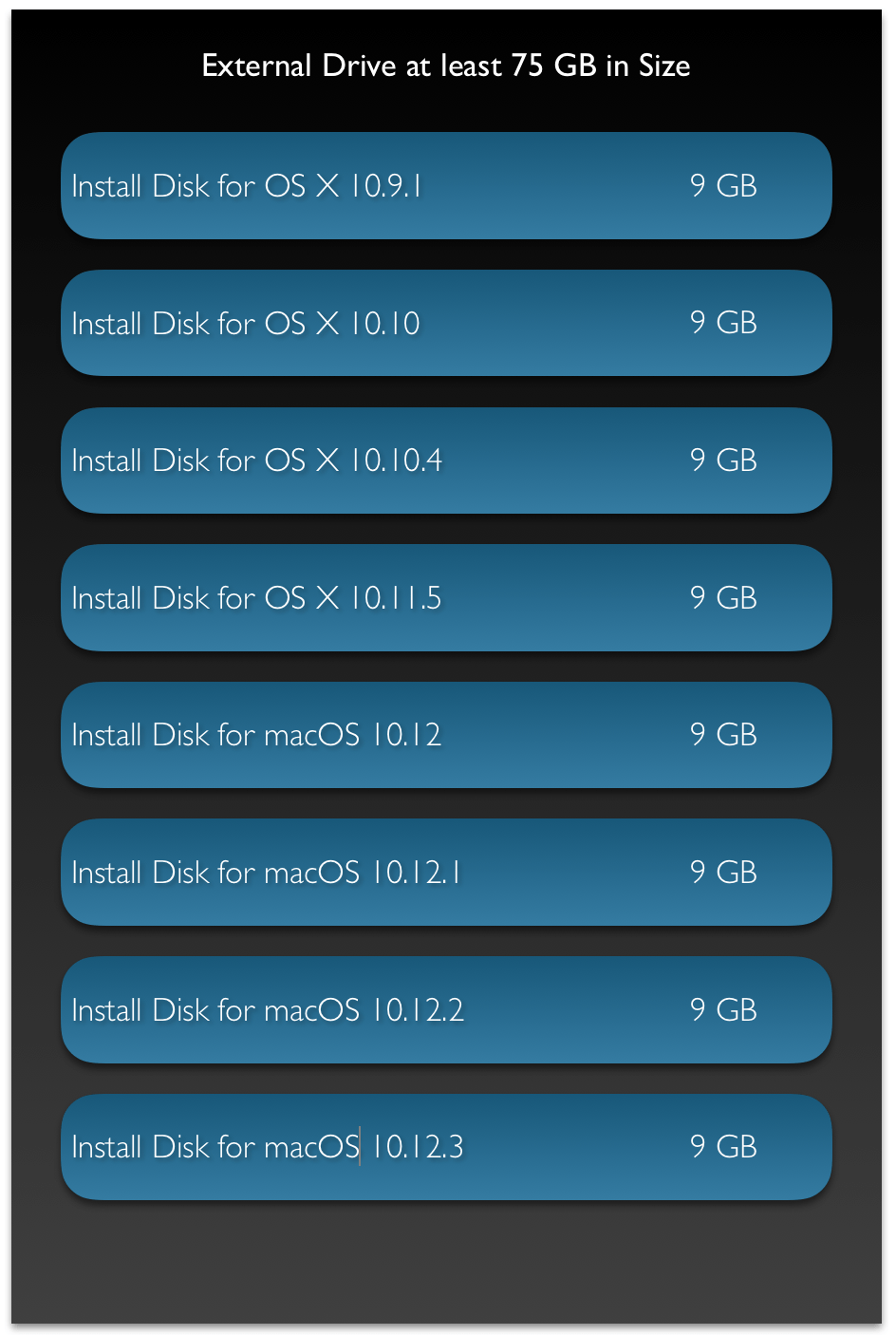
Screen Shot 2017-04-17 at 11.11.39 AM
This diagram illustrates the layout of the different partitions on a single USB Drive.

When to use Swift & when to use Objective-C?

Over the past few years I have received a number of questions with regards to Swift & Objective-C. Specifically related to the future of the 2. I will try to address those questions in the form of an FAQ.

Should I learn Swift or Objective-C?

This is a question that I get from developers new to iOS/macOS App Development. Ideally speaking, you should learn Swift. As that is going to become the main language for App development on Apple’s ecosystem. However, the reality is a little different. There are a large number of applications that are written in Objective-C. You are likely to encounter them at your workplace. You may also have to maintain, upgrade & improve those apps. In such a case, it makes sense to learn Objective-C too.

Can I mix Swift & Objective-C in the same project?

Yes! But remember that you should check for feature compatibility between the 2 languages. Adding Swift code to an Objective-C project may not be very beneficial as only those features that are compatible with Objective-C can be written in Swift.

Going the other way round is not a problem. You can read more about that here:Mixing Swift & Objective-C

Will Objective-C be deprecated in the future?

That is an interesting question. There is no formal announcement from Apple stating the Objective-C is going to be deprecated. However, one can expect more attention to be paid to Swift. That is where most of the newest techniques, tools & technologies are going to be available. Objective-C will keep running as it is as of now.

Can I mix Swift with other Programming Languages?

Swift can easily be mixed with Objective-C. If you wish to incorporate C++ or C code in your Swift Project then wrapping them in Objective-C code allows you to achieve this.

Apart from that Swift does support working with C code code. You can read about that here:Interacting with C APIs.

Swift does not provide interoperability support for any other languages as of now.

Which version of Swift should I use?

It is recommended that you use the latest available version of Swift. However, the actual version that you work on depends on many other factors like: compatibility with OS Versions, support & business related choices.

Why shouldn’t we just convert all our Objective-C code to Swift and keep things simple?

A very tempting proposition. However, practical realities prevent us from doing this. The process of converting from Objective-C to Swift is time consuming. Apart from having to convert the syntax, the code also needs to be optimised taking into account the new features that are available. This will mean extensive testing and quality assurance. Most companies will not invest their resources into this endeavour.

A better approach is to migrate to Swift gradually. Here are some ways to do this:

  1. If its a brand new product/app that you are creating, start it in Swift.
  2. Any new reusable code components that are being created should be done in Swift (they should be Objective-C compatible if you intend to use this code in Objective-C projects).
  3. If any part of a product is going to undergo heavy change, either due to a bug fix or a new feature. This is a good time to convert it into Swift.

A good example is how Apple is approaching the process of migrating to Swift. They are doing it component by component.

I have been developing apps in Objective-C for some time. I am able to create any reasonably complicated app now. If Objective-C hasn’t been deprecated then should I start making apps in Swift?

This is a choice that you have to make. It is recommended that new apps (at the very least) be made in Swift as that is the language that will undergo the maximum amount of changes & improvements in the future.

What do you suggest as a trainer?

Another question that I get very often. It depends on the situation. I would say learn both Swift & Objective-C. You can skip learning Objective-C if you are confident that you will not have to work with any projects written in that language.

If I am starting on a brand new project I would use Swift. But if its an Objective-C project I would stick to Objective-C.

Can Swift development only be done on macOS?

No! Swift development can also be done on Linux. However, iOS/macOS/tvOS/watchOS App Development can only be done on macOS through Xcode.

How should I migrate to Swift?

There are different approaches that one can use. It all depends on the situation and needs of your organisation. Here are some things that you can do:

  • Start development of brand new apps (from scratch) in Swift.
  • If you are creating a brand new library which will be used for future projects then go ahead with Swift.
  • If a major component of an existing app is going to be changed significantly then you can go ahead with Swift.

You can do all or some of the above. There may be other strategies too. You should also factor in the cost of migration from one language to another.